Connect a CalDAV Calendar
CalDAV is an open internet standard for reading and writing calendar data, used by email providers like Fastmail and Zoho and self-hosted tools like Nextcloud, Radicale and Baïkal.
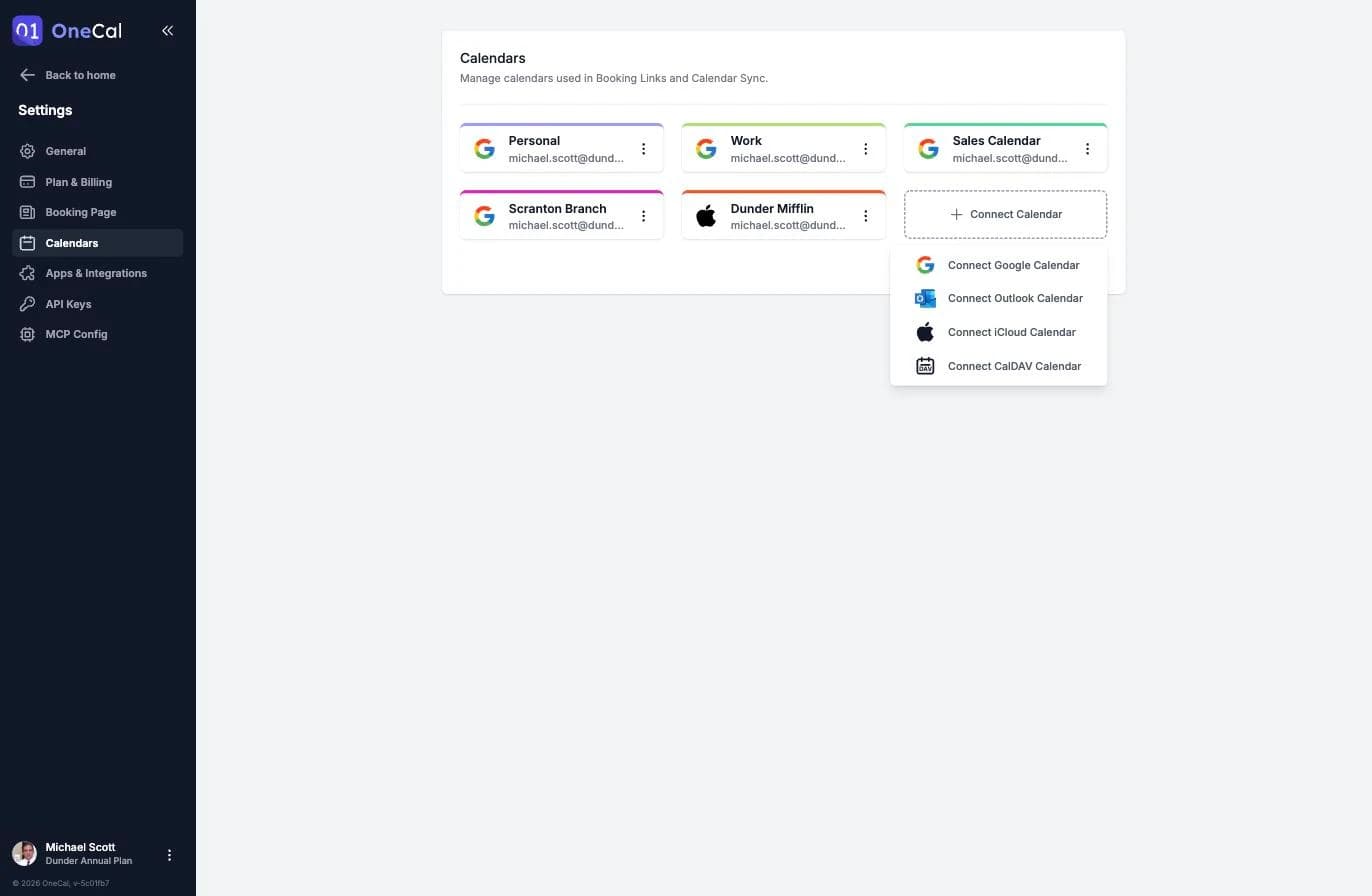
You can connect a CalDAV calendar account from the OneCal dashboard, from Settings → Calendars, or during onboarding. Click Connect Calendar and choose Connect CalDAV Calendar.

Good To Know
If your calendar is in Apple iCloud, use Connect iCloud Calendar instead. Google and Outlook calendars also have their own connection options: Connect Google Calendar and Connect Outlook Calendar.
Connect your account
- Under Calendar provider, choose your provider. You can scroll the list or type to search it. If your provider is not listed, choose Other CalDAV server.
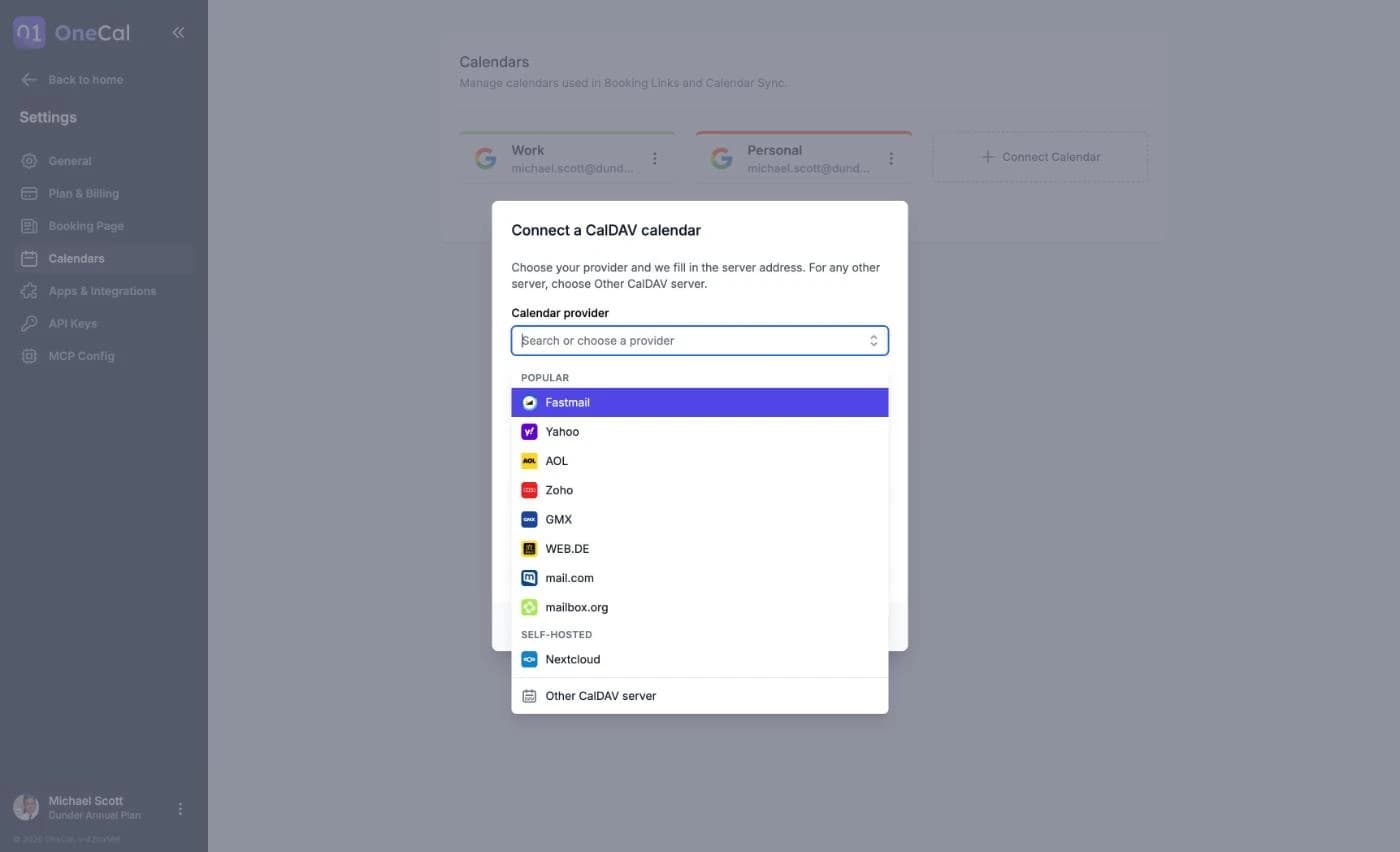
Choose your provider from the list, or type to search for it. - Fill in the server details. What you see depends on the provider:
- Hosted providers such as Fastmail, Yahoo or GMX: OneCal fills in the server address for you. Click Change only if your provider gave you a different address.
- Zoho: Choose your Data center. It is the one in the address you see when you sign in to Zoho, for example
zoho.eu. - Nextcloud: Enter the address you use to open Nextcloud in your browser, for example
cloud.example.com. OneCal adds the rest of the CalDAV address for you. - Other CalDAV server: Enter the Server address of your provider. It must start with
https://. You can usually find it in your provider's help pages, or in the table below.
- Enter your email address or username, and an app-specific password. OneCal never uses your normal account password. If you don't have an app-specific password for OneCal yet, create one with your provider.
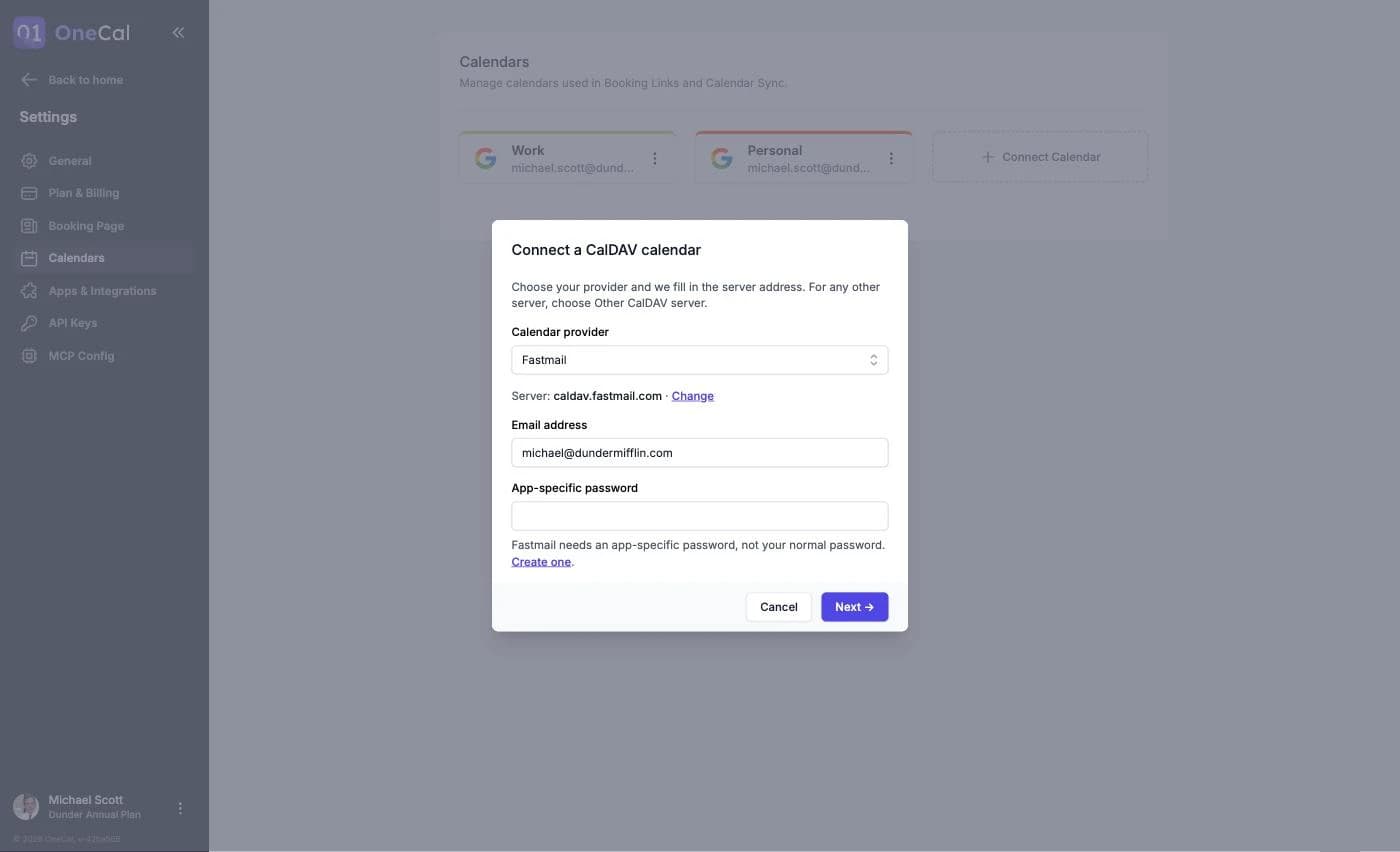
The Connect a CalDAV calendar modal. - Click Next.
If you type your email address before you choose a provider, OneCal recognizes many providers from the email domain and chooses the provider for you. You can still change it.
Always Use an App-Specific Password
An app-specific password is a separate password that you create with your calendar provider just for OneCal. You always need one to connect a CalDAV calendar, and your normal account password does not work. You create it once in your provider's security settings and enter it in OneCal. If you already created one for OneCal and still have it, you can use it again. An app-specific password also lets you revoke OneCal's access at any time without changing your main password.
Server addresses for popular providers
OneCal fills in these addresses for you when you choose the provider. They are listed here in case you use Other CalDAV server or another app.
| Provider | Server address | Login | App-specific password |
|---|---|---|---|
| Fastmail | https://caldav.fastmail.com | Email address | How to create one |
| Yahoo | https://caldav.calendar.yahoo.com | Email address | How to create one |
| AOL | https://caldav.aol.com | Email address | How to create one |
| Zoho (United States) | https://calendar.zoho.com | Email address | How to create one |
| Zoho (Europe) | https://calendar.zoho.eu | Email address | How to create one |
| Zoho (Australia) | https://calendar.zoho.com.au | Email address | How to create one |
| GMX (gmx.net, gmx.de, gmx.at, gmx.ch) | https://caldav.gmx.net | Email address | How to create one |
| GMX (gmx.com, gmx.co.uk, gmx.fr, gmx.es) | https://caldav.gmx.com | Email address | In your GMX account security settings |
| WEB.DE | https://caldav.web.de | Email address | How to create one |
| mail.com | https://caldav.mail.com | Email address | In your mail.com account security settings |
| mailbox.org | https://dav.mailbox.org | Email address | How to create one |
| Nextcloud | https://your-server/remote.php/dav | Username | How to create one |
Google Calendar, Outlook and iCloud have their own connection options in OneCal, so you don't need CalDAV for them. Proton Calendar and Tuta do not support CalDAV, so they cannot be connected.
Choose which calendars to import
After your credentials are verified, you choose which calendars to import. All calendars are pre-selected, and you can uncheck the ones you don't want, toggle everything with Select All or Deselect All, and rename calendars before importing. Click Import Calendars to finish.
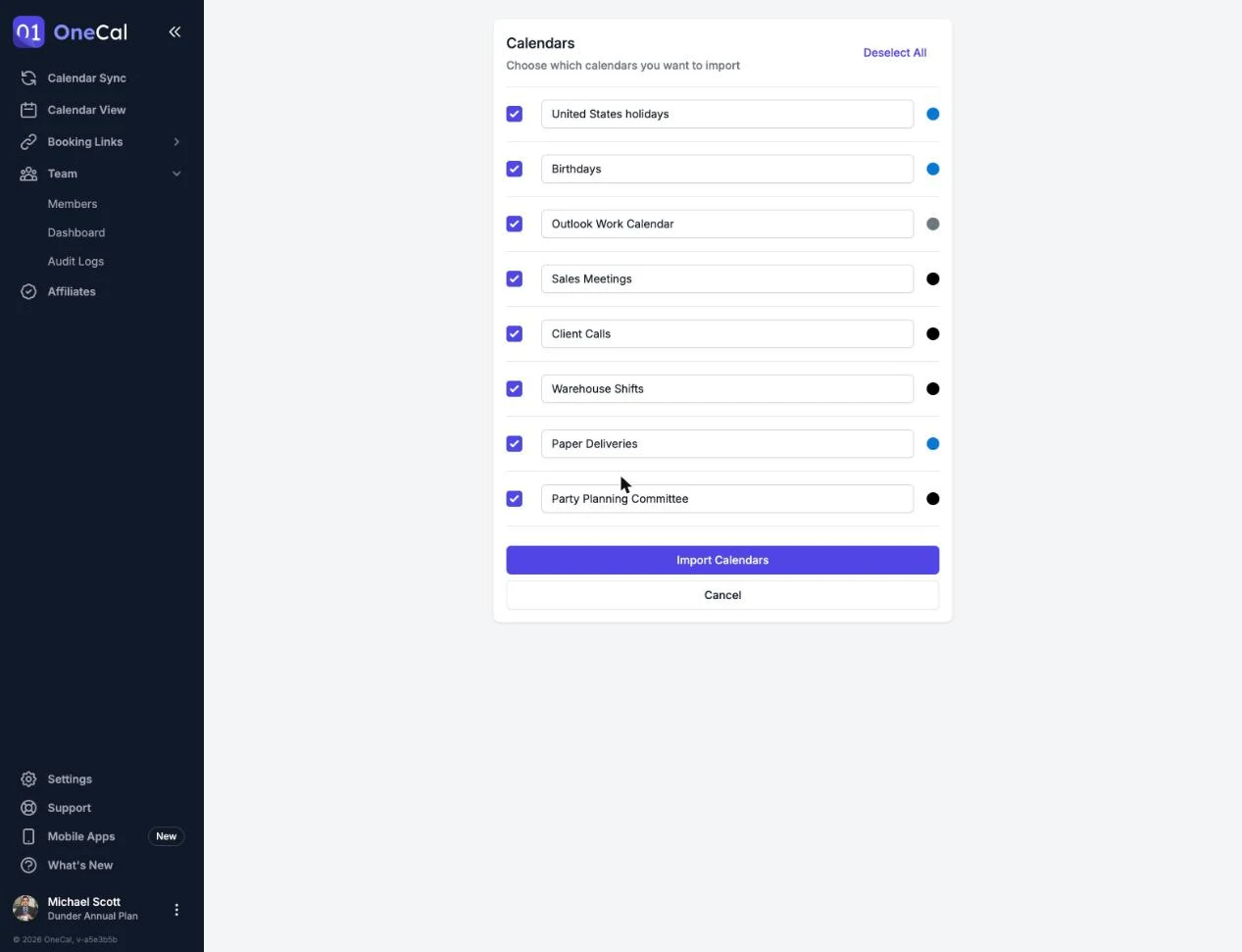
Imported calendars count towards your plan's calendar limit. See Plans and Free Trial.
What works with CalDAV calendars
You can use CalDAV calendars in every OneCal feature, just like your other calendars. This includes Calendar Sync, the Unified Calendar View, booking links, the AI Assistant and more.
A few features work differently on CalDAV calendars:
- Event colors: Clone event colors and excluding events by color are not available, because CalDAV calendars do not support custom event colors.
- Booking links: CalDAV calendars can read your availability in booking links, and you can choose them under Add events to so bookings are added to your CalDAV calendar. Your schedulers get the calendar invitation (.ics) in their confirmation email, because OneCal turns on Include ICS invitation in confirmation automatically when you choose a CalDAV calendar.
- Live updates: CalDAV servers do not notify OneCal when something changes, so OneCal checks the CalDAV calendars in your calendar syncs for changes about every 10 minutes, and your calendar syncs pick them up from there.
- Conferencing: CalDAV calendars do not have a built-in video conferencing tool, so they cannot add a Google Meet or Microsoft Teams link to events by default.
Troubleshooting
- "That server address could not be used": Check that the address is correct and starts with
https://. OneCal only connects to CalDAV servers over a secure connection, and the server must be reachable from the internet. Addresses on your home or office network, such as192.168.1.10, do not work. - "We could not find a CalDAV server at that address": The address is valid, but OneCal did not find a CalDAV calendar there. Check the address in the table above or in your provider's help pages. For Nextcloud, use the address you open in your browser.
- "We could not sign in to that CalDAV server": The server rejected your username or app-specific password. Check both. If you are not sure that the app-specific password is correct, create a new one with your provider and try again.
- "That CalDAV account is already connected to another OneCal user": Each CalDAV account can be connected to only one OneCal user. Remove it from the other OneCal account first.
If you delete or revoke the app-specific password that OneCal uses, the connection expires. See Fix an Expired Calendar Connection to reconnect it.