Connect Outlook Calendar
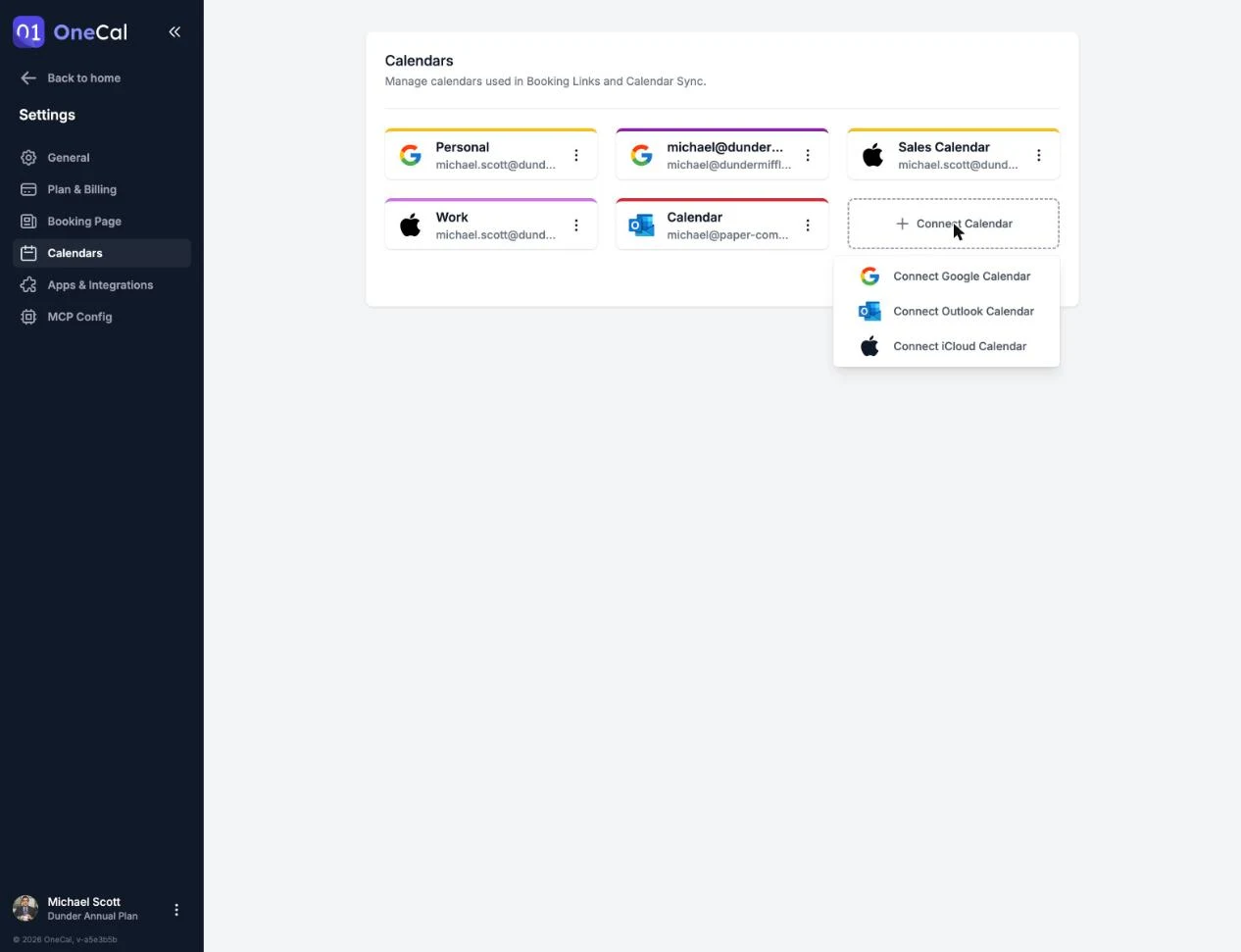
You can connect a Microsoft calendar account from the OneCal dashboard, from Settings → Calendars, or during onboarding. Click Connect Calendar and choose Connect Outlook Calendar.

Grant access
You are taken to Microsoft to sign in and grant OneCal access to read and write your calendars and events. This works with personal Outlook accounts and Microsoft 365 work accounts.
If your organization requires admin approval
If your organization requires admin approval for third-party apps, the calendar connection is blocked until an administrator approves OneCal. The approval process is handled entirely by your organization and Microsoft, so OneCal cannot approve the app for you or bypass the restriction, and we cannot advise on your organization's Microsoft settings.
To get OneCal approved, contact your IT department and share these two pages with them:
- onecal.io/admin-approval, which explains what OneCal does and exactly which permissions it needs.
- onecal.io/data-security, which describes our security practices.
If your IT department cannot approve the app, they can raise the question with Microsoft support directly.
Choose which calendars to import
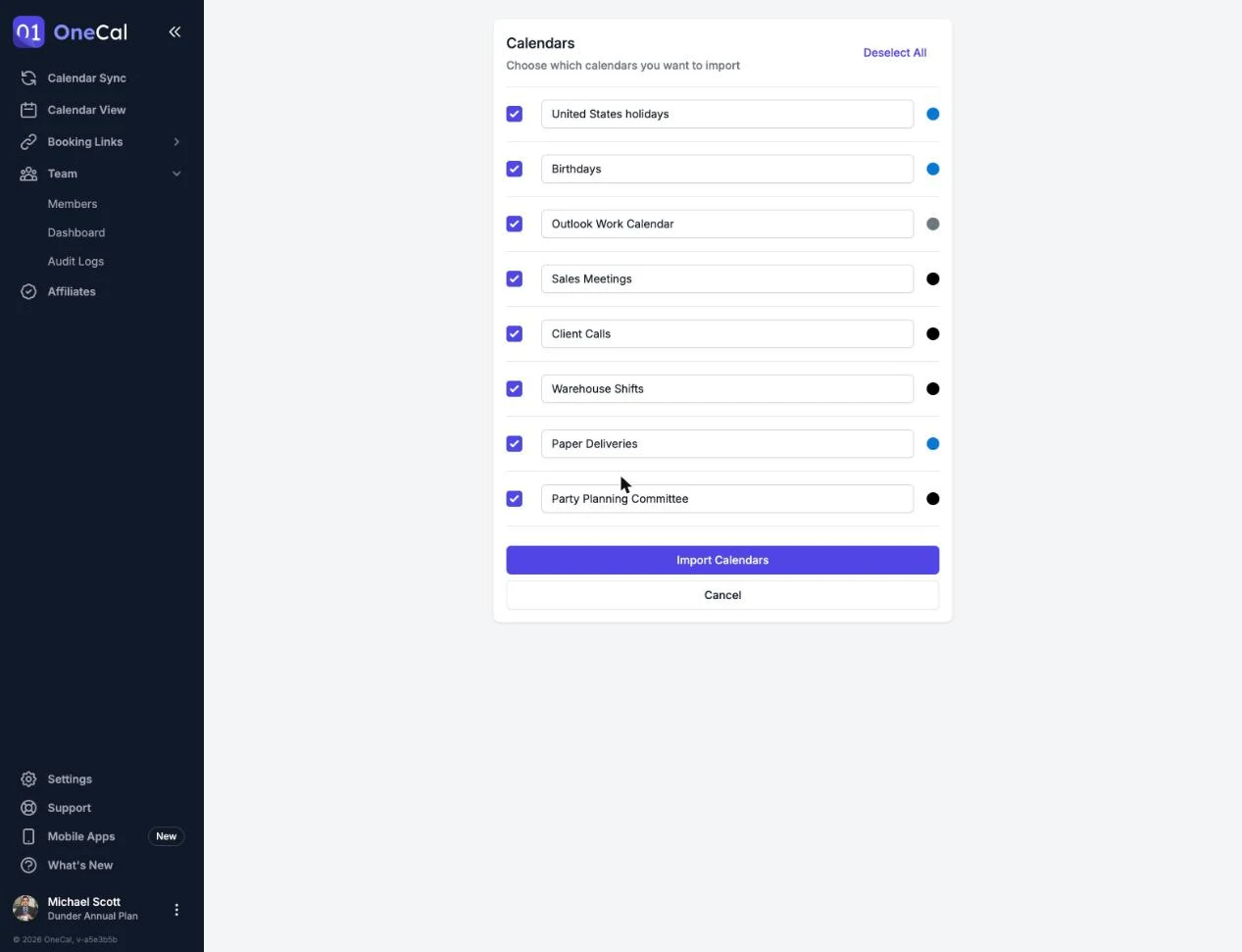
After granting access, you choose which calendars to import. All calendars are pre-selected, and you can:
- Uncheck the calendars you don't want in OneCal.
- Use Select All or Deselect All to toggle everything at once.
- Rename any calendar before importing. The name only changes within OneCal.
Click Import Calendars to finish.
Imported calendars count towards your plan's calendar limit. If you select more calendars than your plan allows, OneCal asks you to uncheck some or upgrade your plan. See Plans and Free Trial.