Connect Google Calendar
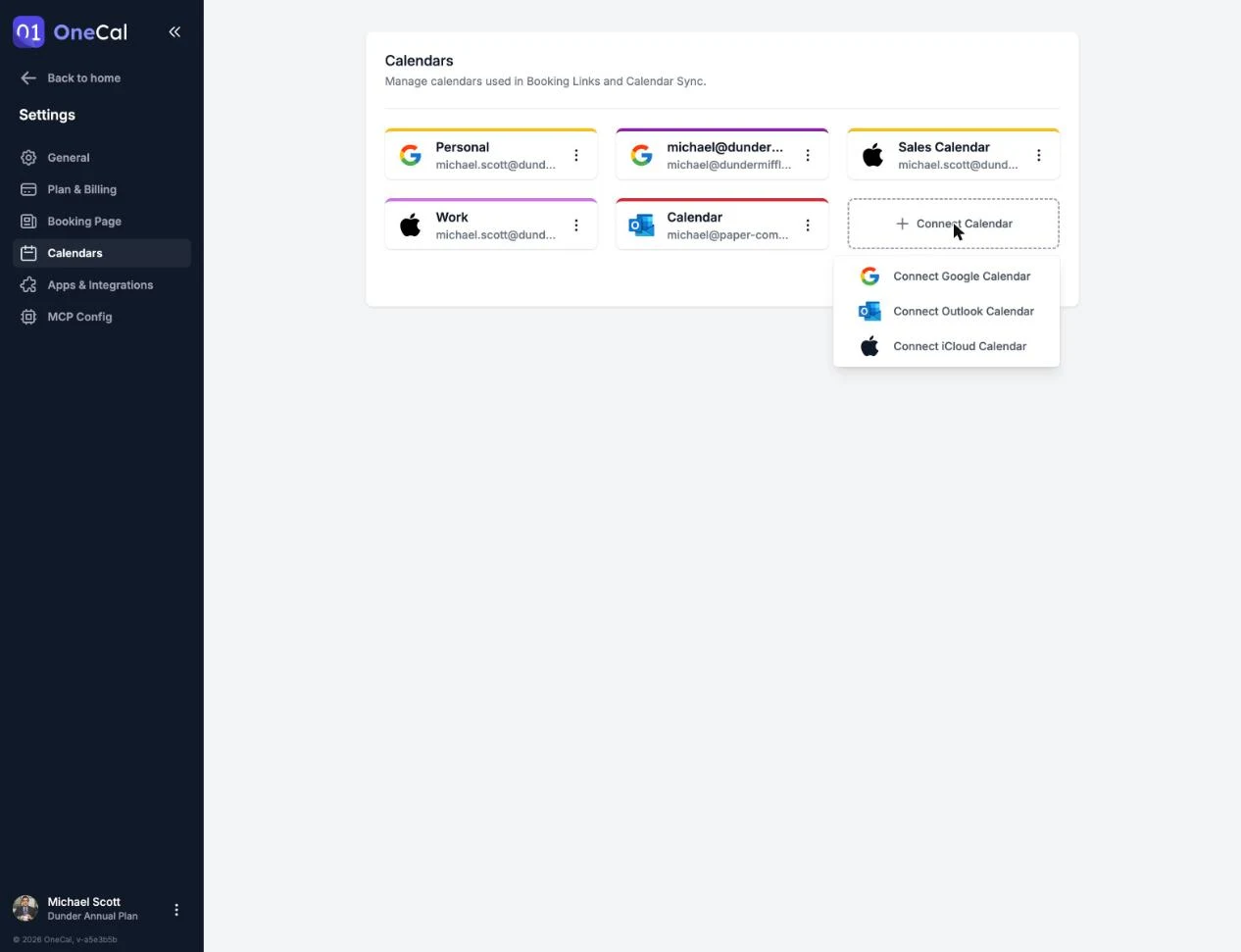
You can connect a Google calendar account from the OneCal dashboard, from Settings → Calendars, or during onboarding. Click Connect Calendar and choose Connect Google Calendar.

Grant access
You are taken to Google to pick an account and grant OneCal access to your calendars. OneCal asks for permission to see your calendar list and to view and edit events, which is what Calendar Sync and Booking Links need to work.
Good To Know
Make sure to select all permission checkboxes when prompted. If a permission is missing, the calendar connection cannot complete and you will be asked to try again.
Choose which calendars to import
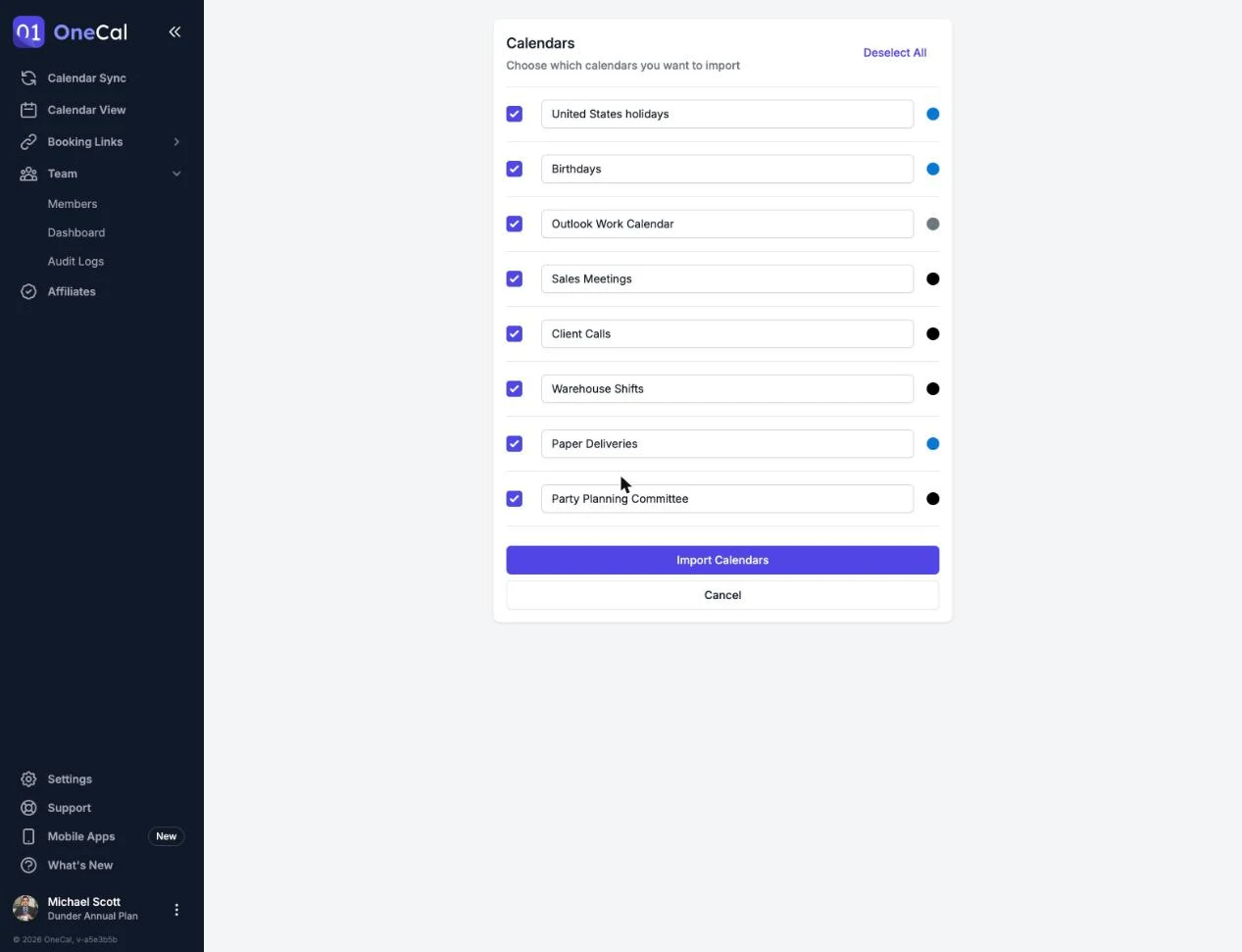
After granting access, you choose which calendars to import. All calendars are pre-selected, and you can:
- Uncheck the calendars you don't want in OneCal.
- Use Select All or Deselect All to toggle everything at once.
- Rename any calendar before importing. The name only changes within OneCal.
Click Import Calendars to finish.
Imported calendars count towards your plan's calendar limit. If you select more calendars than your plan allows, OneCal asks you to uncheck some or upgrade your plan. See Plans and Free Trial.
You can connect as many Google calendar accounts as you like, the limit applies to the total number of imported calendars.