Fix an Expired Calendar Connection
A calendar connection is the authorization between OneCal and one whole calendar account, so it covers every calendar you imported from that Google, Outlook or iCloud account. It can expire when the provider stops accepting OneCal's access. This usually happens when you change the password of your calendar provider account, revoke access to OneCal, your organization's admin revokes it, or your iCloud app-specific password is changed or deleted.
While a calendar connection is expired, calendar syncs involving any calendar from that calendar account are paused and booking links that use those calendars stop working, so schedulers cannot book time with you until the calendar connection is refreshed.
How to spot an expired calendar connection
- A banner on the OneCal dashboard: "Account connection expired", which refers to the calendar connection for that calendar account.
- A red tag on the affected calendar cards: "Expired - click here to refresh".
- A warning on your booking link page, visible only to you. Booking links that use a calendar from that calendar account do not work until the calendar connection is refreshed.
- An email from OneCal titled "Your calendar connections have expired", with reminders if the calendar connection stays expired.

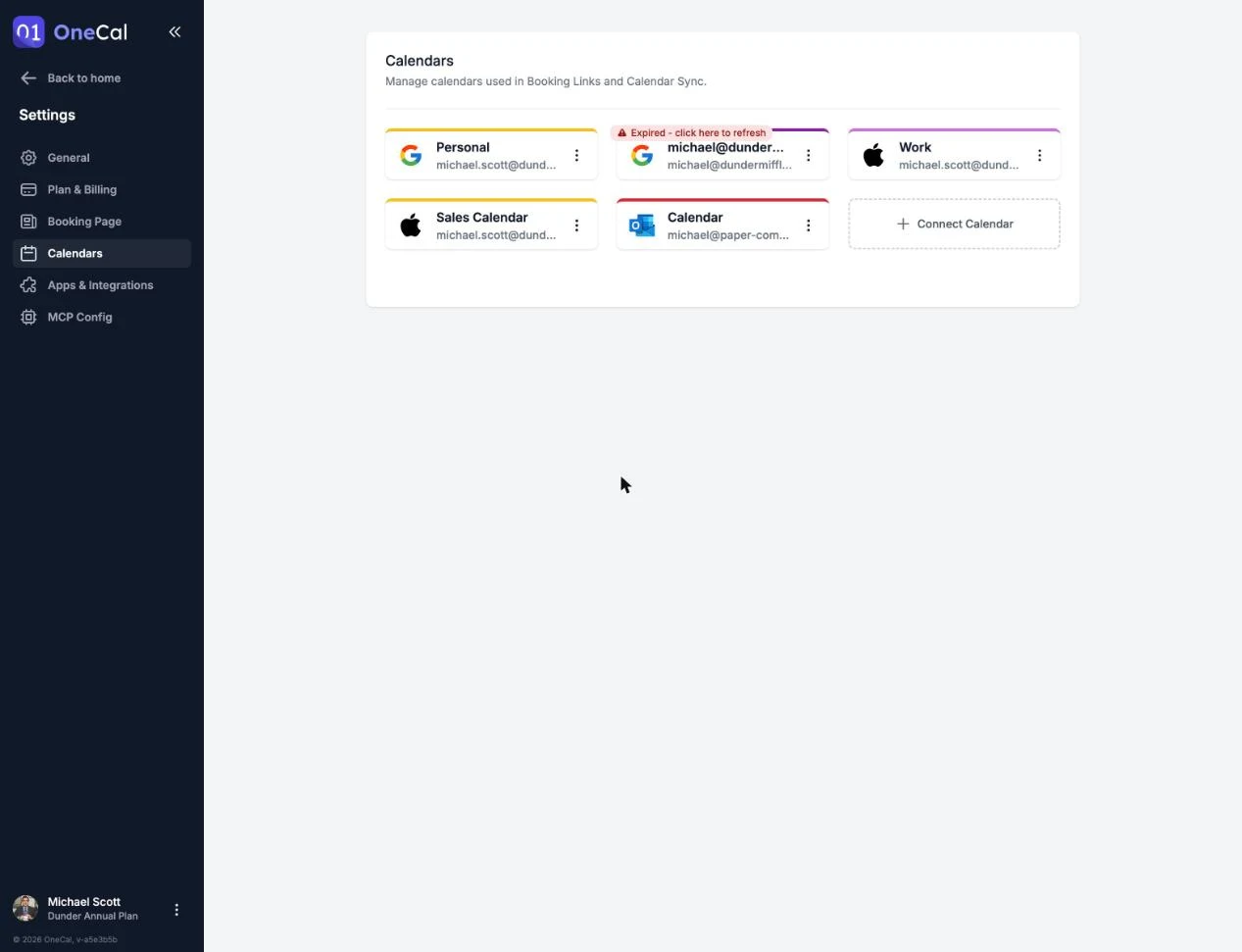
Refresh the calendar connection
- Go to Settings → Calendars.
- On the expired calendar's card, open the menu and click Refresh connection, or click the red Expired tag. Refresh connection always refreshes the whole calendar connection, so every calendar you imported from that calendar account is restored at once, not just the calendar whose card you clicked.
- What happens next depends on the provider:
- Google: You are sent to Google to re-approve OneCal's access.
- Outlook: You are sent to Microsoft to sign in again.
- iCloud: A modal asks you for a new app-specific password. If you deleted the old one, create a new app-specific password first.
- CalDAV: A modal opens with your server address and username already filled in. Enter your app-specific password. If you deleted or revoked the old one, or don't remember it, create a new app-specific password with your provider first.
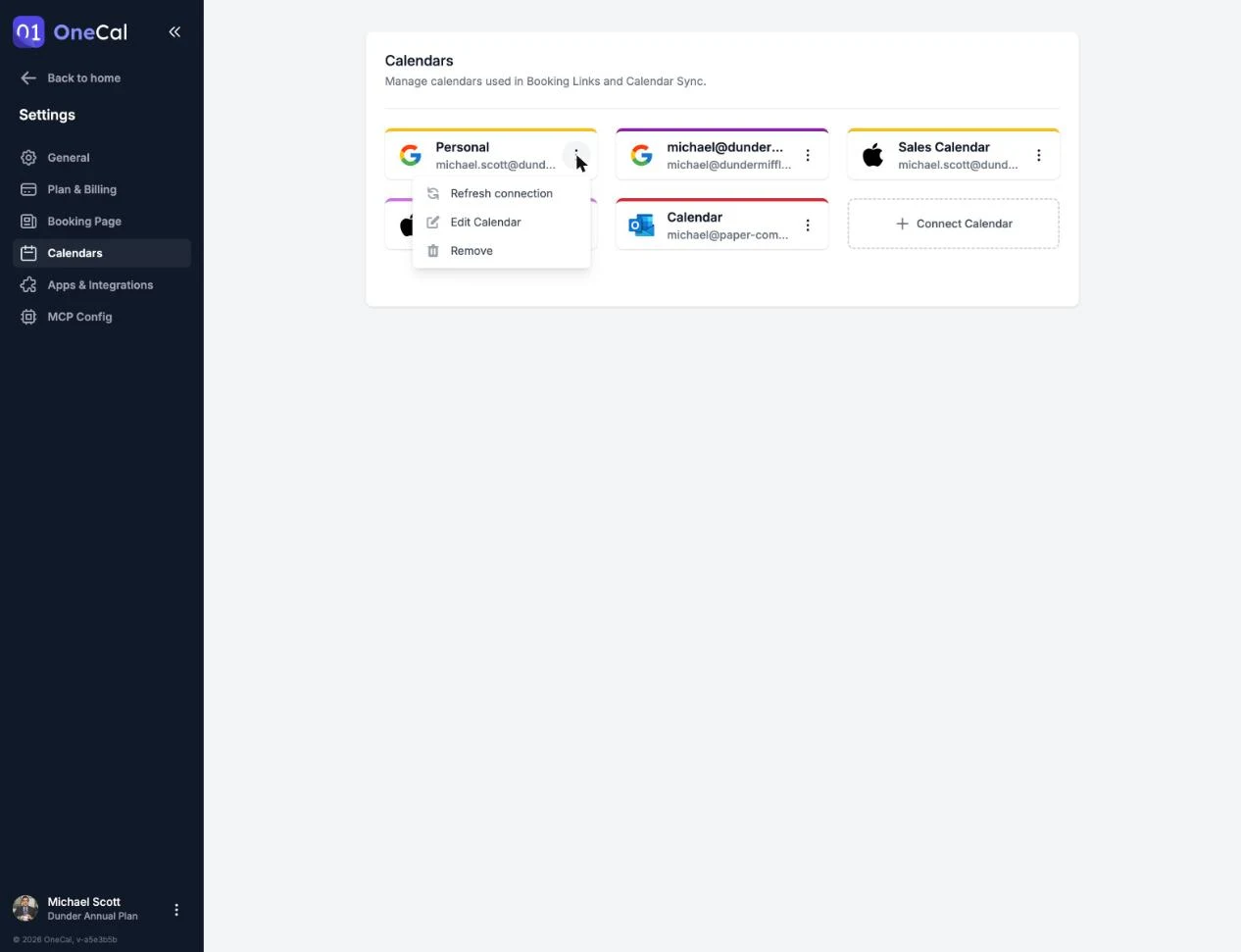
Good To Know
After refreshing the calendar connection, remember to un-pause your calendar syncs so they start running again. You can un-pause each calendar sync from the Calendar Sync page.