Connect iCloud Calendar
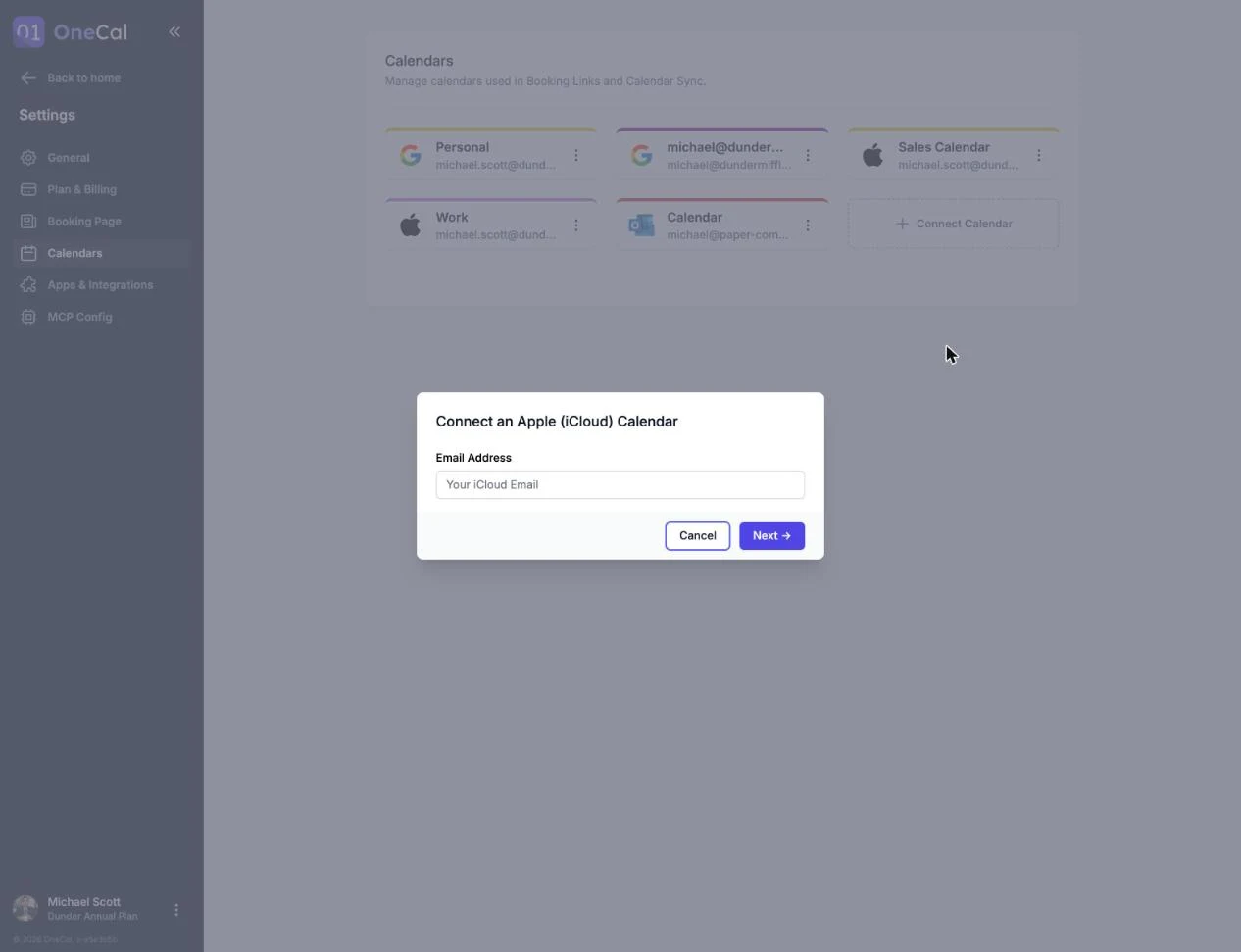
You can connect an Apple (iCloud) calendar account from the OneCal dashboard, from Settings → Calendars, or during onboarding. Click Connect Calendar and choose Connect iCloud Calendar.
Unlike Google and Outlook, iCloud connects with your Apple ID email and an app-specific password instead of a sign-in redirect.
Connect your account
- Enter your iCloud email address and click Next.
- Enter an app-specific password created for OneCal and click Connect.
Good To Know
The app-specific password is NOT your iCloud account password. You create it in your Apple ID settings especially for OneCal. Follow our guide to create an Apple ID app-specific password.

Choose which calendars to import
After your credentials are verified, you choose which calendars to import. All calendars are pre-selected, and you can uncheck the ones you don't want, toggle everything with Select All or Deselect All, and rename calendars before importing. Click Import Calendars to finish.
Imported calendars count towards your plan's calendar limit. See Plans and Free Trial.
Good To Know
Some OneCal features work slightly differently on iCloud calendars. For example, clone event colors and excluding events by color are not available, because iCloud handles event colors differently than Google and Outlook.
iCloud Calendars and Booking Links
iCloud calendars work with booking links, both to read your availability and to receive bookings when you choose them under Add events to. Your schedulers get the calendar invitation (.ics) in their confirmation email, because OneCal turns on Include ICS invitation in confirmation automatically when you choose an iCloud calendar.