Understanding Unified Calendar View
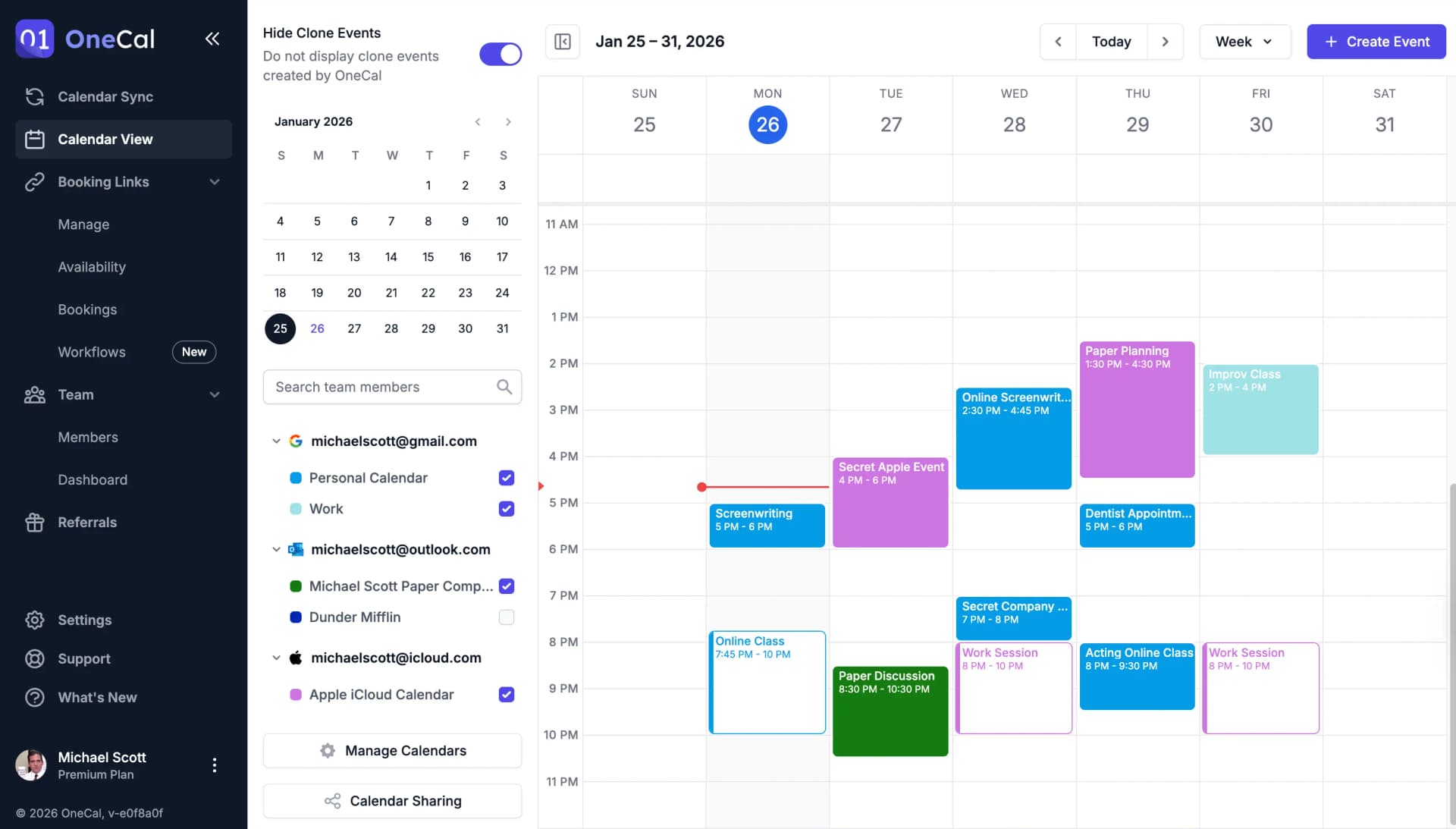
With OneCal Unified Calendar View you can merge Outlook, iCloud and Google Calendars in one view, create events, edit events, delete events, quickly join meetings, hide the clone events created by OneCal Calendar Sync, and much more.

View Events
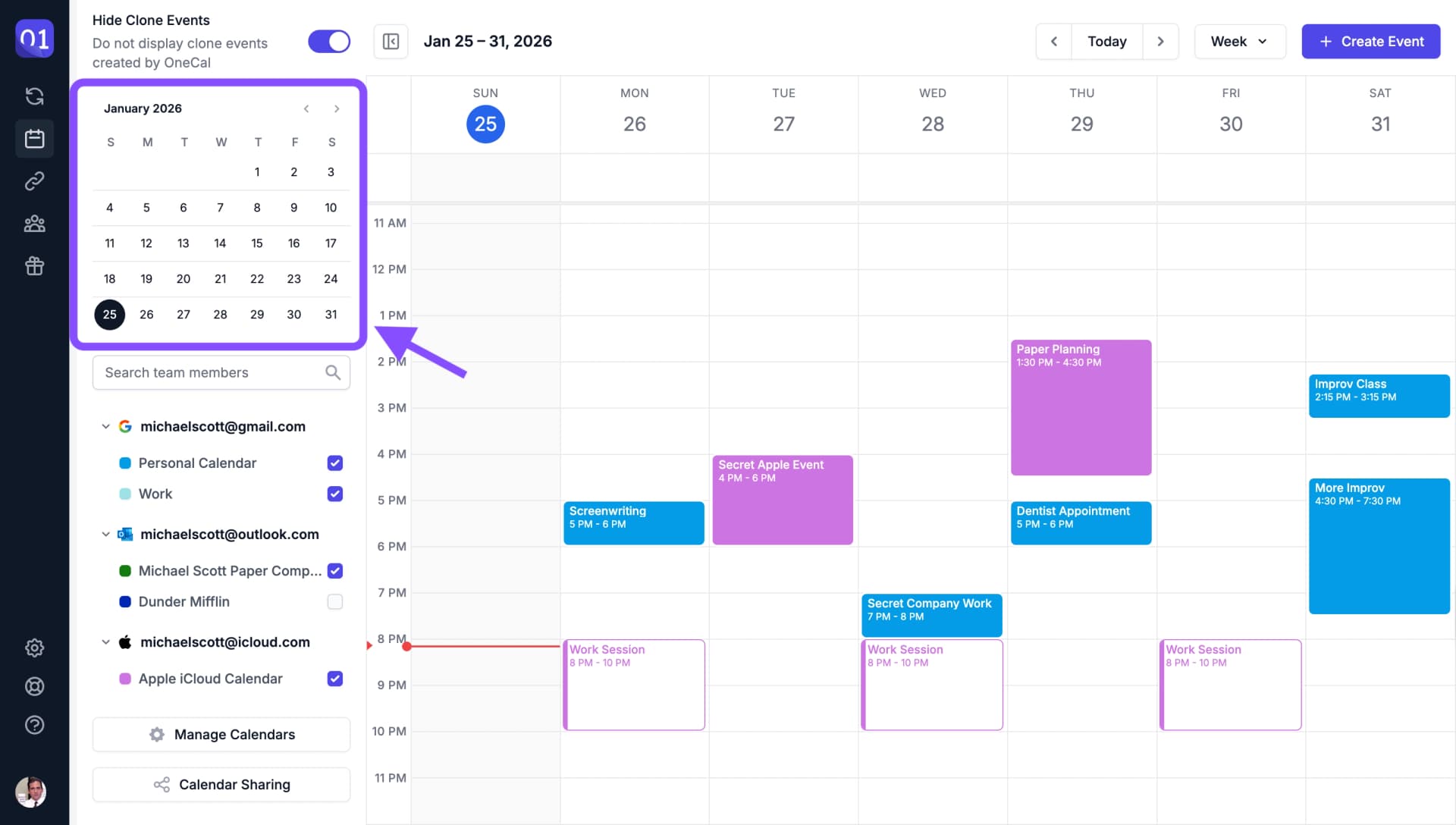
Unified Calendar View makes it easy for you to view all your meetings across all calendars. Use the DatePicker on the calendar sidebar to quickly navigate between dates.
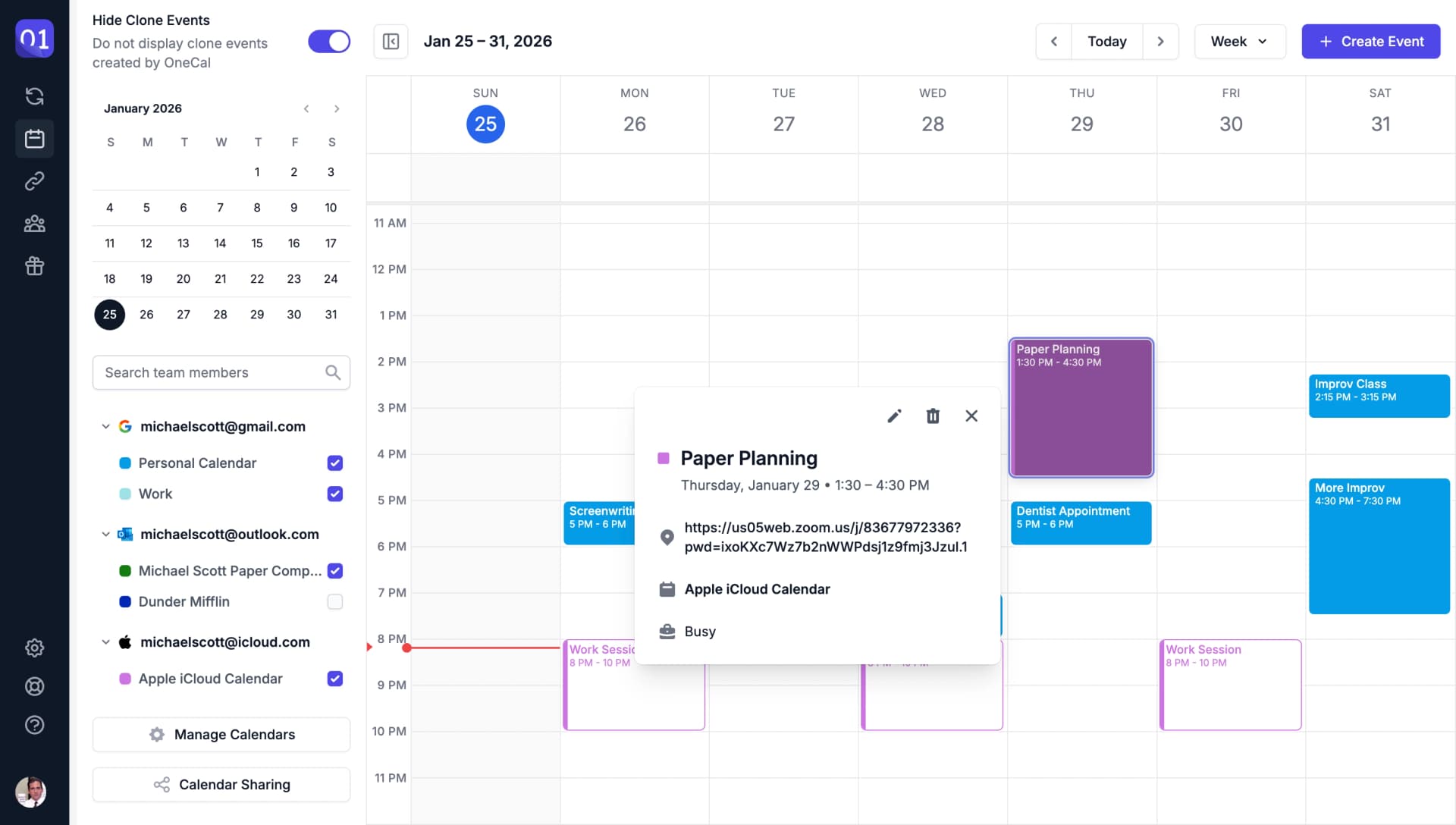
Click on any event to view all the meeting details.
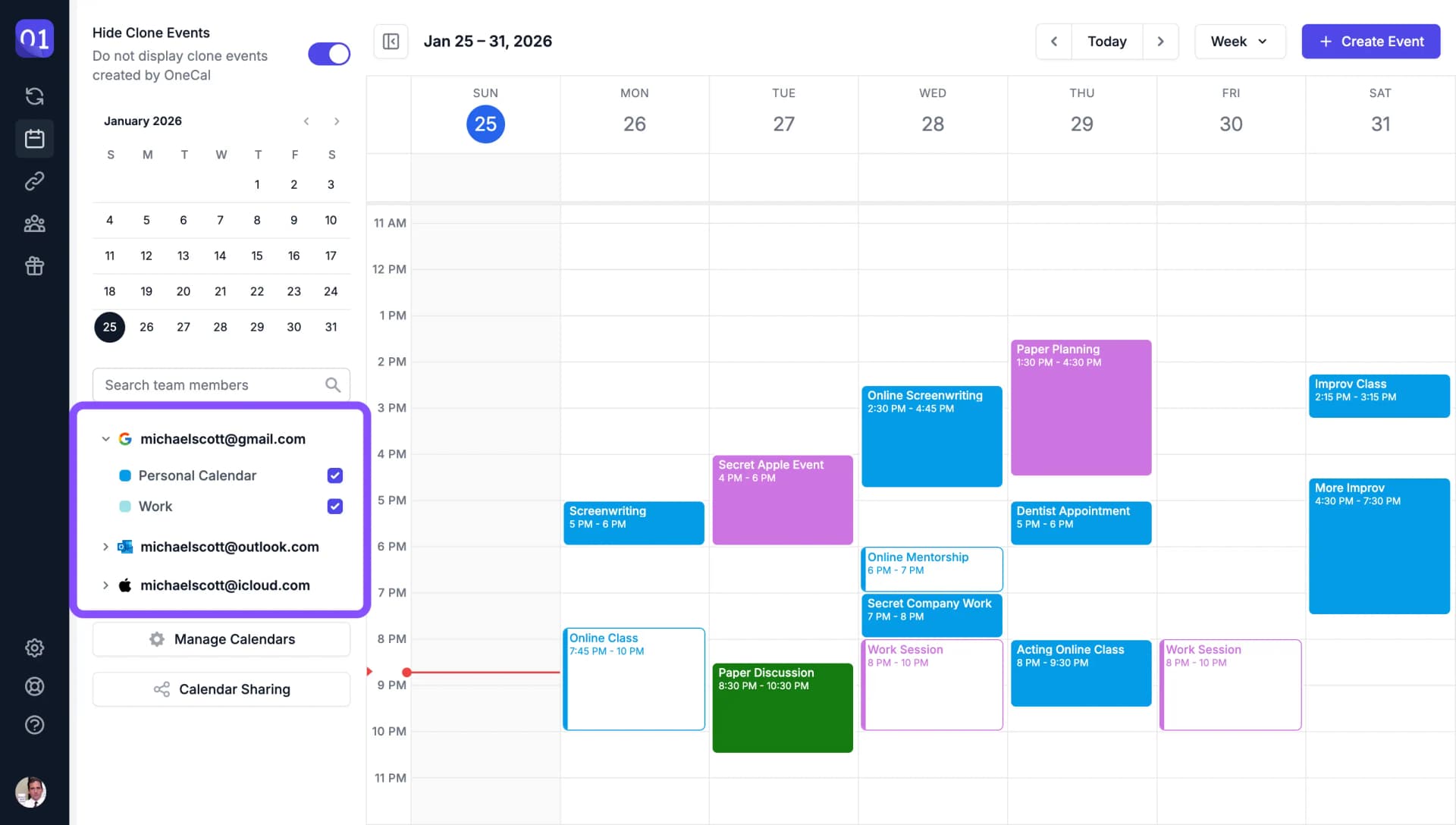
To reduce clutter, you can collapse calendar groups to focus on what matters.
Search Events
Use the search icon at the top of the Unified Calendar View to search events across your selected calendars by title, description, location, or participant.
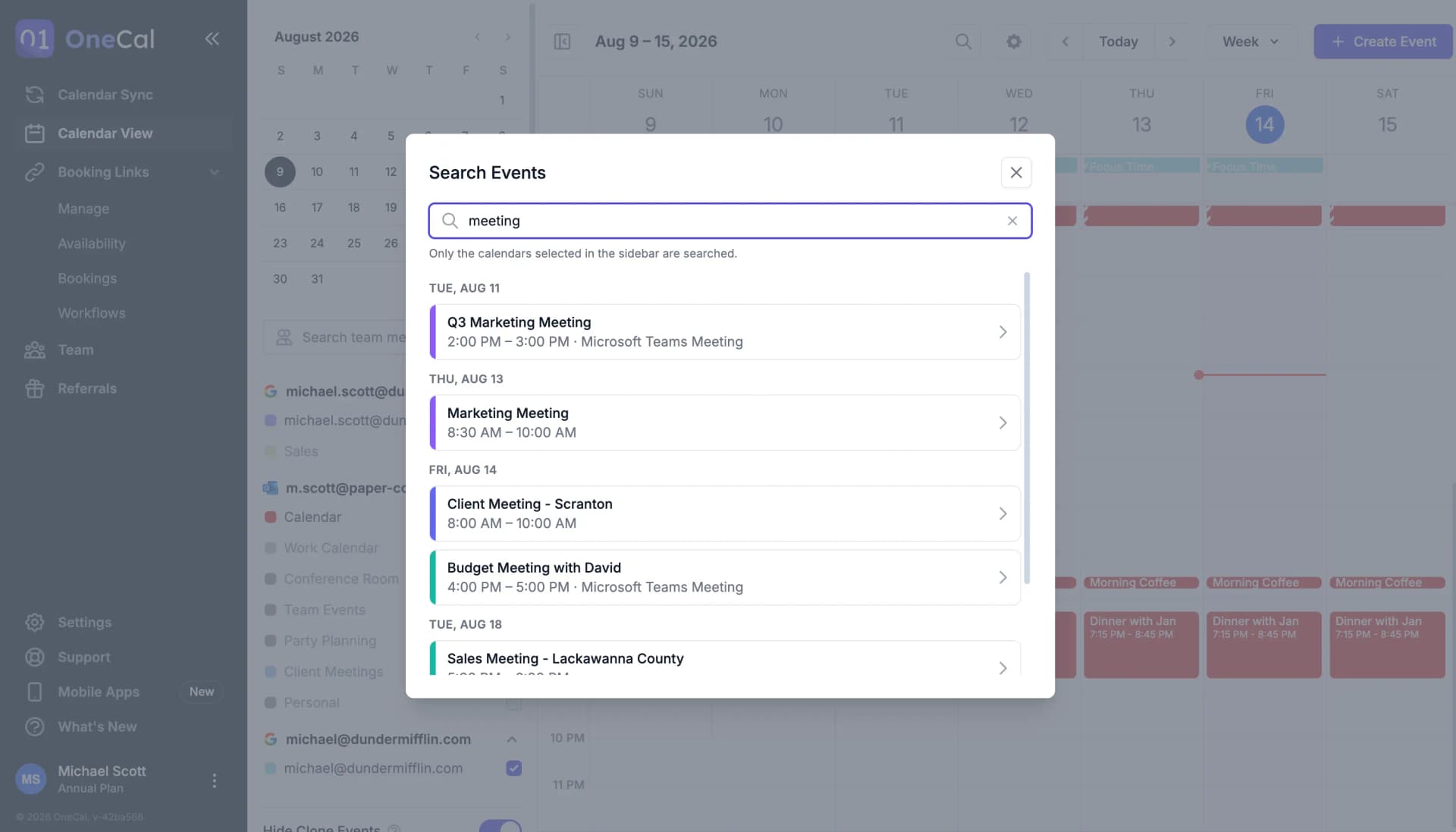
Learn more about searching events
Create Events
You can create events in the Unified Calendar View using three different methods: the Create Event button, clicking on a free time slot, or dragging to create an event with a specific duration.
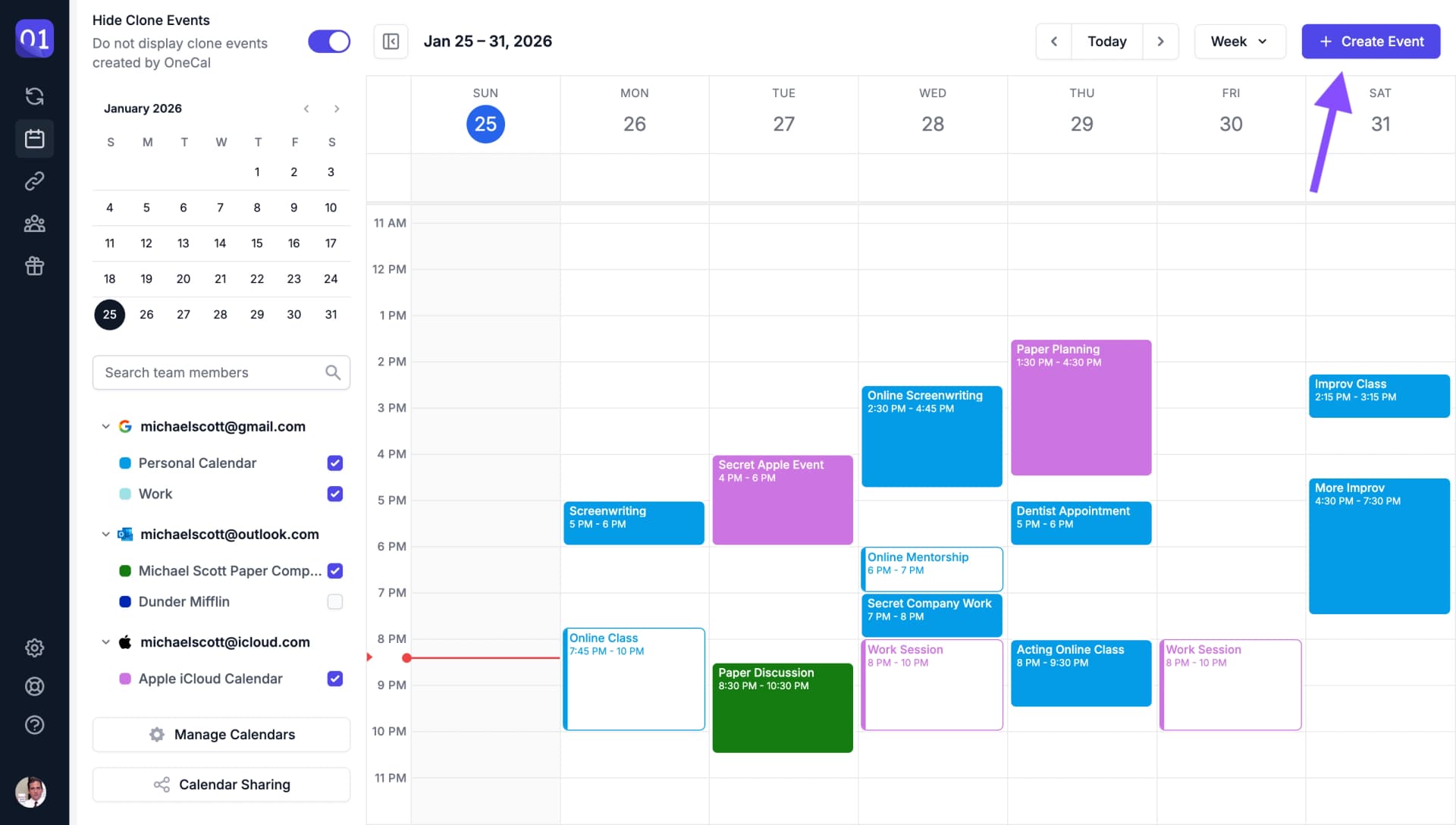
Learn more about creating events
Edit Events
To edit an event, click on the event and then click the edit icon. For recurring events, you can choose to edit a single occurrence or the entire series.
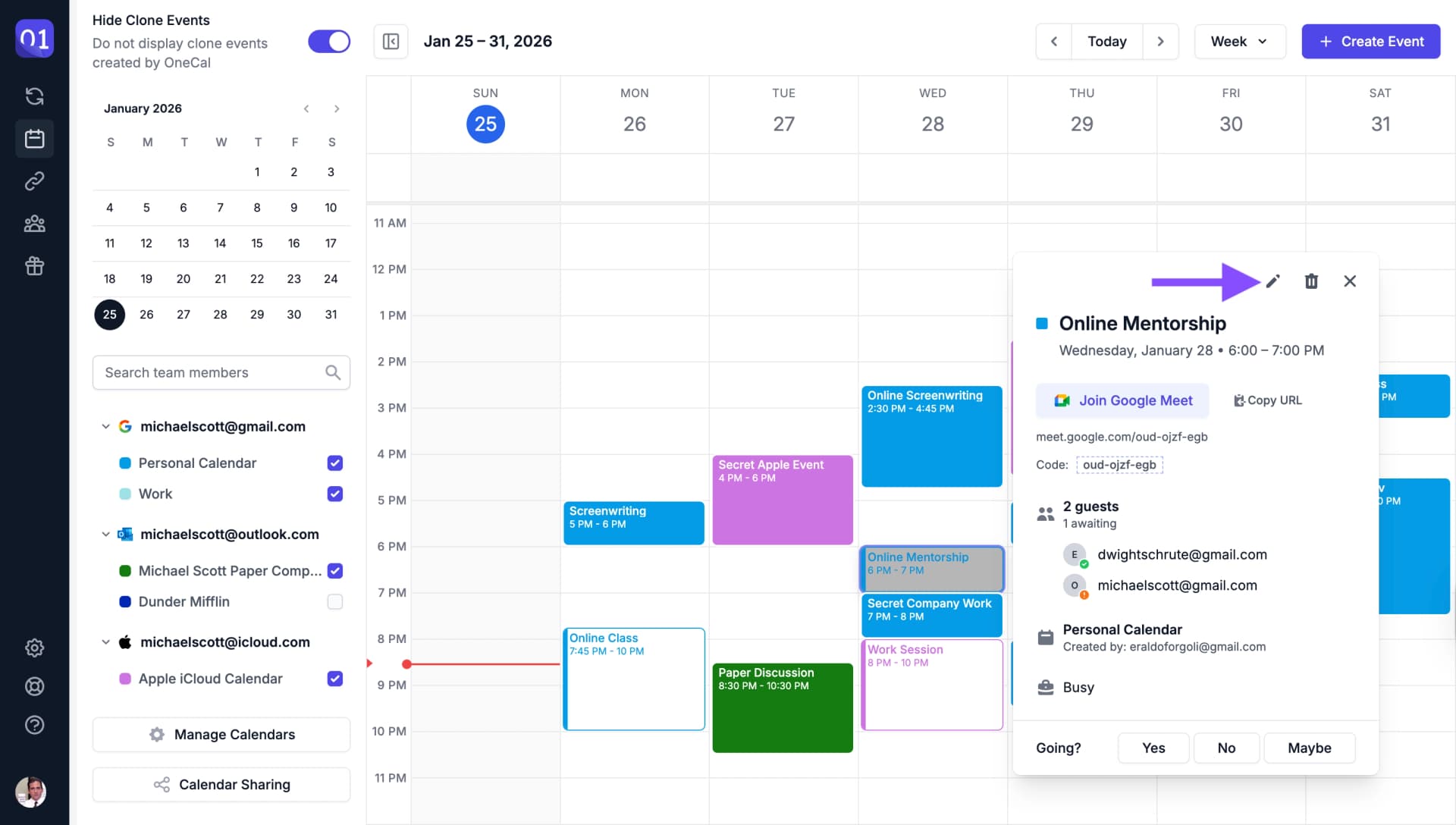
Learn more about editing events
Delete Events
To delete an event, click on the event and then click the delete button. For recurring events, you can choose to delete a single occurrence or the entire series.
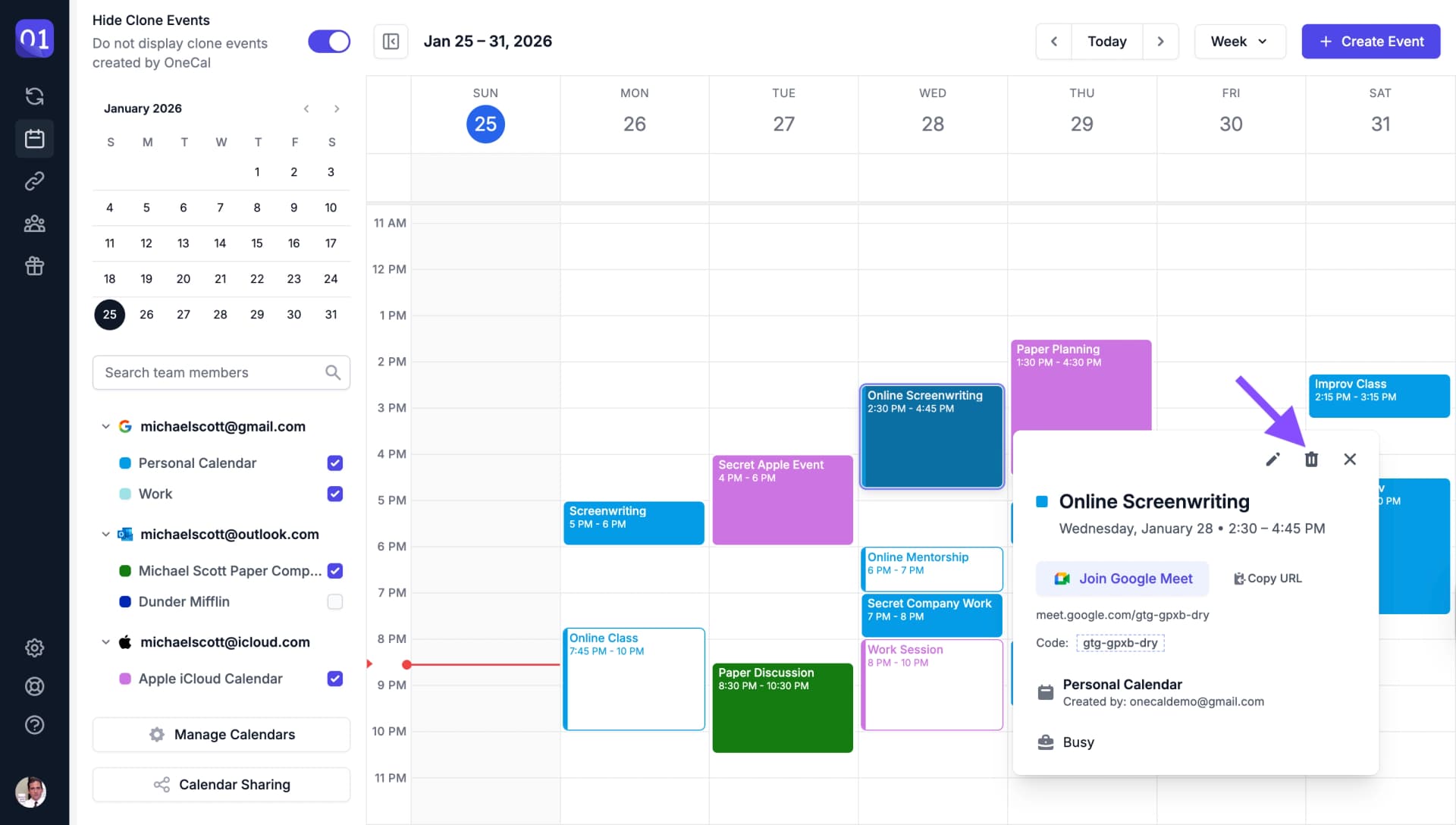
Learn more about deleting events
Join Meetings
Quickly join conference meetings directly from the event details.
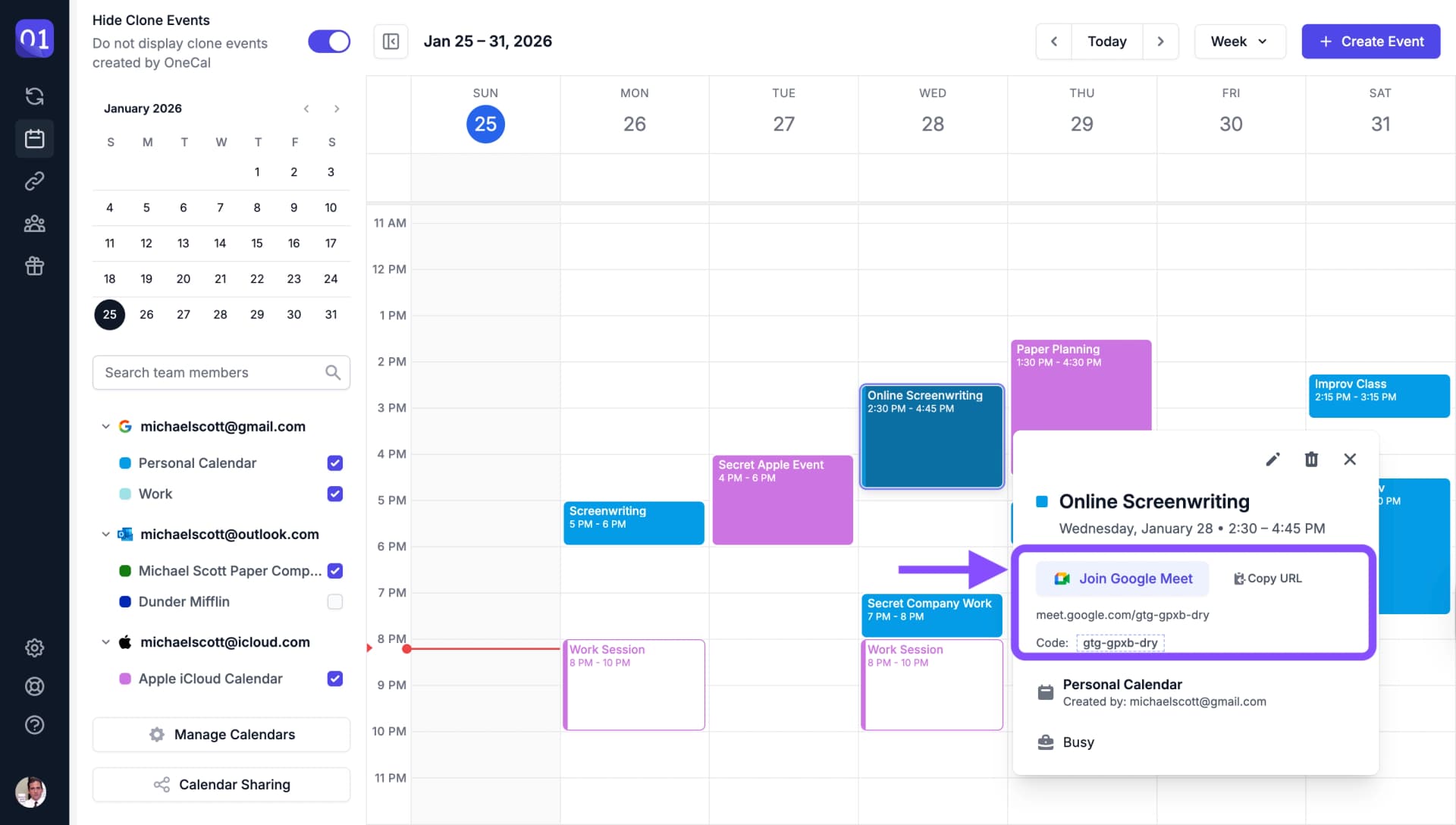
Learn more about joining meetings
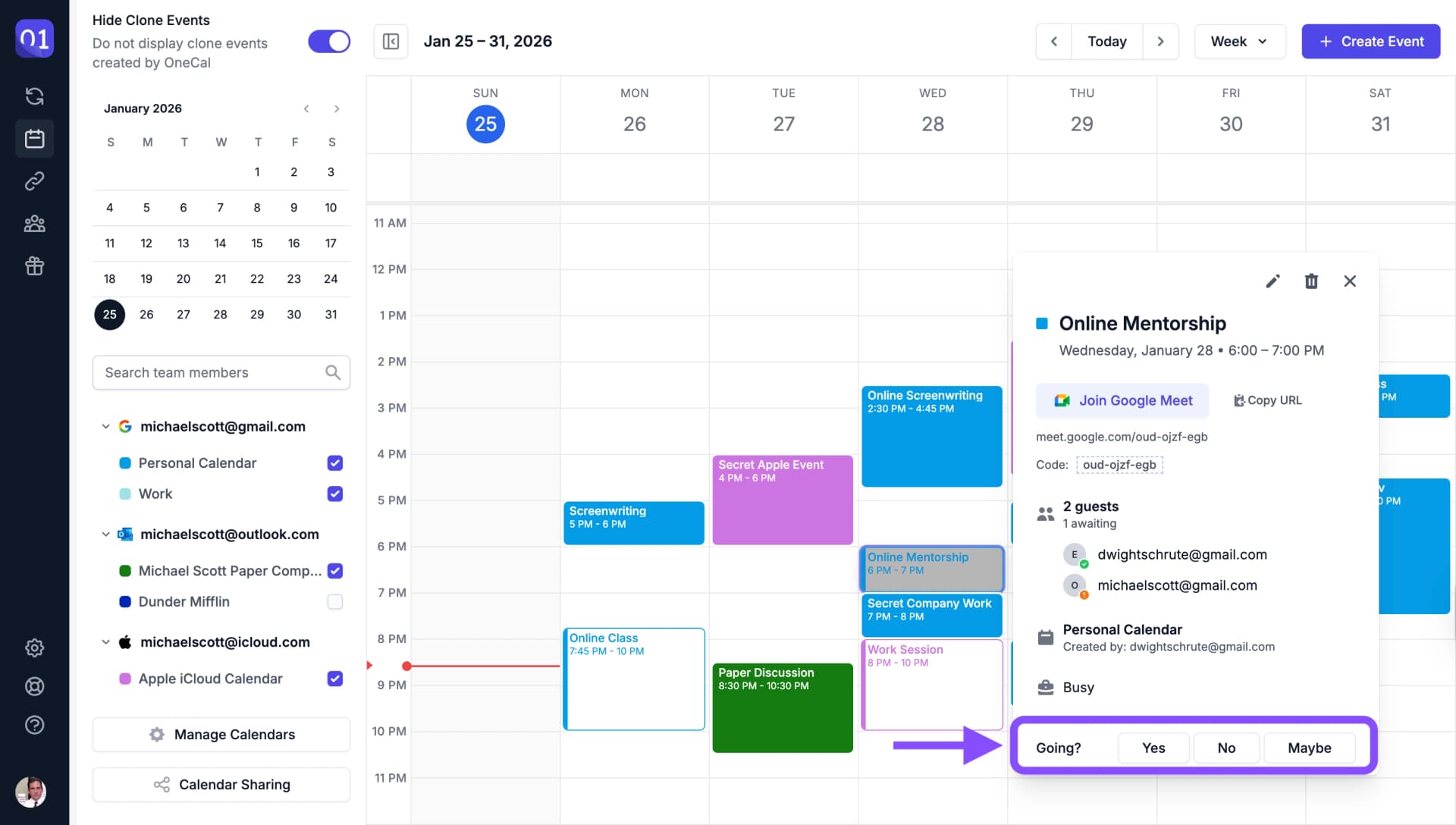
RSVP to Invitations
Respond to meeting invitations directly from the Unified Calendar View.
Time Zones
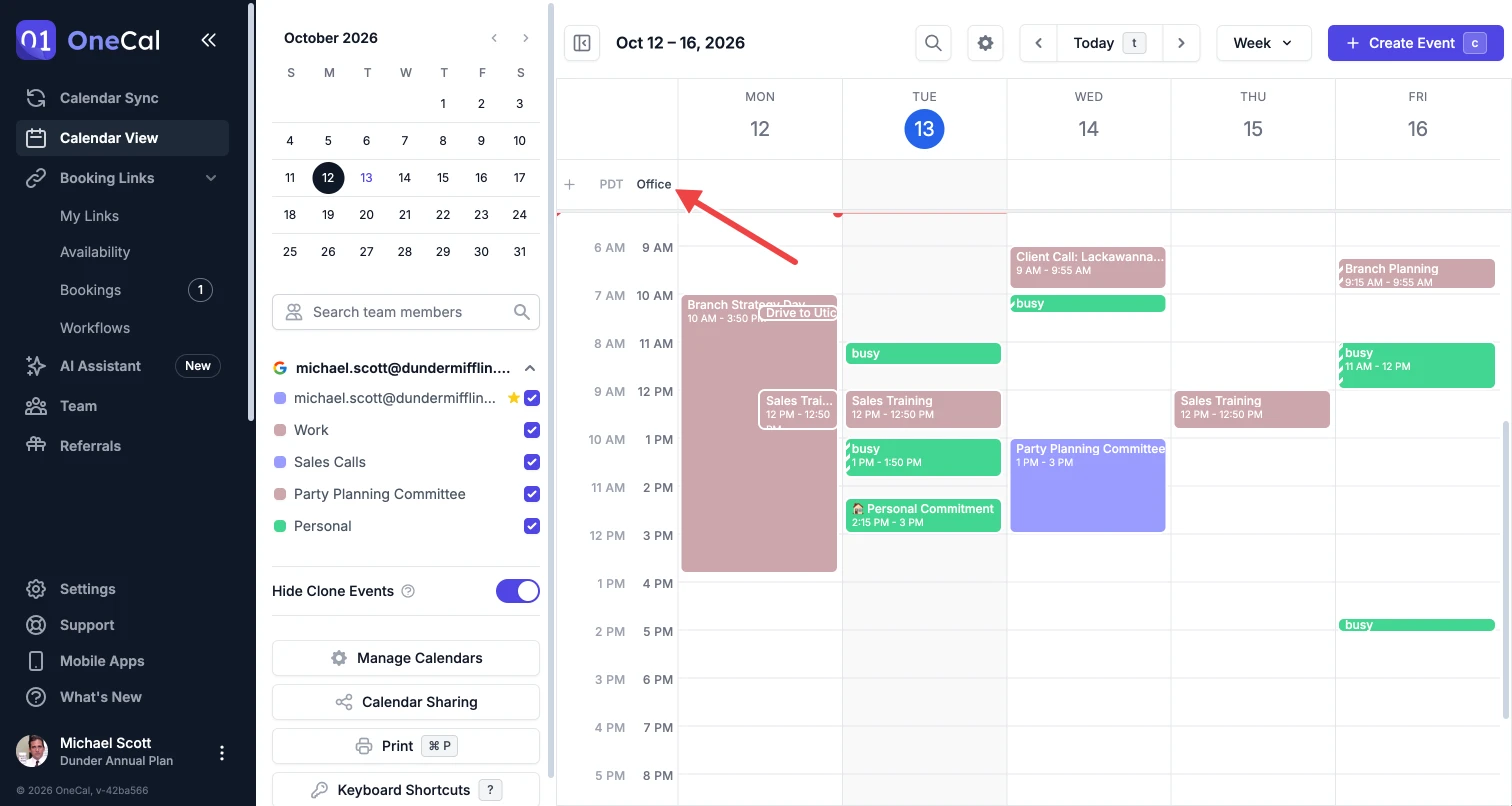
Show your calendar in any time zone and add up to 4 time zones side by side, each of which you can rename, for example to "Office" or "Home".
View Settings
Show or hide weekends and show the week numbers of the year from the settings gear at the top of the calendar.
Learn more about view settings
Keyboard Shortcuts
Use keyboard shortcuts to navigate the Unified Calendar View faster. Press ? on the calendar to see all available shortcuts.