Team
Team-Dashboard
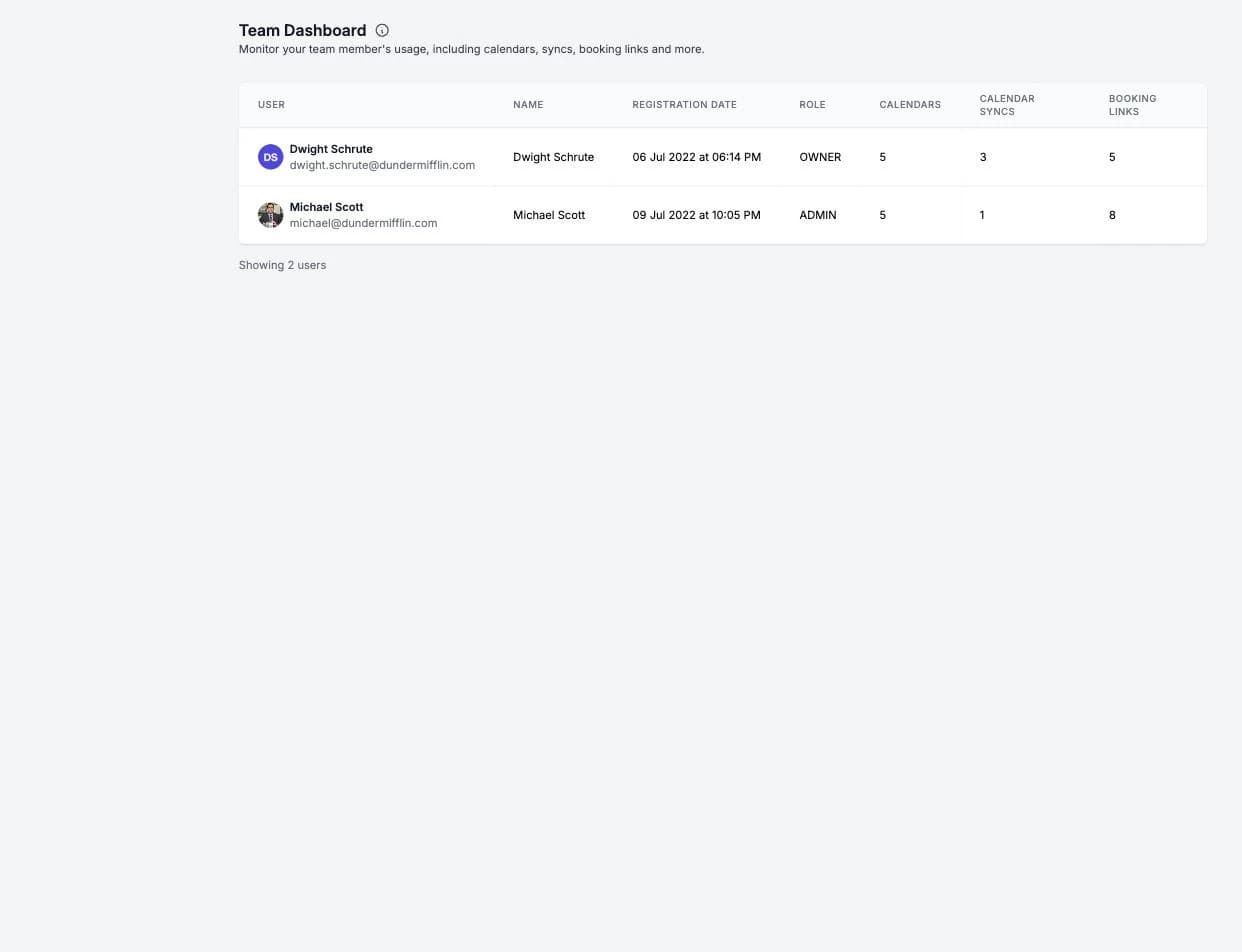
Mit dem Team-Dashboard können Eigentümer, Administratoren und Benutzer mit der Rolle Nur Abrechnung überwachen, wie jedes Teammitglied OneCal eingerichtet hat, und sicherstellen, dass alle korrekt konfiguriert sind.
Sie finden es im Abschnitt Team in der Seitenleiste.

Gut zu wissen
Das Team-Dashboard wird auf Anfrage aktiviert. Wenn Sie statt des Dashboards eine Schaltfläche „Zugriff anfordern" sehen, klicken Sie darauf und senden Sie das Formular ab. Unser Team aktiviert es dann für Ihr Team.
Die Teamübersicht
Das Dashboard listet jedes Teammitglied mit Registrierungsdatum, Rolle und der Anzahl seiner Kalender, Kalendersynchronisierungen und Buchungslinks auf. Klicken Sie auf den Namen eines Mitglieds, um dessen Detailansicht zu öffnen.
Die Mitglieder-Detailansicht
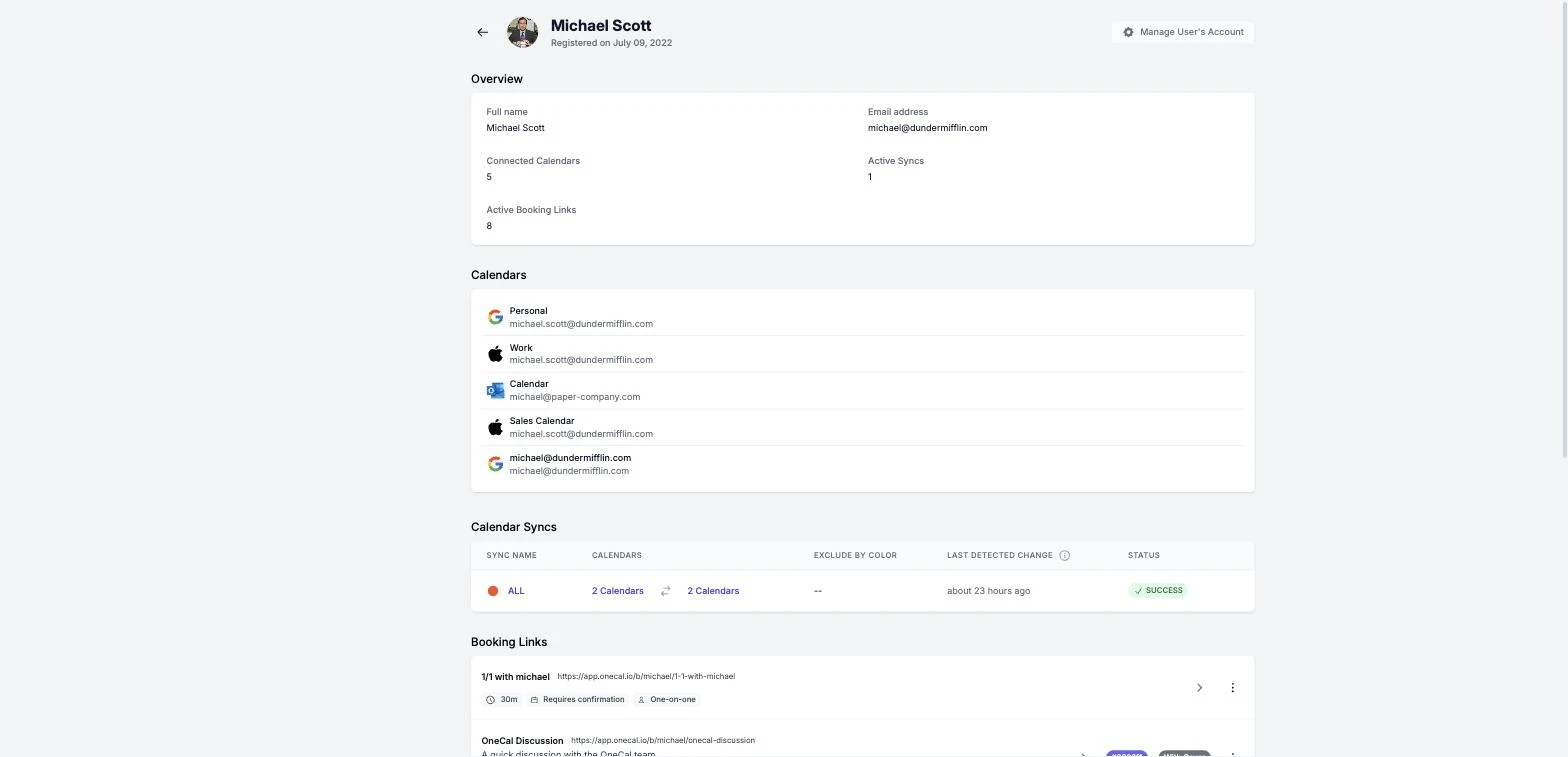
Für jedes Mitglied sehen Sie:
- Übersicht: Vollständiger Name, E-Mail-Adresse und die Anzahl der verbundenen Kalender, aktiven Synchronisierungen und aktiven Buchungslinks.
- Kalender: Jeder Kalender, den das Mitglied verbunden hat, mit dem zugehörigen Konto. Kalender mit einer abgelaufenen Verbindung sind mit dem Tag „Abgelaufen" markiert, sodass Sie Mitglieder erkennen, die sich neu verbinden müssen.
- Kalendersynchronisierungen: Alle Synchronisierungen des Mitglieds. Klicken Sie auf eine Kalender-Synchronisation, um ihre Konfiguration und die synchronisierten Kalender zu sehen. Alles ist schreibgeschützt, Sie können die Synchronisierungen eines Mitglieds hier nicht ändern.
- Buchungslinks: Alle Buchungslinks des Mitglieds, mit Schnellaktionen zum Kopieren des Links.
Das Konto eines Mitglieds verwalten
Mit der Schaltfläche Benutzerkonto verwalten in der Mitglieder-Detailansicht können sich Eigentümer und Administratoren als dieses Mitglied anmelden und dessen Konto vollständig verwalten, zum Beispiel um eine fehlerhafte Synchronisierung zu reparieren oder die Einrichtung abzuschließen.
Das funktioniert nur, wenn das Mitglied die Einstellung Administrator-verwaltetes Konto in seinem eigenen Konto aktiviert hat. Das Konto des Team-Eigentümers kann auf diese Weise niemals verwaltet werden, und Benutzer mit der Rolle Nur Abrechnung können das Dashboard ansehen, aber keine Konten verwalten.
Jede Verwaltungssitzung wird in den Audit-Protokollen aufgezeichnet, und jede Aktion während der Sitzung zeigt, welcher Administrator sie ausgeführt hat.