Bulk Invite Team Members
If you have a large team, you can invite up to 100 members at once by uploading a CSV file, instead of sending invites one by one.
On the Team page, click Bulk invite next to the invite form.

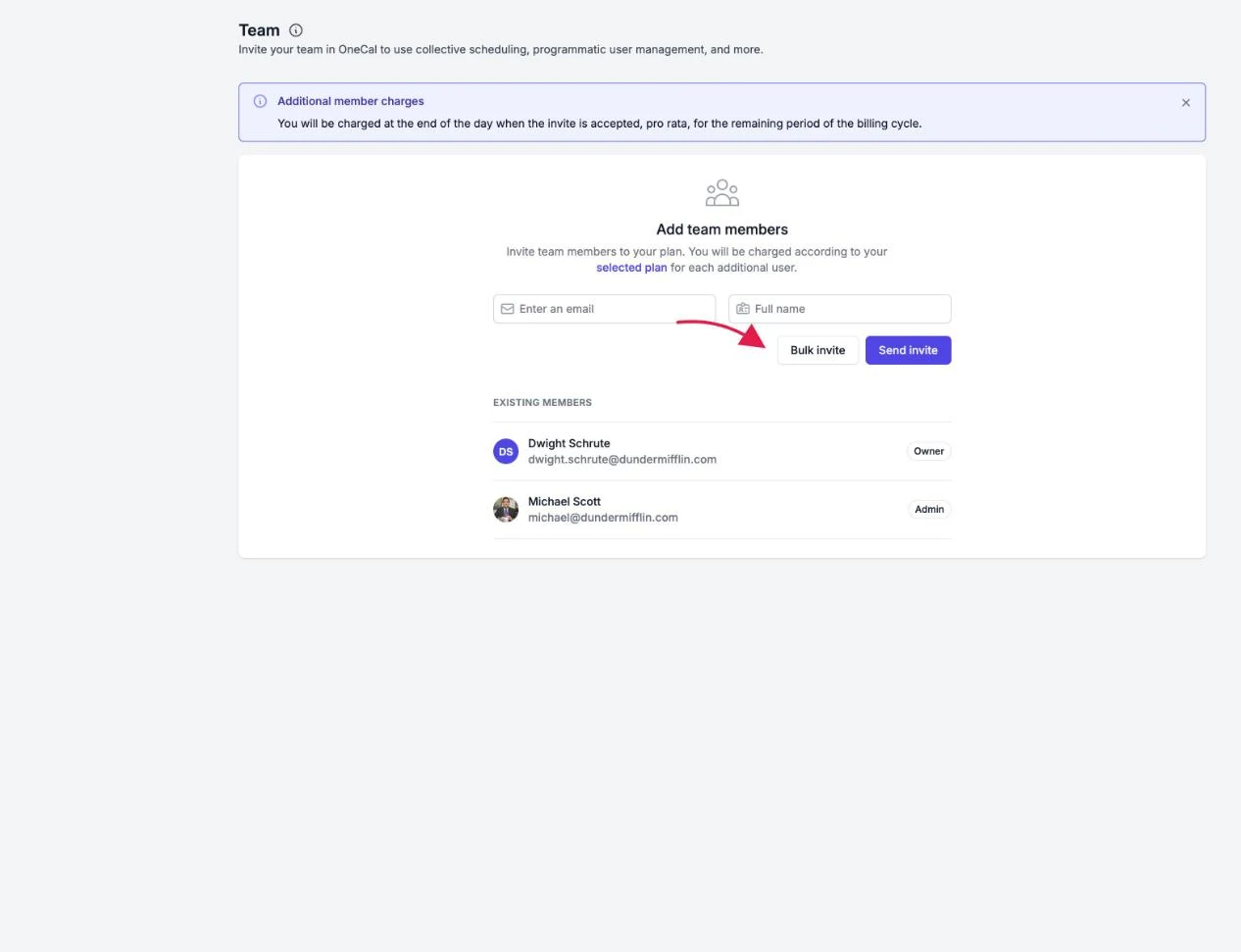
Good To Know
Bulk invite is enabled on request. If you see a message that Bulk invite is not available on your team yet, contact our support team at contact@onecal.io to request access. Bulk invite is not available on App Store and Google Play subscriptions.
Prepare your CSV file
The file must have a header row with a name and an email column, and at most 100 rows. For example:
name,email
John Doe,john@example.com
Jane Smith,jane@example.com
You can click Download CSV template in the modal to start from a ready-made file.
Upload and send the invites
- Click Select CSV file and choose your file.
- Click Upload and invite.
- OneCal processes the rows one by one and shows you the results.
If some rows fail, the successful invites are still sent. The results view lists each failed row with its email address and the reason, for example a missing name, a person who is already on a team, or a plan seat limit. Fix the failed rows and upload them again.
Each invited person receives the same invitation email as a regular team invite, and you are charged per seat as invites are accepted, just like with individual invites.