Team
Managed Syncs
Managed Syncs let Owners and Admins set up a calendar sync once and have OneCal create it for every team member who has the calendars. They have the same settings as any calendar sync, but they use the calendars named in Allowed Calendars, so each team member's sync uses their own matching calendars.
You can find them under Settings > Workspace > Workspace Policies, in the Managed Syncs tab.

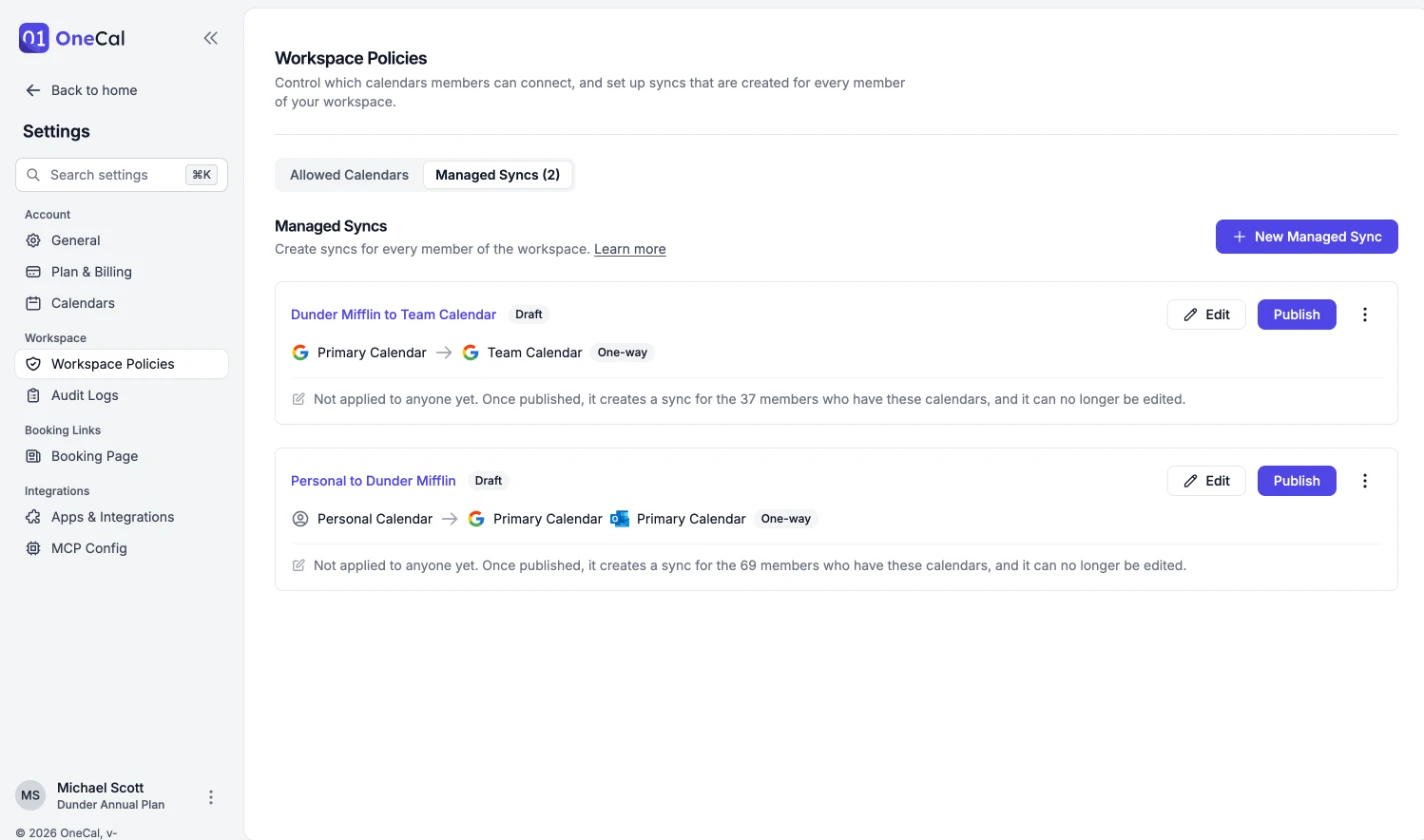
Create a managed sync
A managed sync needs at least two calendars from Calendars for managed syncs. The Personal Calendar counts while it's turned on.
- Click New Managed Sync.
- Enter a name. Team members see this name in their list of syncs.
- Choose One-way or Multi-way, then pick the calendars. Only calendars named in Workspace Policies can be used, and each one only once.
- Configure how events are copied, the same way as for any calendar sync.
- Choose whether team members can change the sync's settings, see Member permissions.
- Click Save as Draft.
While you pick calendars, Who gets this sync shows how many team members are ready for it, how many have each calendar, and how many still need to connect or choose one.
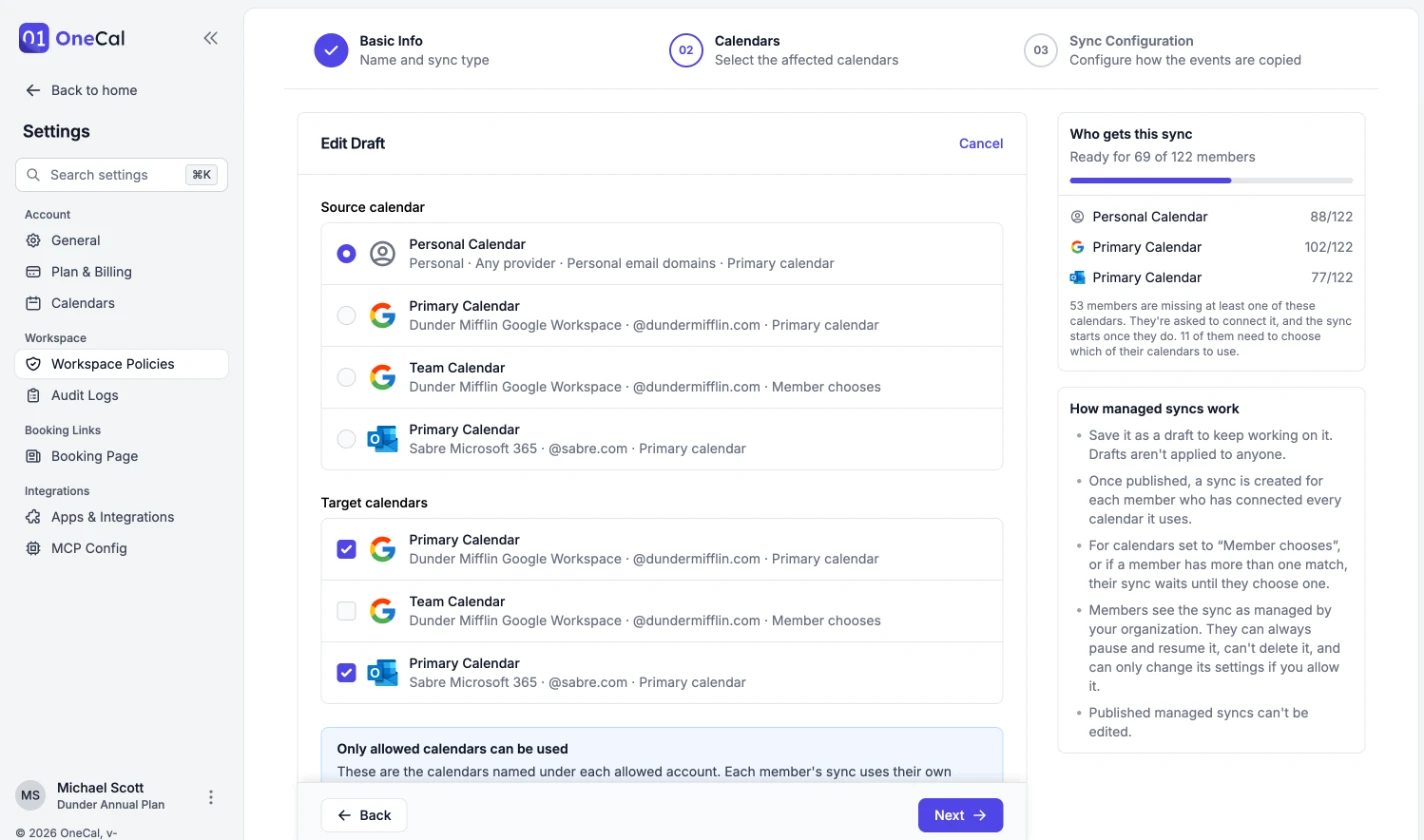
Drafts aren't applied to anyone, and you can edit them as often as you need.
Publish a managed sync
Click Publish on a draft. Before anything changes, OneCal shows what publishing does for your team:
- Get a new sync: Team members who have every calendar get the sync now.
- Already have this sync: Team members who already have their own sync between exactly the same calendars keep it, and it becomes the managed sync instead of a duplicate. Its settings are replaced with the managed sync's, and it runs again if anything changed.
- Need to choose a calendar: Team members with more than one matching calendar get the sync once they choose which one to use.
- Missing the calendars: Team members get the sync automatically once they connect the calendars.
- May get duplicate events: Team members who already sync some of the same calendars in another sync.
Click Review Members under any of these to open the Team page filtered to those team members.
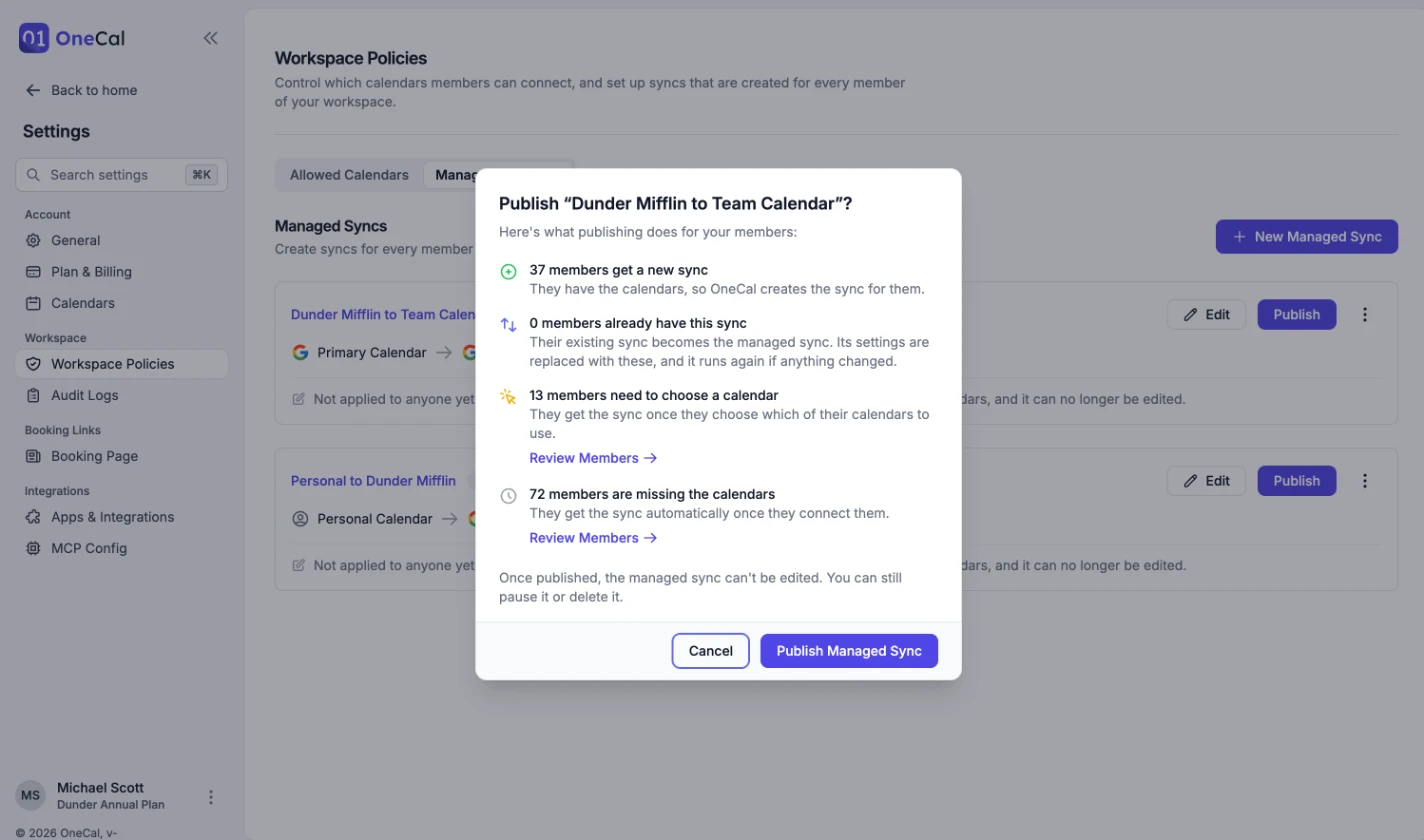
Once published, a managed sync can't be edited. To change it, create a new managed sync and delete the old one.
After publishing, team members who join the team or connect the calendars later get the sync automatically. Each published managed sync shows how many team members it's running for, how many paused it themselves, and how many still need to connect or choose a calendar.
Good To Know
A team member who is at the calendar sync limit, or whose plan doesn't include calendar syncs, doesn't get the sync. This is recorded in the Audit Logs as "Couldn't create a managed sync".
Pause or resume for everyone
Click the three dots on a published managed sync and choose Pause for Everyone. While it's paused:
- No new or changed events are copied, and clones that were already created stay as they are.
- Team members see the sync as paused by their organization, and can't resume it themselves.
- Team members who connect the calendars meanwhile get the sync when you resume it.
Choose Resume for Everyone to start syncing again. OneCal catches up on events that changed while it was paused. Team members who paused the sync themselves stay paused until they resume it.
Delete a managed sync
Click the three dots on a published managed sync and choose Delete Managed Sync. Then choose what happens to your team members' syncs:
- Keep the syncs: Each sync becomes the team member's own. It keeps running, and they can edit, pause or delete it.
- Delete the syncs for every member: Removes the sync and the clones it created from every team member's calendars.
Either way, team members who connect the calendars later won't get the sync. Deleting can't be undone.
Drafts can be deleted with Delete Draft, which doesn't affect anyone.
Member permissions
By default, team members can't change a managed sync. Turn on Allow members to edit sync settings to let them change how events are copied in their own sync: what to sync, privacy, titles, colors and event filters. The calendars and sync type always stay as you set them.
Whatever you choose, team members can always pause and resume their own sync, and can't delete it.
Personal calendars
To protect team members' privacy, managed syncs that use the Personal Calendar only copy busy time, with event details kept private. Members can always edit these syncs, so each team member decides how much of their personal calendar to share.
What team members see
Managed syncs show up in each team member's list of calendar syncs with a Managed by Organization label, or Managed by Organization · Editable when they can change the settings. When you pause a managed sync, it shows as paused by their organization.
Good To Know
Every change a managed sync makes to a team member's syncs, such as creating, pausing, resuming or deleting them, is recorded in the Audit Logs under that team member's name, so you can find it with the User filter.
Frequently asked questions
Can I edit a managed sync after publishing it?
No. Published managed syncs can't be edited. Create a new managed sync with the changes, then delete the old one. If you keep the team members' syncs when deleting it, check the publish preview of the new one for duplicate events.
Can team members delete or edit a managed sync?
They can always pause and resume it, but they can't delete it. They can only change its settings if you turn on Allow members to edit sync settings, and the calendars and sync type can never be changed.
Will a team member get a duplicate sync if they already sync the same calendars?
No. If their own sync uses exactly the same calendars, it becomes the managed sync instead. If it only shares some of the calendars, the publish preview lists them under May get duplicate events, so you can ask them to remove it first.
Why didn't a team member get a managed sync?
They haven't connected every calendar it uses yet, they still need to choose a calendar, they're at the calendar sync limit, or their plan doesn't include calendar syncs. The managed sync card shows how many team members are waiting, and the Audit Logs show "Couldn't create a managed sync" with the reason.
Does pausing a managed sync remove the clones it created?
No. Clones stay on team members' calendars as they are. Nothing is copied or updated until you resume it.
What happens to team members' syncs when a team member leaves the team?
Their managed syncs become their own. They keep running, and they can edit, pause or delete them.