Collega Calendari
Rinomina, Ricolora e Rimuovi i Calendari
Puoi gestire tutti i tuoi calendari collegati da Impostazioni → Calendari. Ogni scheda del calendario ha un menu con Aggiorna connessione, Modifica calendario, Imposta come predefinito e Rimuovi.

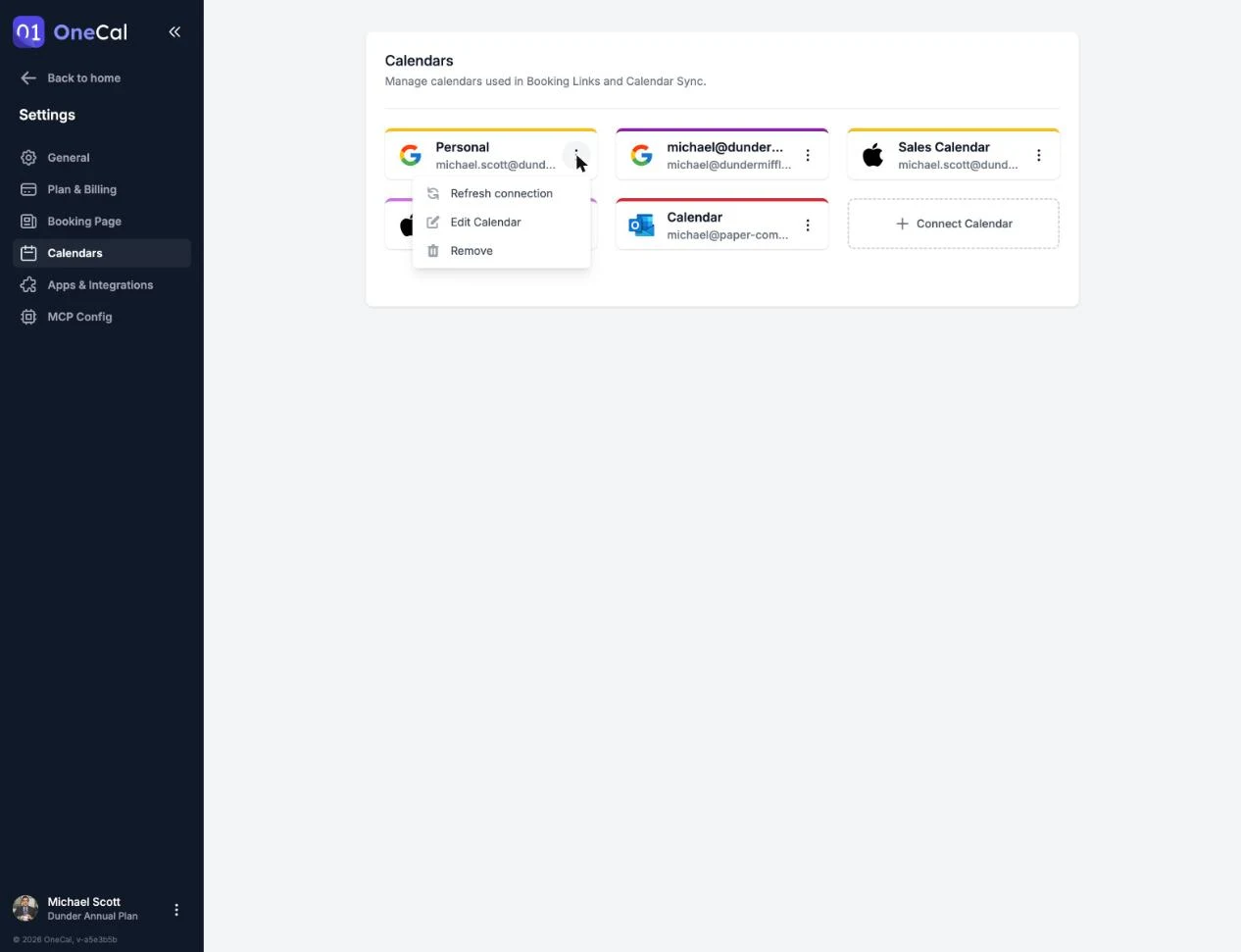
Rinomina o ricolora un calendario
Clicca Modifica calendario per cambiare il nome del calendario o scegliere un colore diverso.
Buono a Sapersi
Le modifiche al nome e al colore influiscono solo su come il calendario appare all'interno di OneCal. Non vengono propagate a Google, Outlook o iCloud.
Imposta un calendario come predefinito
Clicca Imposta come predefinito per rendere questo calendario il tuo calendario predefinito. I nuovi eventi nella Vista Calendario Unificata e i nuovi link di prenotazione vanno nel tuo calendario predefinito, che è contrassegnato da una stella gialla sulla sua scheda. Consulta Imposta il Tuo Calendario Predefinito.
Rimuovi un calendario
Clicca Rimuovi sulla scheda del calendario e conferma. La rimozione di un calendario da OneCal non lo elimina mai, né elimina i suoi eventi, su Google, Outlook o iCloud. Lo scollega soltanto da OneCal.
Un calendario non può essere rimosso mentre è ancora in uso:
- Usato in una sincronizzazione: Rimuovi prima le sincronizzazioni che usano questo calendario.
- Usato in un link di prenotazione: Aggiorna prima i link di prenotazione che aggiungono i loro eventi a questo calendario. La lettura della disponibilità da un calendario non ne blocca la rimozione.
Se rimuovi il tuo calendario predefinito, OneCal sceglie un altro calendario per i nuovi eventi e i nuovi link di prenotazione finché non scegli un nuovo calendario predefinito.
Quando un account collegato non ha più calendari in OneCal, l'account stesso scompare dal tuo elenco dei calendari.
Importa altri calendari da un account collegato
Per aggiungere un calendario che hai saltato durante l'importazione iniziale, collega di nuovo lo stesso account. La schermata di importazione mostra solo i calendari non ancora importati, così puoi aggiungerli senza duplicati.
I calendari importati contano per il limite di calendari del tuo piano di 2, 5 o 50 calendari per utente, in base al tuo piano. Consulta Piani e Prova Gratuita.