Manage Your Syncs
All your calendar syncs live in the Synchronizations table on the Calendar Sync page. Each calendar sync runs automatically in real time, but you can manage it at any moment from the three dots menu at the end of its row.

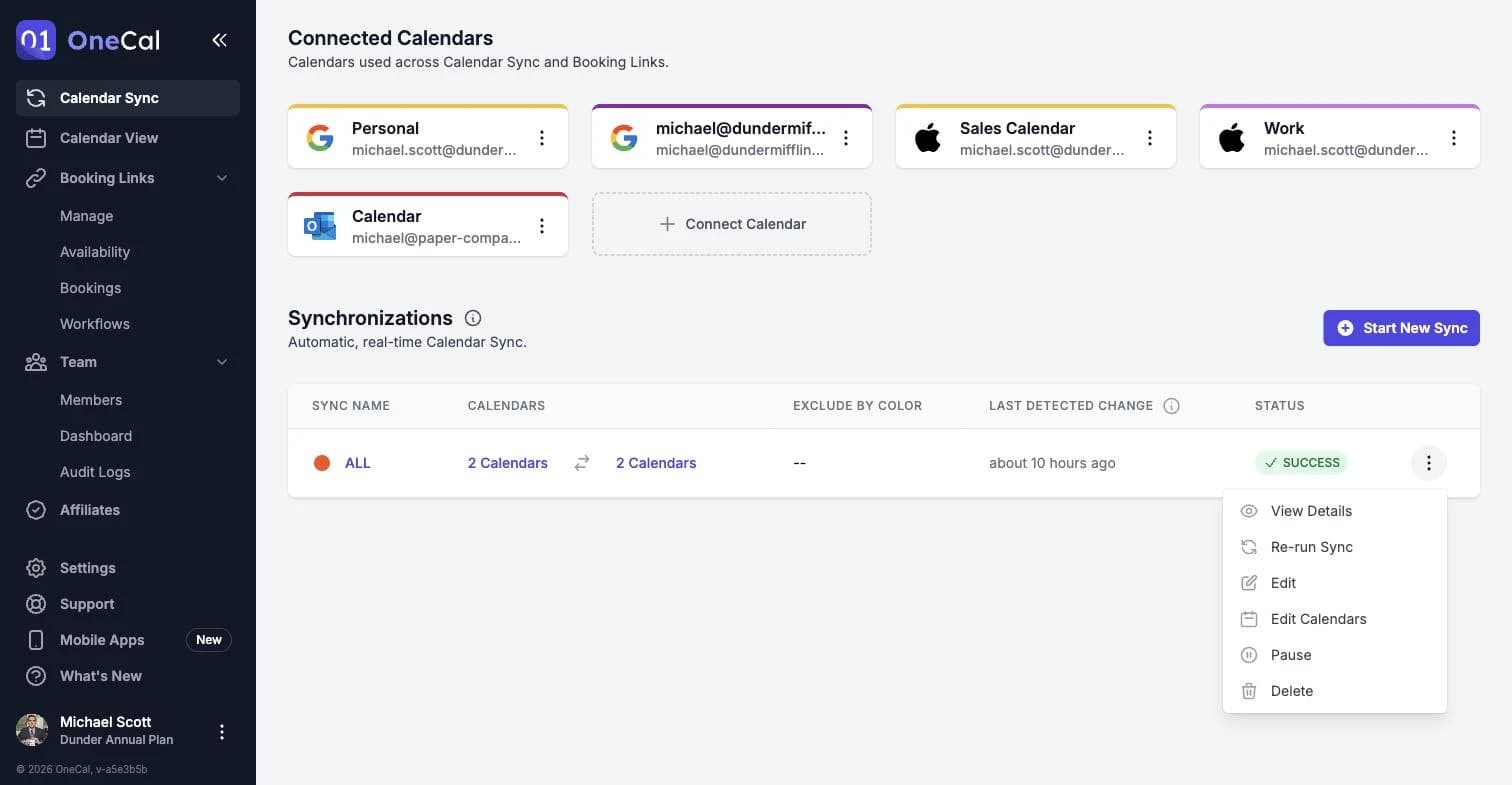
The menu offers the following actions:
- View Details: Opens a summary of the sync, including its calendars, all the configuration settings, the last detected change and the current status.
- Re-run Sync: Queues a full sync run immediately.
- Edit: Opens the sync editor, where you can change the sync name and all the sync configuration settings.
- Edit Calendars: Lets you change which calendars the sync uses, without touching the rest of the configuration.
- Duplicate: Starts a new calendar sync with the same calendars and configuration settings as this one. See How to duplicate a calendar sync in OneCal.
- Pause or Un-Pause: Temporarily stops or resumes the sync.
- Delete: Deletes the sync and all the clone events it created. See How to delete a sync.
Edit a sync's calendars
Edit Calendars allows you to manage calendars in a sync, such as adding, removing or replacing one or more calendars from a sync. Edit Calendars only changes the calendars of the sync.
The Edit Calendars option is different from Edit. Edit opens the last step of the sync, Sync Configuration, where you choose which event details get copied between the calendars, such as event titles, descriptions, participants, locations, and more. Edit never changes the calendars, and Edit Calendars never changes these settings.
Click Edit Calendars in the three-dot menu of the sync. OneCal shows the sync's calendars, with the current ones already selected. Change the selection, then click Save.
You can't change the sync type from the Edit Calendars option. A one-way sync always needs one source calendar and at least one target calendar. A multi-way sync always needs at least two calendars. If you want a sync of the other type, duplicate the sync and pick the other type in the first step.
Read-only calendars cannot be selected as target calendars because OneCal cannot create clone events in them.
When you save a new selection, OneCal rebuilds the sync by removing the clone events that the sync created, then copying the events again using the new calendars. Your original events are never touched.
If you save without changing any calendar, nothing happens, and the sync keeps running as before.
If the new selection copies events between two calendars that another sync already syncs in the same direction, OneCal warns you before saving. Two syncs that copy events between the same calendars create duplicate clone events.
Edit Calendars is hidden while a sync is paused. The exception is a sync that OneCal paused because one of its calendars became unavailable. In that case, pick another calendar and click Save, and OneCal resumes the sync. If you fixed the calendar at your calendar provider instead, click Save without changing anything, and OneCal resumes the sync too.
Duplicate a sync
Duplicating a sync lets you start a new calendar sync from the setup of an existing one. This is useful when you want a similar sync for other calendars, or when you want to try different settings without changing a sync that already works.
When you click Duplicate, OneCal opens the new sync form with every step already filled in from the original sync:
- Basic Info: The sync type is the same, and the name is the original name followed by "(copy)".
- Calendars: The same calendars are already selected.
- Sync Configuration: All the configuration settings are copied, such as event titles, privacy, reminders, colors and RSVP filters.
Review each step and change what you need. Nothing is created until you click Start Sync on the last step, and the original sync stays exactly as it is.
The new calendar sync starts fresh, it does not copy the status, the clone events or the history of the original sync. Like any new calendar sync, it starts with a full sync run.
If a calendar of the original sync was removed from OneCal, or became read-only, OneCal leaves it out. You can pick another calendar on the Calendars step.
Good To Know
If you keep the same calendars as the original sync, OneCal warns you that the calendar pair is already in sync. Two syncs that copy events between the same calendars create duplicate clone events. Change the calendars, or pause or delete the original sync once the new one is running. If you only want to add or remove a calendar, use Edit Calendars on the original sync instead.
Pause a sync
Pausing stops OneCal from syncing new changes to the target calendars until you un-pause the calendar sync. When you click Pause, a confirmation dialog appears.
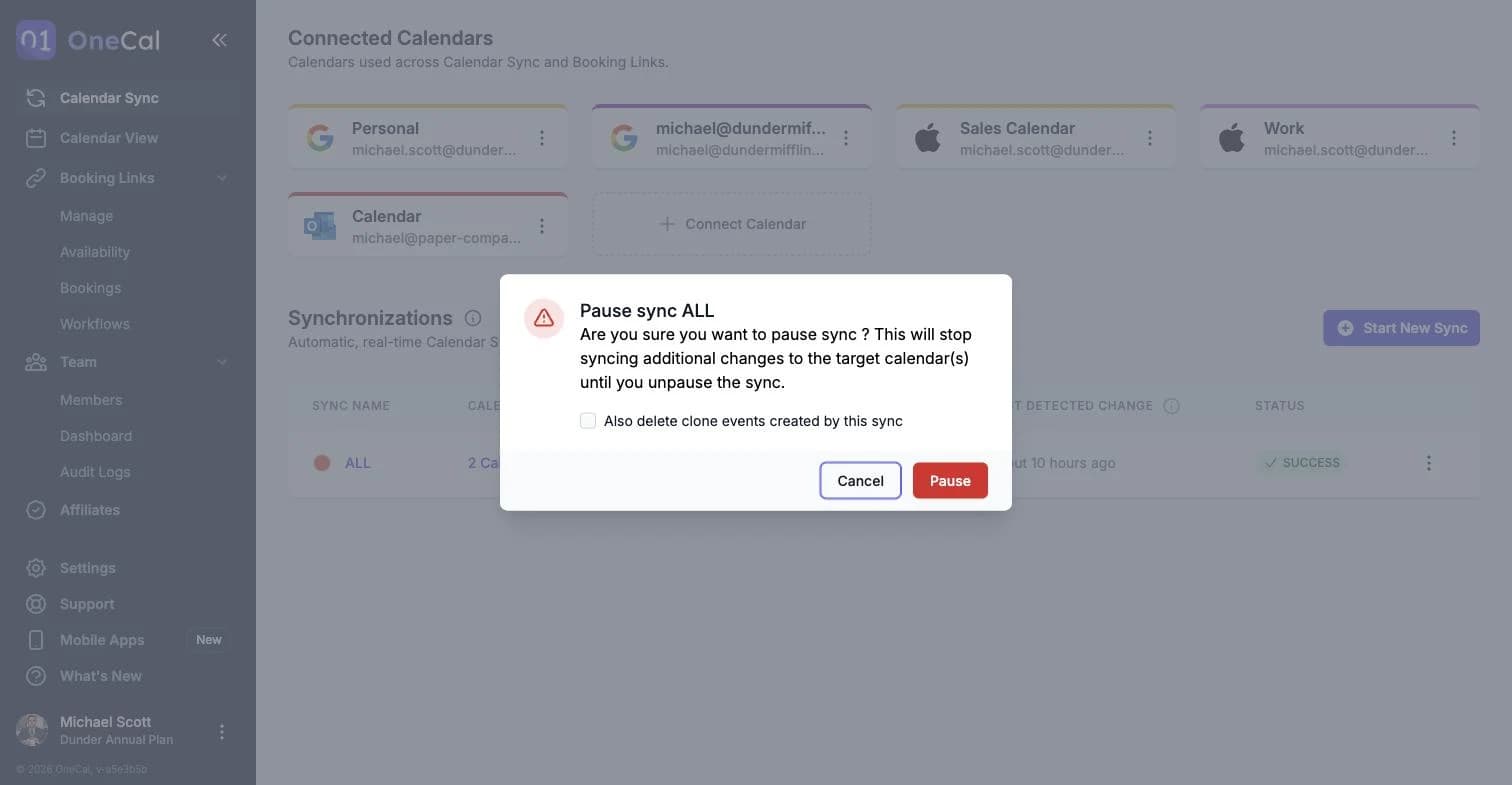
By default, the clone events that the sync has already created stay in your calendars. If you also want them removed while the sync is paused, check Also delete clone events created by this sync before confirming. The clone events are then removed in the background, and the sync shows a temporary status while this happens.
While a sync is paused, the Re-run Sync, Edit and Edit Calendars actions are hidden. Un-pause the sync first to use them. The exception is a sync OneCal paused because one of its calendars became unavailable: Edit Calendars stays available, and picking another calendar resumes the sync.
Un-pause a sync
To resume a paused calendar sync, open the three dots menu and click Un-Pause. OneCal immediately queues a full run of the calendar sync, so any clone events that were deleted or any changes that happened while the sync was paused are brought back up to date automatically.
Syncs can pause themselves
Your calendar sync may automatically enter a paused state if the calendar connection behind one or more of its calendars expires and has to be refreshed manually. A calendar connection covers a whole calendar account, so every calendar under that Google, Outlook or iCloud account is affected at once. This is a security requirement from Google and Microsoft to confirm that you are actively using the services you have authorized, and a calendar connection typically only needs to be refreshed once every few months per calendar account. It can also happen if you recently changed your calendar account password, if your organization requested it, or if Google or Outlook is having a temporary outage.
When this happens, OneCal notifies you via email that a manual action is required, and cannot access any calendar under that calendar account until you refresh its calendar connection. Refresh the affected calendar connections as described in Fix an Expired Calendar Connection, then un-pause the calendar sync from the three dots menu.
Re-run a sync
If you ever think a calendar sync missed something, click Re-run Sync. This queues a full run that goes through all the events in the source calendars again and updates the clone events accordingly. There is no confirmation step, the run starts right away and the status changes to In Queue.
Sync statuses
The Status column of the Synchronizations table shows what each calendar sync is doing right now:
- In Queue: A sync run is waiting to start, and the calendar sync is not picking up calendar changes yet.
- In Progress: A sync run is going through your calendars right now.
- Success: The last sync run finished, and the calendar sync is live and watching your calendars.
- Error: The last sync run failed.
- Paused: The calendar sync is not running and is not watching your calendars.
- Pausing and Deleting: Temporary statuses shown while OneCal removes clone events in the background.
A sync run is one full pass over a calendar sync: OneCal reads every event in the source calendars and rebuilds the clone events in the target calendars. A sync run is queued when you create a calendar sync, re-run it, un-pause it or change its calendars. Real-time changes are handled separately and are much smaller: OneCal copies only the event that changed.
In Queue
In Queue means a sync run has been created for the calendar sync but has not started yet.
While a calendar sync shows In Queue, it is not picking up changes from your calendars yet. Nothing is copied to the target calendars until the sync run actually starts, so an event you create or edit now does not appear on the target calendars while the calendar sync is queued.
Nothing is lost in the meantime. A sync run looks at your source calendars as they are when it starts, so every change you made while the calendar sync was In Queue is included in that sync run.
A sync run normally starts within a few seconds. If a calendar sync stays In Queue for more than a few minutes, contact our support team with the calendar sync name.
In Progress
In Progress means the sync run is going through your calendars right now. It goes through all the events in the source calendars and rebuilds the clone events in the target calendars.
While a calendar sync shows In Progress, clone events can be temporarily missing from the target calendars, and the calendar sync is not picking up new changes in real time until the sync run finishes. A change you make while a sync run is In Progress is copied either by the sync run itself, or the next time OneCal detects a change on that calendar. If the change is still missing once the calendar sync shows Success, click Re-run Sync.
Most sync runs finish in under a minute. A calendar sync with many events, or with many target calendars, takes longer.
Success
Success means the last sync run of the calendar sync finished without errors. This is the normal resting state of a working calendar sync: it means the calendar sync is live and watching your calendars, not that the calendar sync has stopped.
Real-time changes do not move a calendar sync back to In Progress. When OneCal detects a change on a source calendar, it copies just that change, and the calendar sync keeps showing Success while the Last Detected Change column updates.
Error
Error means the last sync run failed. Part of the sync run may have completed before it failed, so some clone events can be missing or out of date. The calendar sync keeps showing Error until a sync run succeeds.
Click Re-run Sync in the three dots menu to start a new sync run.
If the sync run failed because a calendar connection expired, OneCal pauses the calendar sync and emails you, and the status changes to Paused. Refresh the calendar connection as described in Fix an Expired Calendar Connection, then un-pause the calendar sync. If the calendar sync keeps failing, contact our support team with the calendar sync name.
Paused
Paused means the calendar sync is not running and is not watching your calendars, so no change is copied to the target calendars until the calendar sync is un-paused. A calendar sync is paused when you pause it yourself, when a calendar connection behind one of its calendars expires, or when your free trial or subscription expires. Un-pausing queues a full sync run, which brings the target calendars back up to date automatically.
Pausing and Deleting
Pausing and Deleting are temporary statuses, shown while OneCal removes the clone events of the calendar sync in the background, after you pause a calendar sync with clone event deletion or delete a calendar sync. Removing clone events from several calendars can take a few minutes. No further change is copied while a calendar sync shows one of these statuses.
Last Detected Change
The Last Detected Change column of the Synchronizations table shows the last time OneCal detected a change on the calendars of that calendar sync. Since calendar syncs are real-time, this column updates automatically as changes happen, without the sync status changing.
Changes on Google and Outlook calendars are detected immediately. Changes on iCloud calendars are detected about every 10 minutes, since Apple does not provide a real-time API. A Last Detected Change that is much older than an edit you just made means OneCal has not seen that edit, and clicking Re-run Sync brings the calendar sync back up to date.
Good To Know
Pausing or deleting a sync never touches your original events. Only the clone events created by OneCal are affected.