How to duplicate a calendar sync in OneCal
This guide will walk you through the process of duplicating a calendar sync in OneCal.
Duplicating a calendar sync opens the new sync form with the calendars and configuration settings of an existing sync already filled in. You can change anything before the new sync is created, and the original sync is never changed.
Prerequisites
Before starting make sure you have the following:
- A OneCal account with either an active Free Trial or any paid plan.
- You are already logged in to your OneCal account.
- An existing calendar sync in OneCal.
Step-by-step guide
1. Navigate to https://app.onecal.io/
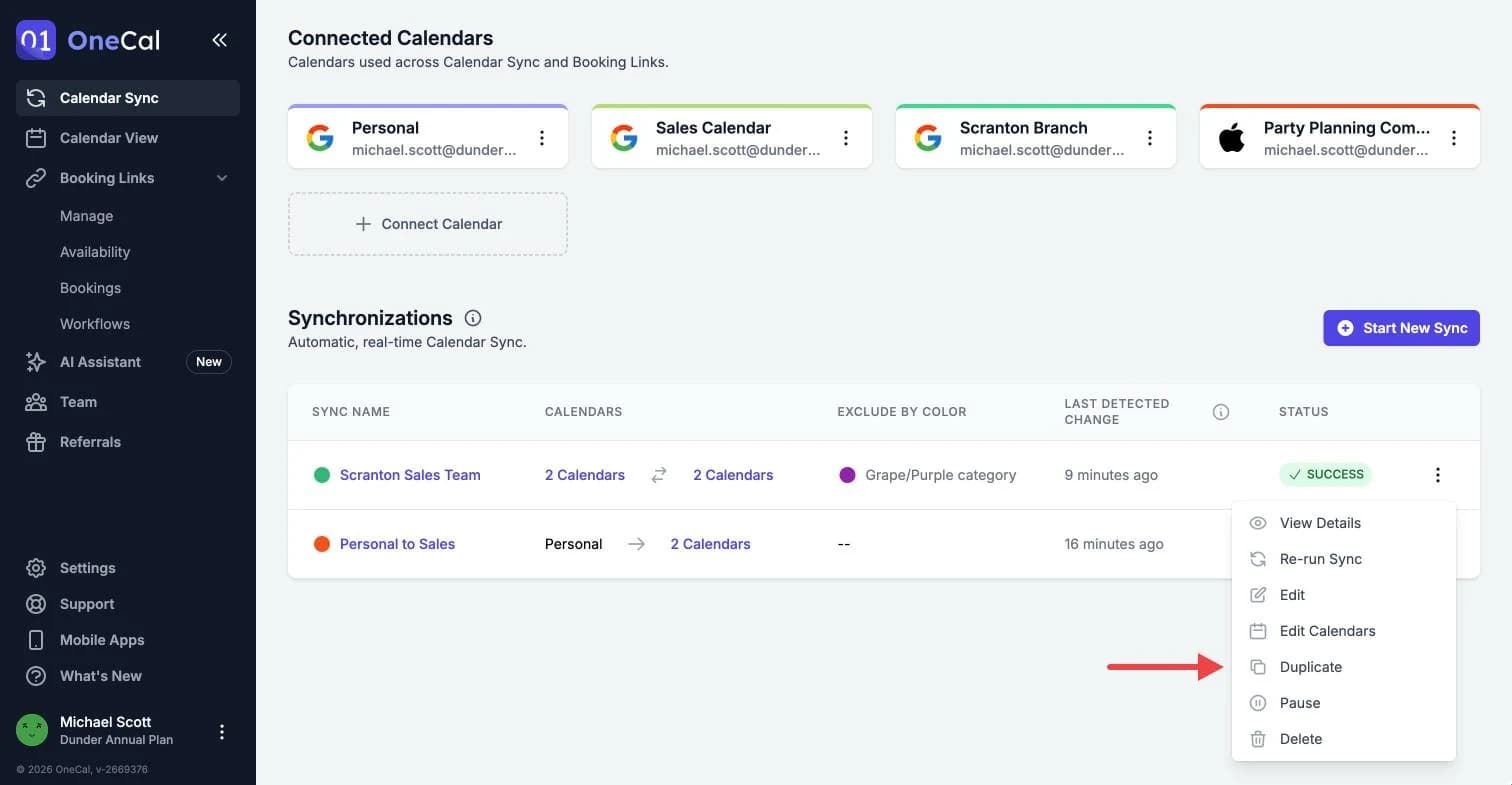
2. On the Calendar Sync page, click the three dots menu at the end of the calendar sync's row. You may need to scroll horizontally to see this button.
3. Click Duplicate in the menu.

4. On the Basic Info step, check the name and the sync type, then click Next. The name is the original name followed by "(copy)", and you can change it.
5. On the Calendars step, check the calendars, then click Next. The calendars of the original sync are already selected. Add or remove calendars as needed.
6. If OneCal shows the Calendar Pair Already in Sync warning, the new sync would copy events between the same calendars as an existing sync. Click Change Selection to pick other calendars, or click Proceed Anyway if you plan to pause or delete the original sync.
7. On the Sync Configuration step, check the settings, then click Start Sync. All the settings of the original sync are already filled in.
8. Wait for the first sync run to finish. The new sync shows the In Queue and In Progress statuses while OneCal copies the events, and Success once it is done.
Good To Know
If you only want to add or remove a calendar from an existing sync, you do not need to duplicate it. Click Edit Calendars in the three dots menu of that sync instead.