Include ICS Invitation in Confirmation
When someone books time with you, OneCal can attach a calendar invitation (.ics file) to the confirmation email, so your schedulers can add the meeting to their calendar with one click, whichever calendar app they use.
You can find this setting under Include ICS invitation in confirmation in the Advanced settings of your booking link.

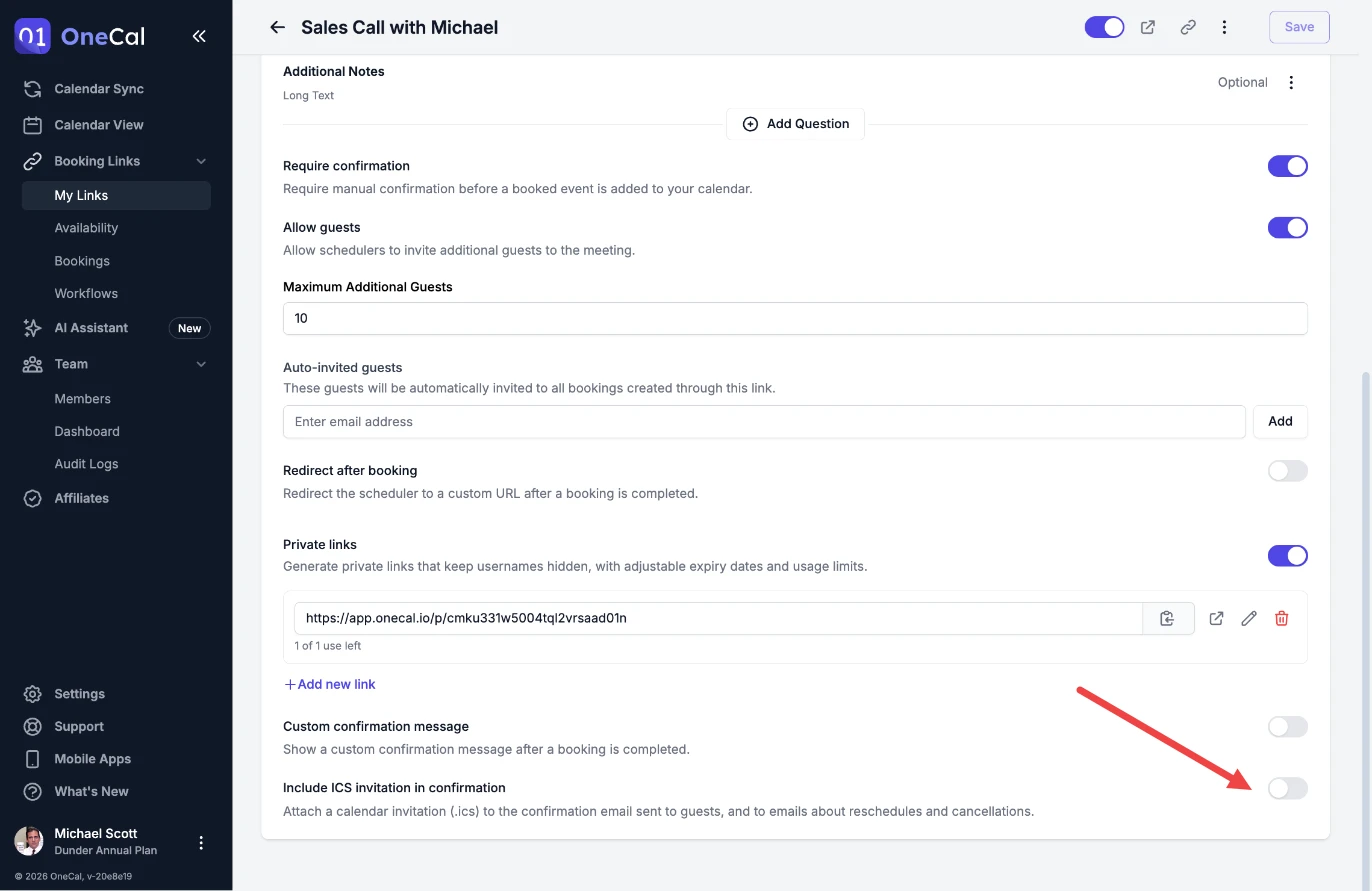
When you need it
Google Calendar and Outlook send the calendar invitation to your schedulers themselves, from the calendar you chose under Add events to. iCloud and CalDAV calendars do not send invitations to other people, so when bookings are added to one of these calendars, the ICS invitation is how your schedulers get the meeting into their calendar.
That is why OneCal turns this setting on automatically when you choose an iCloud or CalDAV calendar under Add events to. If you later switch back to a Google or Outlook calendar, the setting stays on until you turn it off, so check it after switching.
Avoid Duplicate Events
If your booking link adds events to a Google or Outlook calendar and you also turn this setting on, your schedulers get two invitations for the same meeting, and the meeting may appear twice in their calendar. We recommend turning the setting off in this case.
What your schedulers receive
When the setting is on, the .ics file is attached to these emails to your schedulers and to the guests they invite:
- Booking confirmation: The invitation for the new meeting. For booking links that require confirmation, the invitation is sent once you confirm the booking.
- Reschedule: An updated invitation with the new time, which replaces the meeting in their calendar.
- Cancellation: A cancellation that removes the meeting from their calendar. This is also sent when you request a reschedule, because the current meeting is cancelled until the scheduler picks a new time.
As the host, you do not get the .ics file, because the event is already in your own calendar.