Custom Confirmation Message
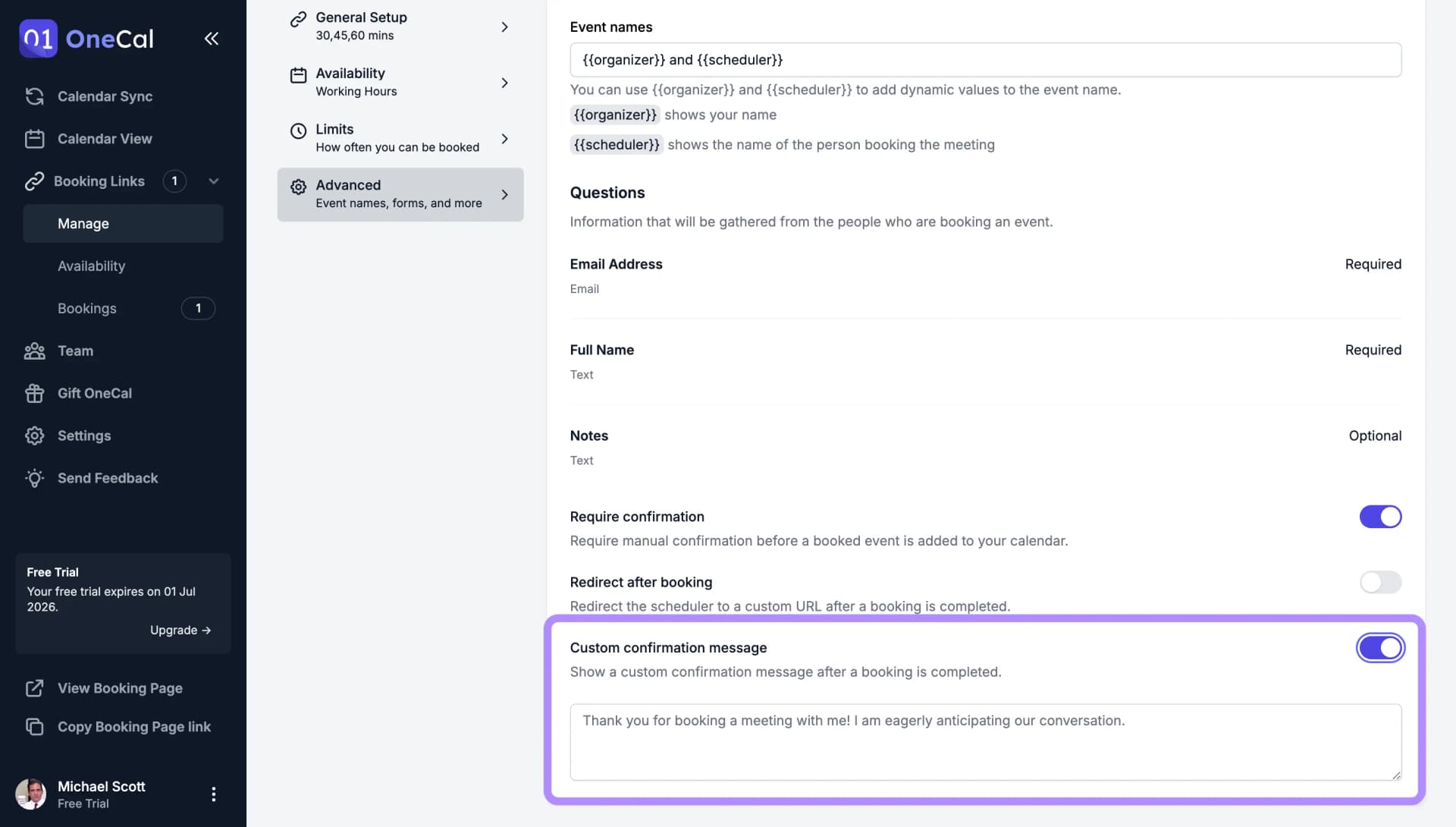
After someone books you, OneCal shows them a standard confirmation screen. With a custom confirmation message, you can replace it with your own text, for example to share preparation steps, tell them what happens next, or point them to useful material before the meeting.
To set it up:
- Open your booking link and go to the Advanced tab.
- Enable Custom confirmation message.
- Write your message and save the link.
From now on, every scheduler sees your message as soon as their booking is completed.

Good To Know
If you'd rather send schedulers to your own website after booking, use Redirect After Booking instead. For emails before or after the meeting, set up a Workflow.