Bookings
OneCal organizes all your bookings by date, time, type, and status. This gives you a clear view of your bookings, whether they are upcoming, past, unconfirmed, or cancelled. You can easily modify or cancel bookings directly, making it very convenient.
Our booking flow eliminates the need for back-and-forth communication when scheduling meetings. Instead of exchanging available times, a link to your booking link and available times makes scheduling faster.

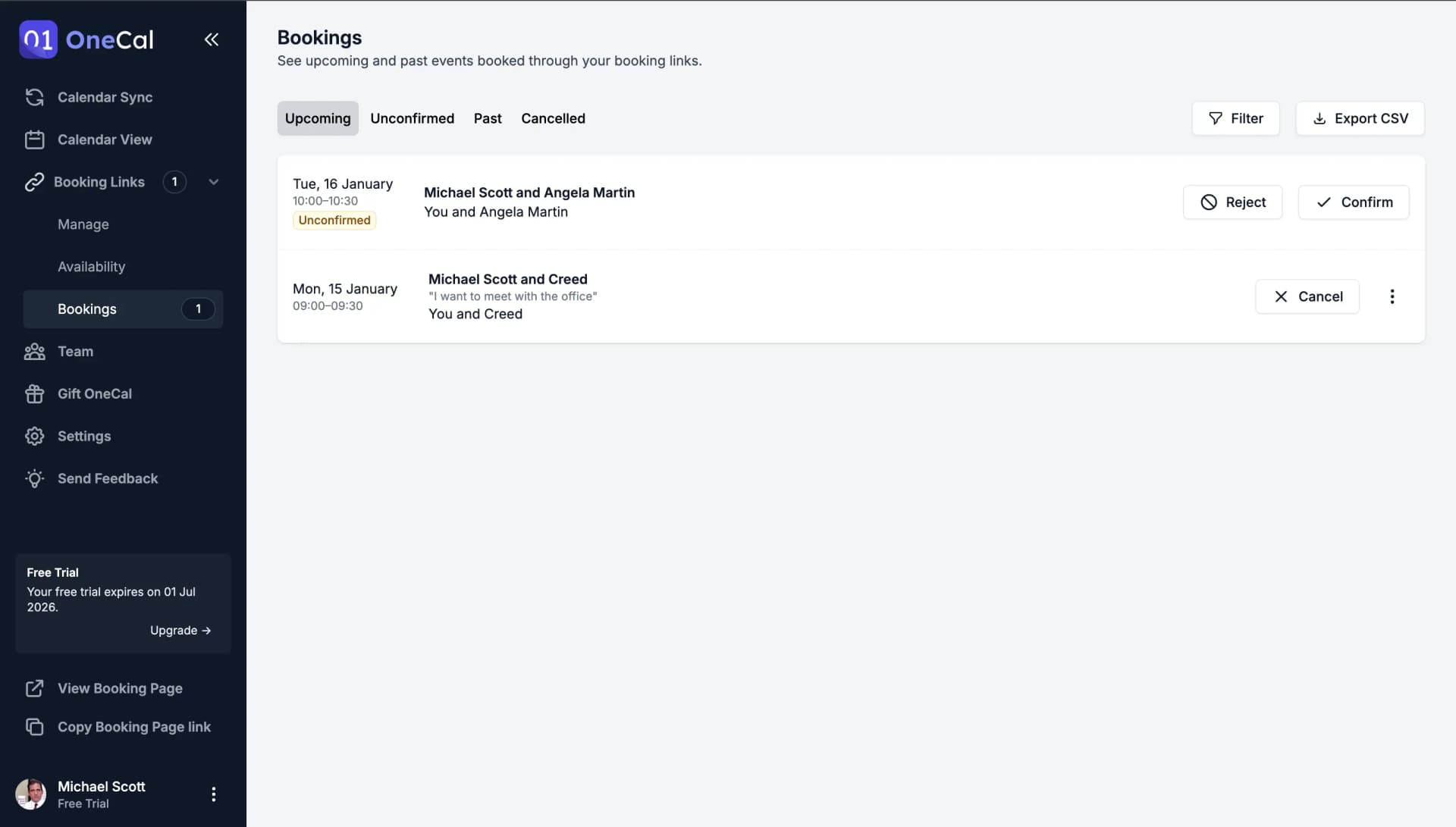
The Bookings page groups your bookings into four tabs:
- Upcoming: Confirmed bookings that have not happened yet.
- Unconfirmed: Booking requests waiting for you to confirm, from booking links that require confirmation.
- Past: Bookings that have already taken place.
- Cancelled: Bookings that were cancelled, declined, or rescheduled away.
When you have pending booking requests, a badge with the number of unconfirmed bookings appears next to Booking Links and Bookings in the sidebar, so you never miss one.
Confirm or reject a booking request
If a booking link has a confirmation (approval) requirement, new bookings land in the Unconfirmed tab, and each row has two buttons:
- Confirm: Confirms the booking. The event is created on your calendar, and the scheduler and any guests receive the calendar invitation right away.
- Reject: Declines the booking request. You can provide an optional reason, and OneCal notifies the scheduler that the booking was declined.
Until you respond, the scheduler sees that the booking is waiting for you to confirm it, and no event is created on your calendar.
Cancel a booking
To cancel an upcoming booking, click Cancel on its row. You can provide an optional cancellation reason, which is shared with the scheduler. OneCal removes the event from the calendars and emails the scheduler and any guests that the booking was cancelled.
Reschedule a booking
For upcoming bookings, the three dots menu on the row offers two ways to move a booking:
- Reschedule Booking: Opens the booking link's scheduling page so you can pick the new date and time yourself. The booking is moved right away, and everyone is notified of the new time.
- Request Reschedule: Cancels the scheduled meeting and asks the scheduler to pick a new time instead. You can include an optional reason, and the scheduler receives an email with a button to book a new time that works for them.
Use Request Reschedule when you can't make the current time but want the scheduler to choose the replacement slot. To learn what this looks like from the scheduler's side, see For Schedulers: Reschedule or Cancel a Booking.
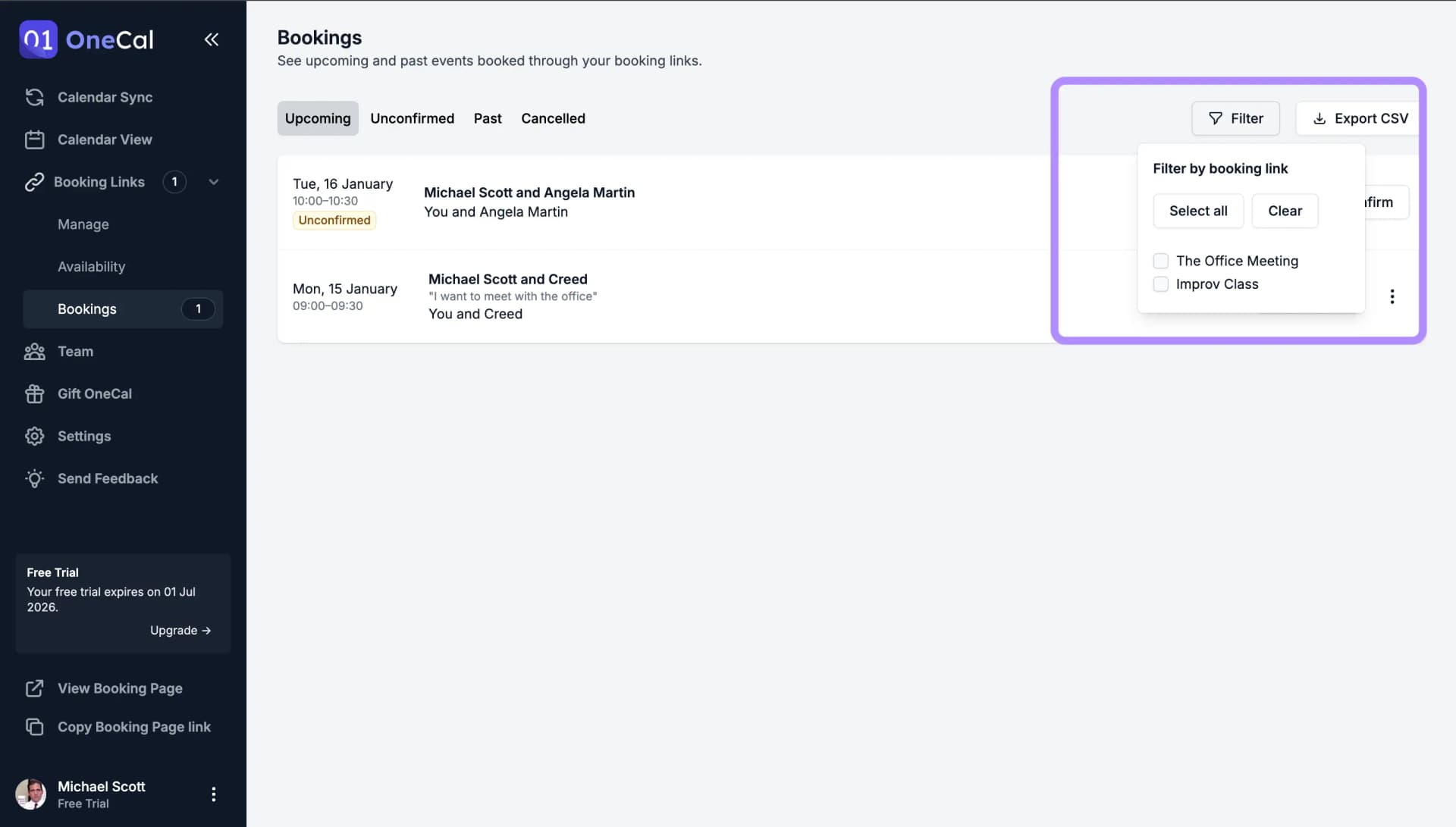
Filter by Booking Link
You can quickly filter your bookings based on the booking link.
Export as CSV
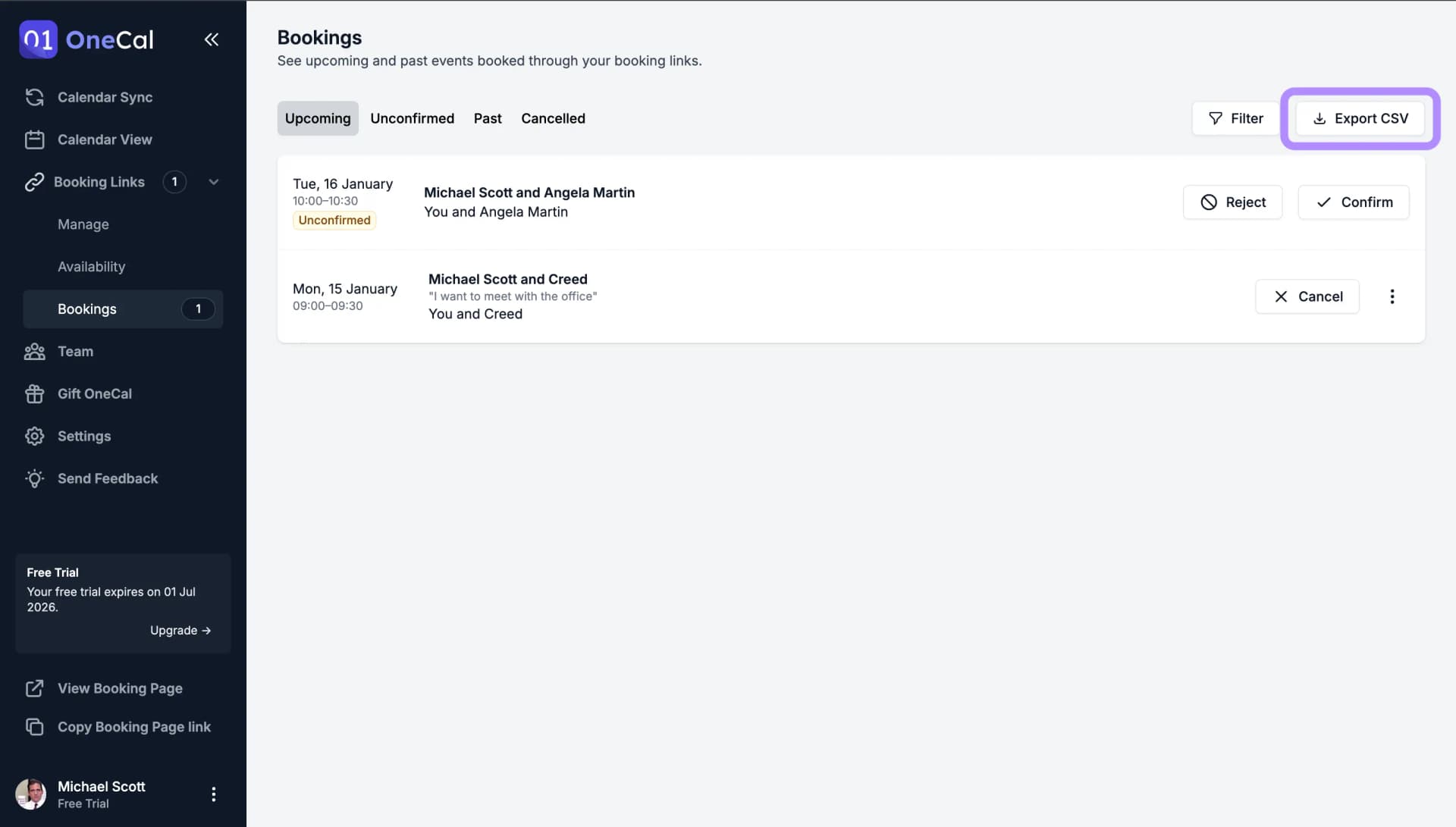
You can export all your bookings, along with any filters applied, as a CSV file. See Export Bookings to CSV for details.