Zapier Integration
The OneCal Zapier integration lets you connect your bookings to thousands of other apps. Send a Slack message when a meeting is booked, add new schedulers to your CRM, log cancellations in a spreadsheet, and much more.
Connect OneCal to Zapier
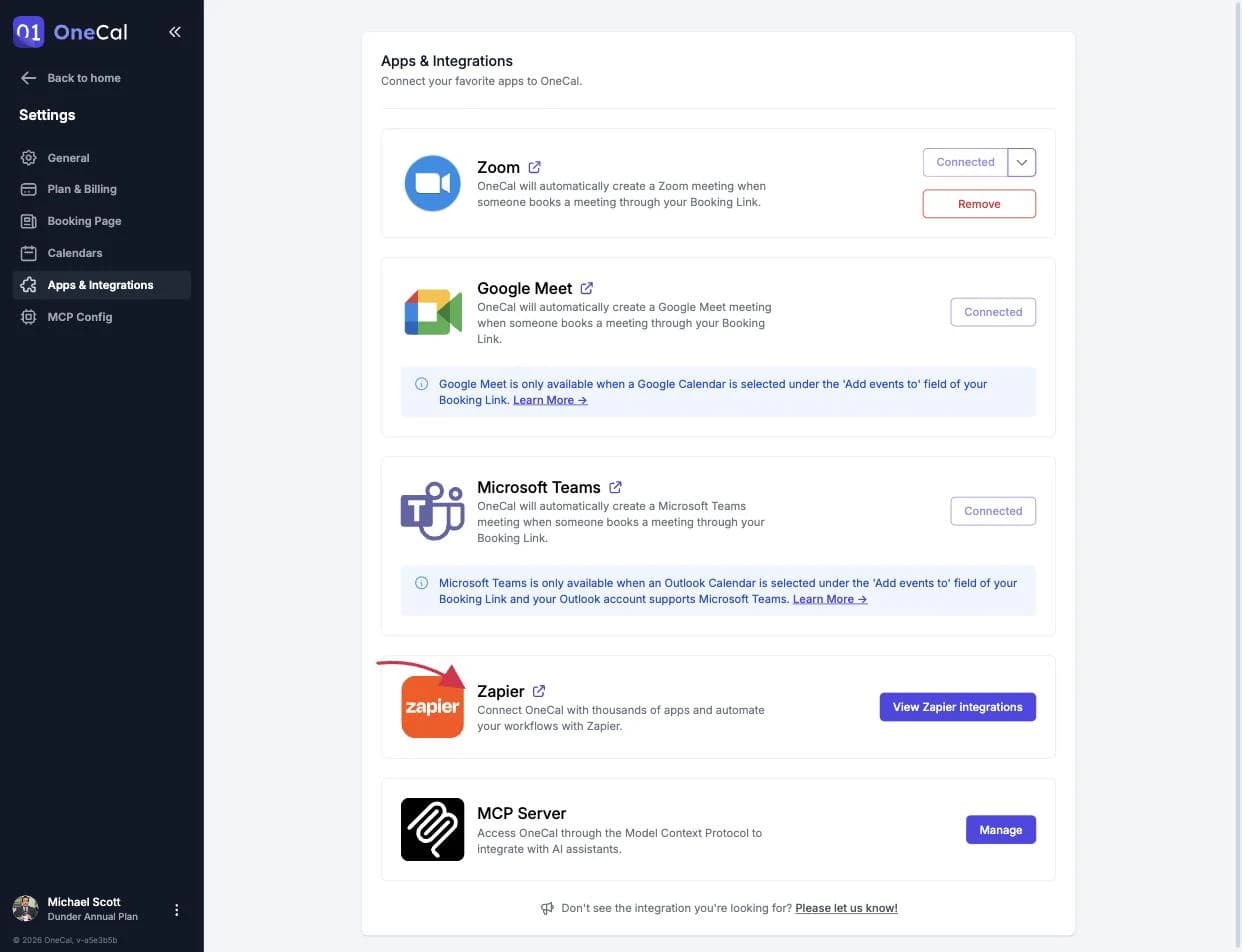
- Go to the OneCal integrations page on Zapier, or click View Zapier integrations on the Settings → Apps & Integrations page.
- Create a Zap and choose OneCal as the trigger app.
- When Zapier asks you to connect your OneCal account, sign in to OneCal and authorize the Zapier connection.
No API key is needed, the Zapier connection uses a secure sign-in with your OneCal account.

Available triggers
Your Zaps run instantly when things happen in OneCal:
- Booking Requested: A new booking is requested on a link that requires confirmation.
- Booking Confirmed: A new booking is confirmed.
- Booking Changed: A booking is changed.
- Booking Cancelled: A booking is cancelled, including who cancelled and the reason.
- Booking Declined: A booking is declined.
- Booking Reschedule Requested: A reschedule is requested, including the reason.
- Booking Reschedule Confirmed: A reschedule is confirmed, including the old date and time.
Each trigger can optionally be filtered to a specific booking link, so different links can drive different workflows.
Every trigger provides the full booking details to the rest of your Zap: the event name and time, the scheduler's name, email and timezone, all attendees and their answers, the booking link, the meeting location, and the booking URL.
Good To Know
The Zapier integration triggers on booking events. It does not create bookings or calendar events. If you want AI assistants or your own tools to create events, look at the MCP Server or the User Provisioning API.