Microsoft Teams Integration
OneCal can automatically create a Microsoft Teams meeting when someone books a meeting through your booking link, and add Teams meetings to events you create in the Unified Calendar View.
Microsoft Teams does not need to be connected separately. It is available as soon as you have an Outlook Calendar connected to OneCal, and your Outlook calendar account supports Microsoft Teams.
Use Microsoft Teams on booking links
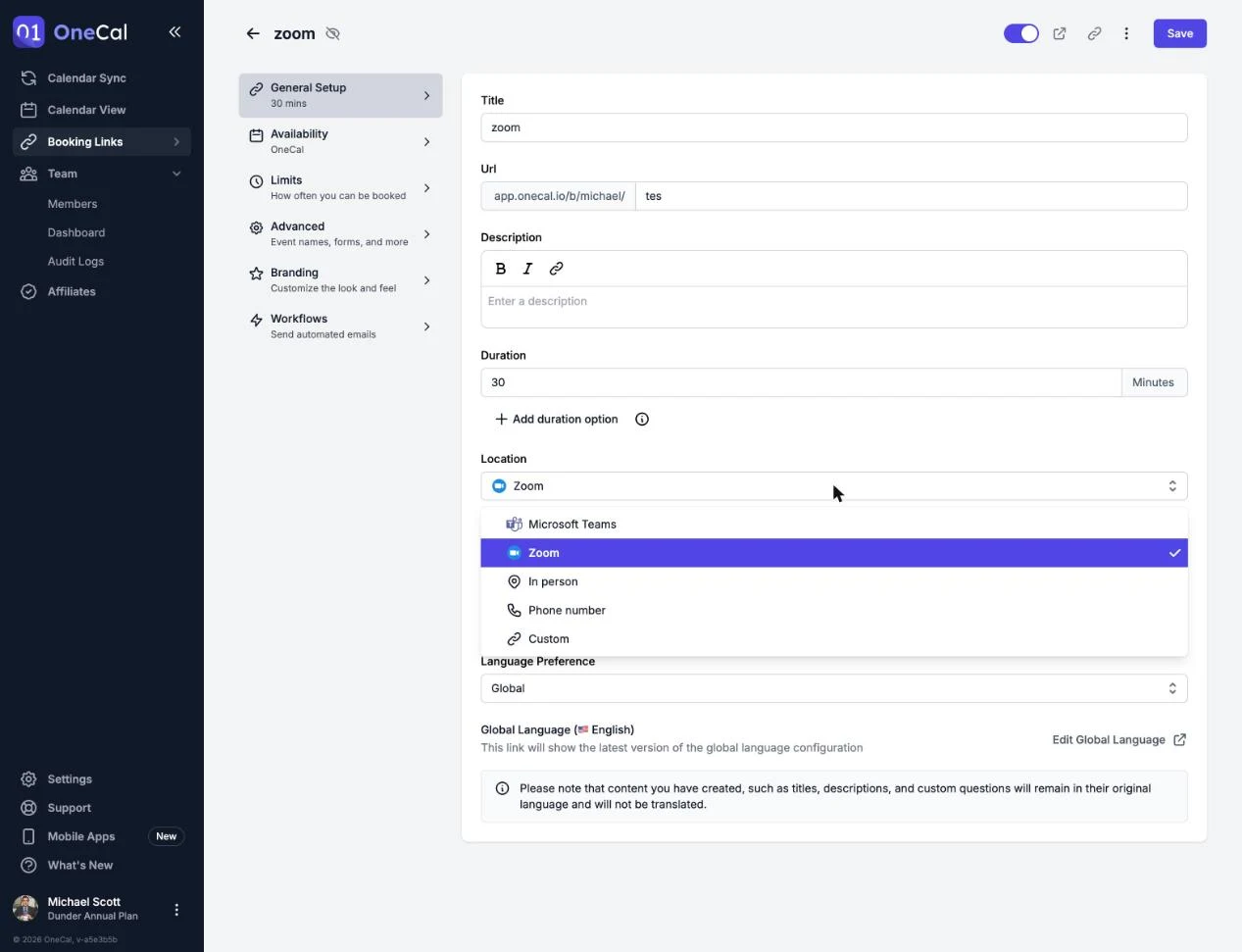
- Open your booking link and go to General Setup.
- Under Add events to, select an Outlook calendar. This is the calendar that bookings are added to and emails are sent from.
- Under Location, select Microsoft Teams.
Every new booking now gets a unique Teams meeting link, included in the calendar invite for you and the scheduler.

Good To Know
Microsoft Teams is only available when an Outlook Calendar is selected under the "Add events to" field of your booking link. If you pick a Google calendar instead, the option becomes Google Meet. See Add Events To Calendar.
Use Microsoft Teams in the Unified Calendar View
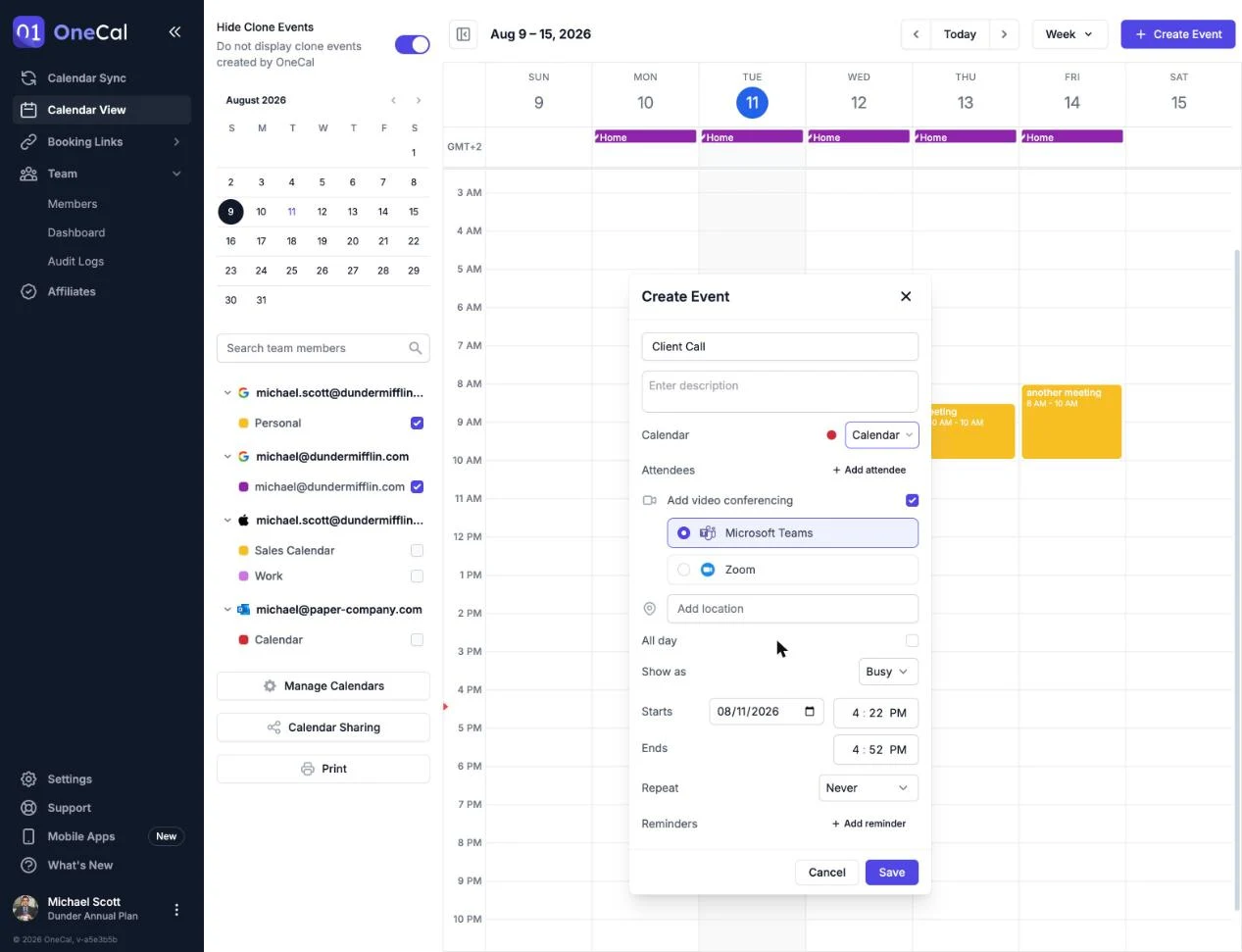
When creating an event on an Outlook calendar in the Unified Calendar View, enable Add video conferencing and choose Microsoft Teams. The Teams meeting is created with the event and shared with all attendees.