MCP Server
The OneCal MCP Server lets AI assistants like Claude and ChatGPT securely access your calendars through the Model Context Protocol. Once connected, you can ask your assistant to check your availability, create events, or RSVP to invitations, and it happens directly on your calendars.
Good To Know
The MCP Server is enabled on request. To use it, email contact@onecal.io and we will enable it for your team.
What your assistant can do
- List all calendars connected to your OneCal account.
- Check your availability for a specific time period.
- Get your calendar events, or look up a specific event.
- Create events, including attendees, reminders, recurring events, and video conferencing with Google Meet, Microsoft Teams or Zoom.
- Update or delete events, including single occurrences of recurring events.
- RSVP to invitations with accept, decline or tentative, with an optional message to the organizer.
Connect your AI assistant
The MCP Server URL is:
https://mcp-server.onecal.io/mcp
Connecting an assistant takes three steps:
- Create an MCP client in Settings → MCP Config (see below). This gives you a Client ID and a Client Secret.
- Add the OneCal MCP server in your AI assistant using the URL and the client credentials.
- When the assistant connects, you are taken to the OneCal authorization screen. Review the requested access and click Authorize.
We have step-by-step guides for the most popular assistants:
Manage MCP clients
Settings → MCP Config is where you create and manage the OAuth2 clients your assistants use.

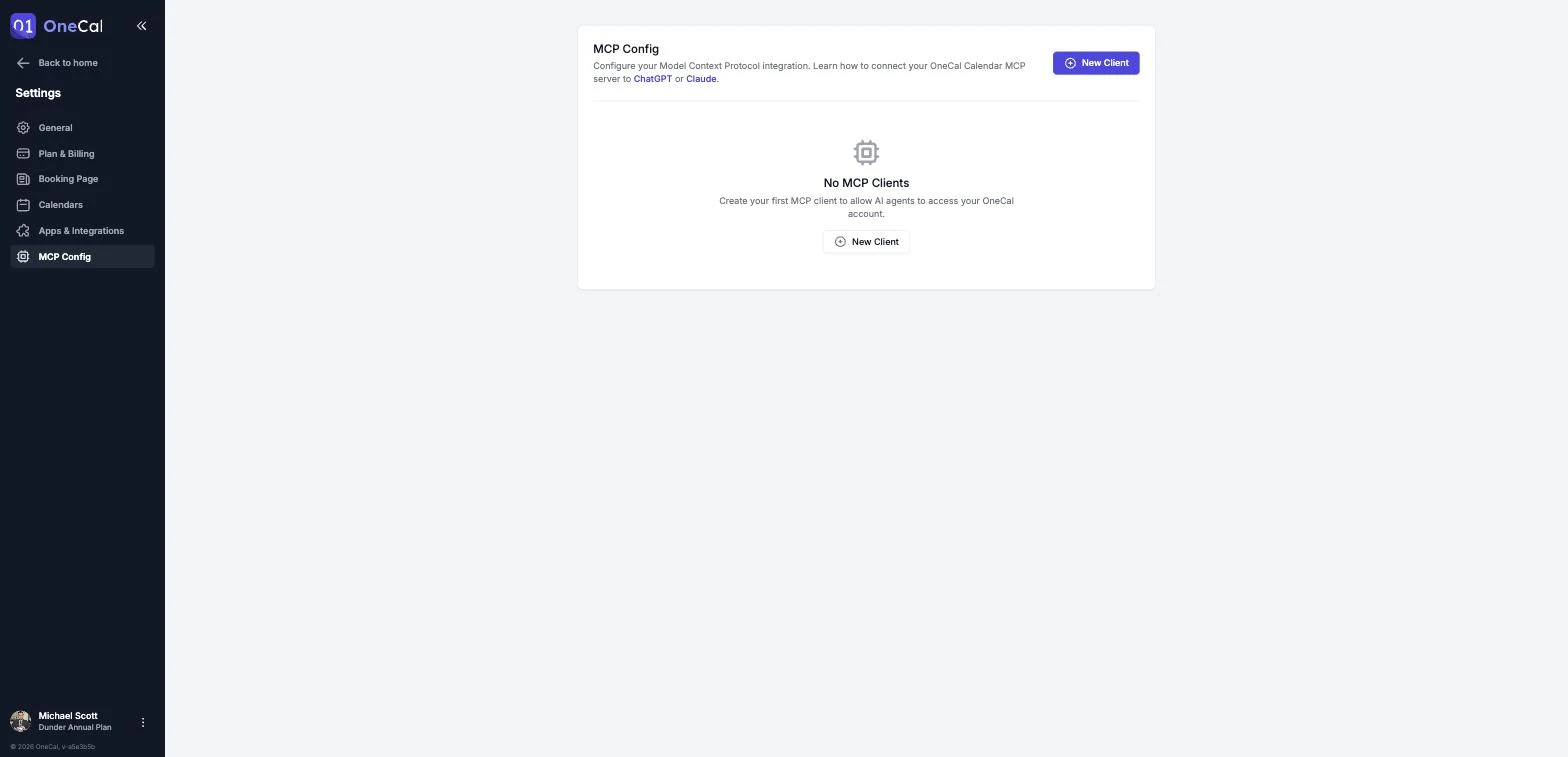
When creating a client you choose:
- Name: A recognizable name, for example "Claude Agent".
- Scopes: What the client is allowed to do. Reading and writing calendar events and booking links are optional, so you can create a read-only client if you prefer.
- Default Redirect URI: Where the client is allowed to redirect after authorization.
On the client's detail page you can copy the MCP Server URL and Client ID, generate and revoke client secrets, and manage redirect URIs.
Good To Know
A client secret is shown only once, right after you generate it. Copy it immediately. If you lose it, revoke it and generate a new one. Deleting a client revokes all of its access immediately.