How to connect OneCal Calendar MCP server to Claude
OneCal exposes a Model Context Protocol (MCP) server that lets AI clients like Claude read and manage your connected calendars on your behalf. Once connected, you can ask Claude to list your calendars, check your availability, and create, update, or delete calendar events.
This guide will walk you through creating an MCP client in OneCal and connecting it to Claude as a custom connector.
Unlike some clients, Claude uses a fixed OAuth callback URL, so you can create the MCP client in OneCal first and then add the connector in Claude.
Prerequisites
Before starting make sure you have the following:
- A OneCal account with either an active Free Trial or any paid plan.
- At least one calendar connected to your OneCal account.
- You are already logged in to your OneCal account.
- A Claude plan that supports custom connectors (Pro, Max, Team, or Enterprise). On Team and Enterprise plans, only Owners can add a custom connector.
Step 1: Create an MCP client in OneCal
1. Navigate to https://app.onecal.io/ and open Settings > MCP Config.
2. Click the New Client button.
3. Give the client a recognizable name, for example: "Claude". This helps you identify which app the client belongs to later.
4. Leave Supports client-secret OAuth authentication enabled.
5. Choose the scopes you want to grant. Scopes control what Claude can do through the MCP server. For full calendar access, enable Read your calendar events and Create and modify calendar events. Profile, email, and offline access are required and always included. Only grant the scopes you actually need.
6. In the Default Redirect URI field, enter Claude's OAuth callback URL:
https://claude.ai/api/mcp/auth_callback

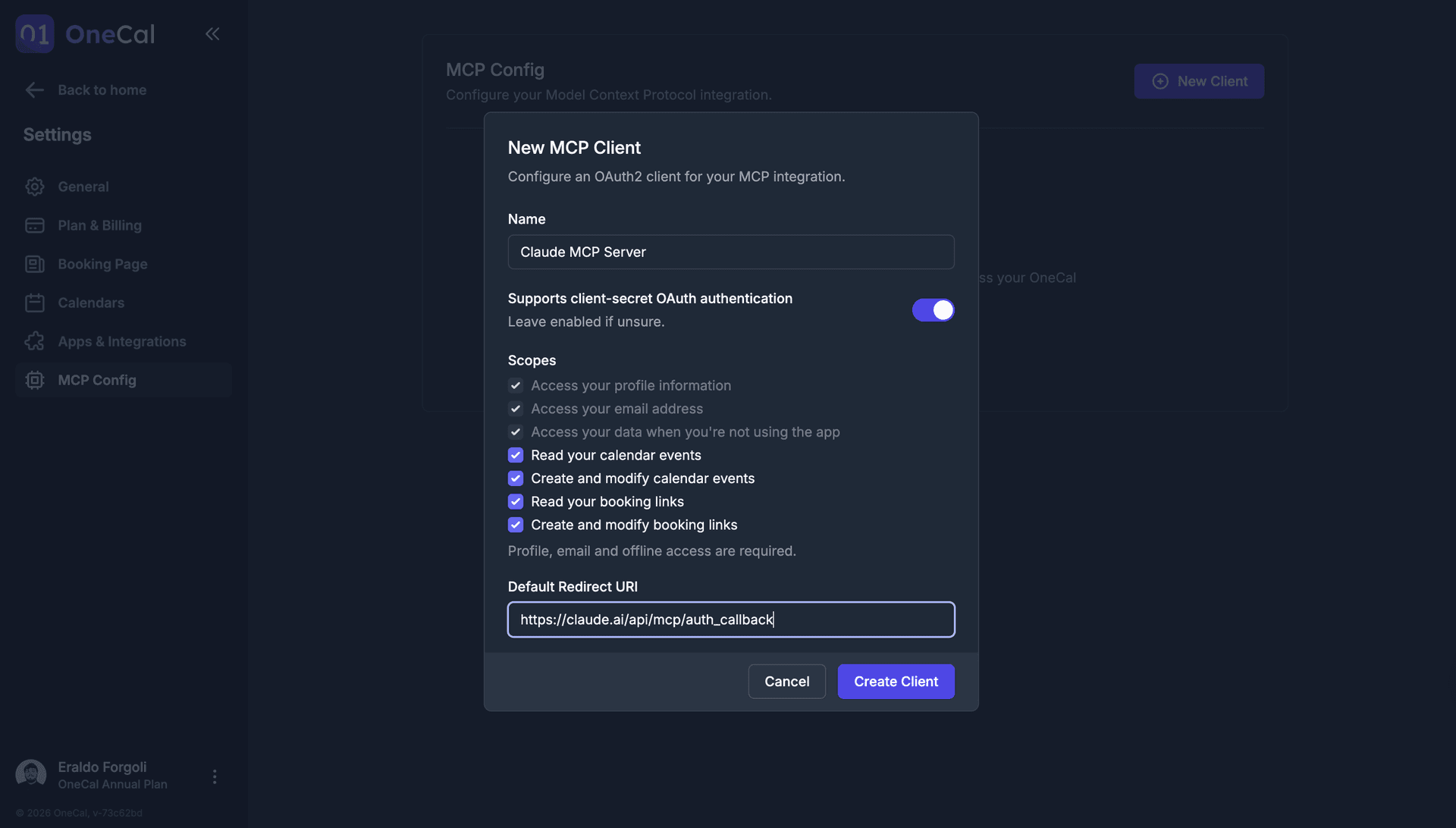
7. Click Create Client. OneCal will generate your client credentials, including the MCP Server URL, Client ID, Client Secret, and other connection details.
8. Copy and securely store these values. Treat the Client Secret like a password. It is shown once and should never be shared publicly.
Step 2: Add the connector in Claude
On Claude, MCP integrations are called connectors.
1. Open Claude and go to the Customize tab, then open Connectors.
2. Under Connectors, click + and then select Add custom connector.
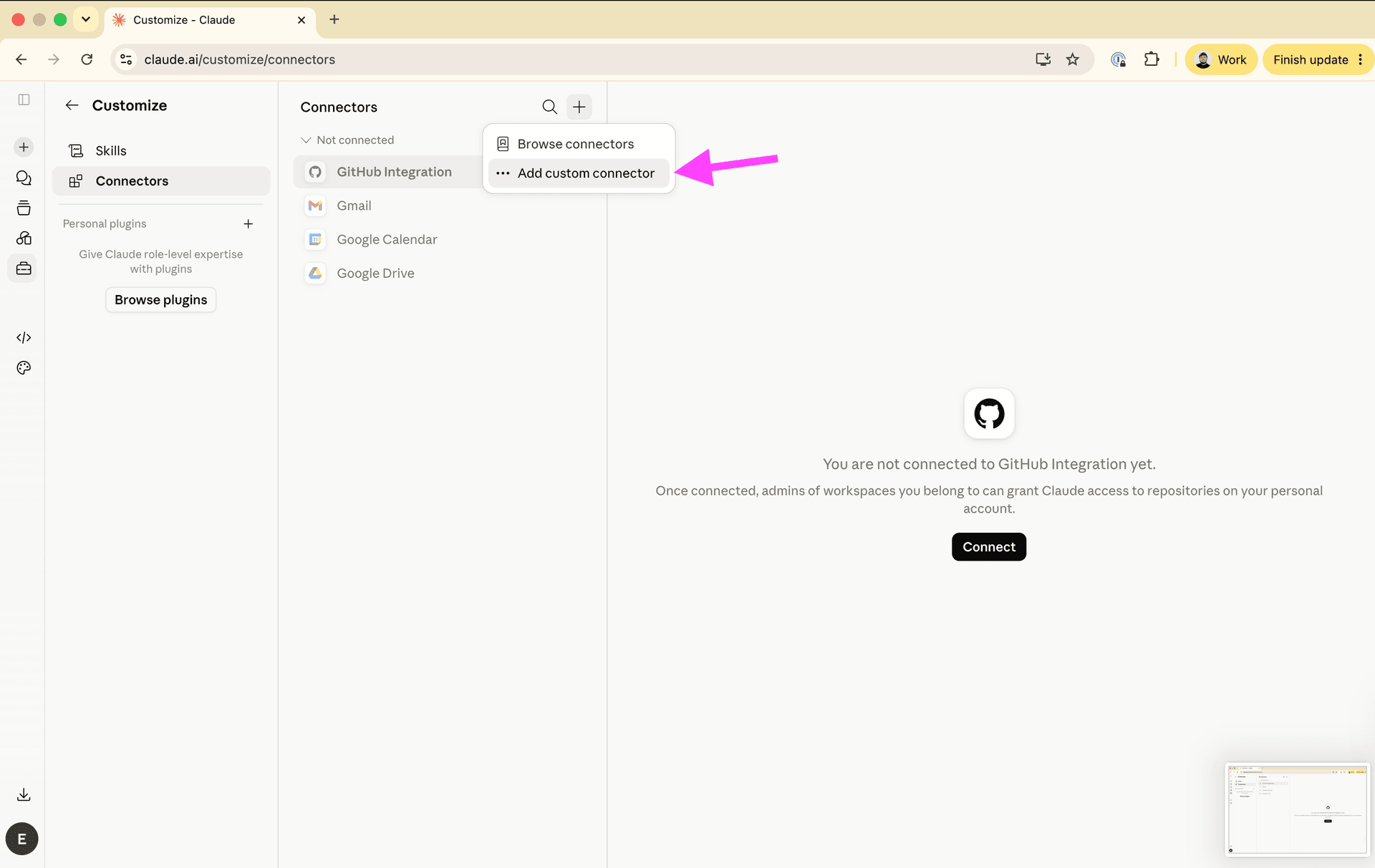
3. Fill in the connector details:
- Name: a recognizable name, for example: "OneCal MCP Server".
- MCP Server URL: the OneCal MCP server URL:
https://mcp-server.onecal.io/mcp
Then expand Advanced settings and enter:
- Client ID: the Client ID from OneCal.
- Client Secret: the Client Secret from OneCal.
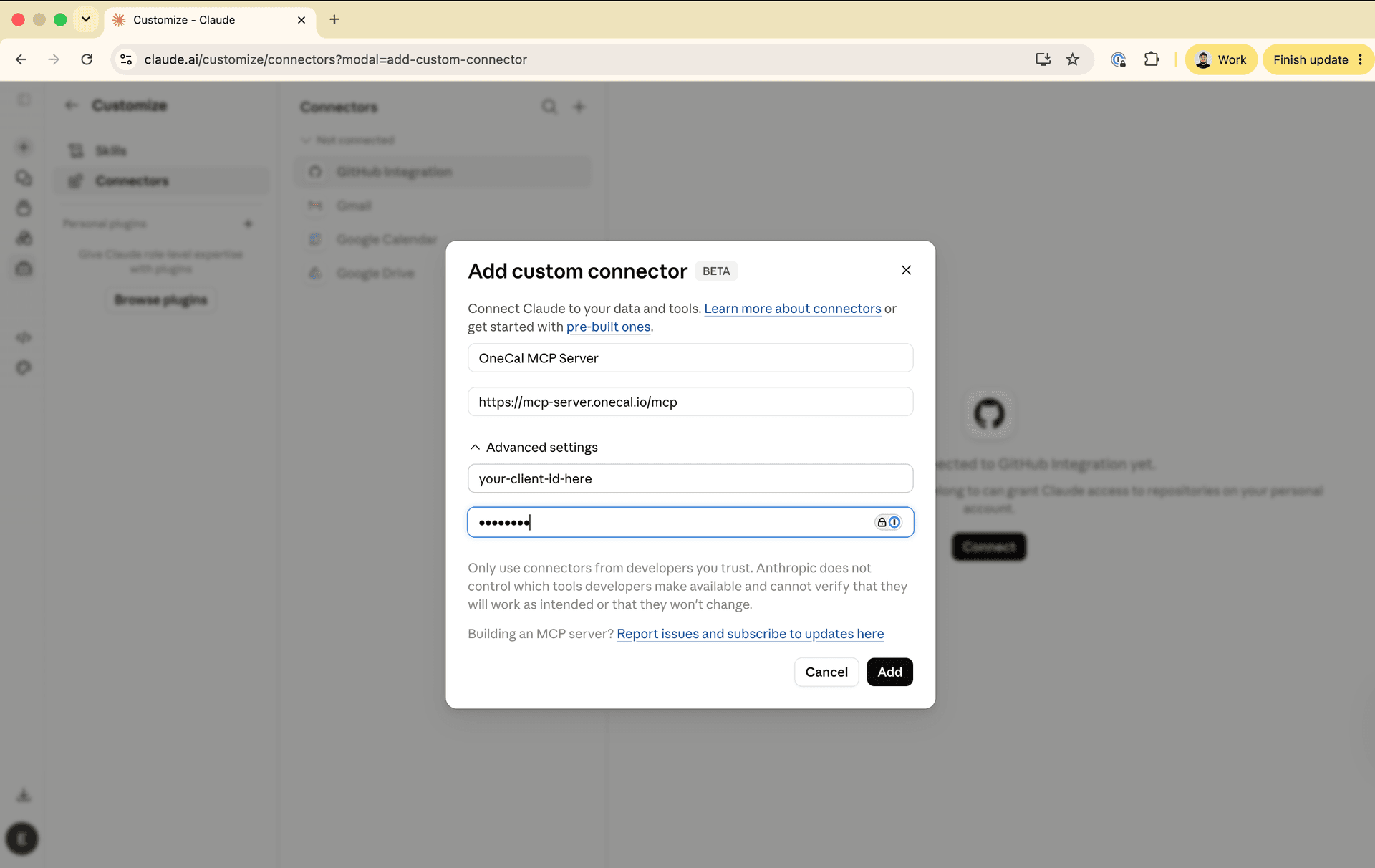
4. Click Add to save the connector.
5. Find the OneCal connector in the list and click Connect to start the authorization flow.
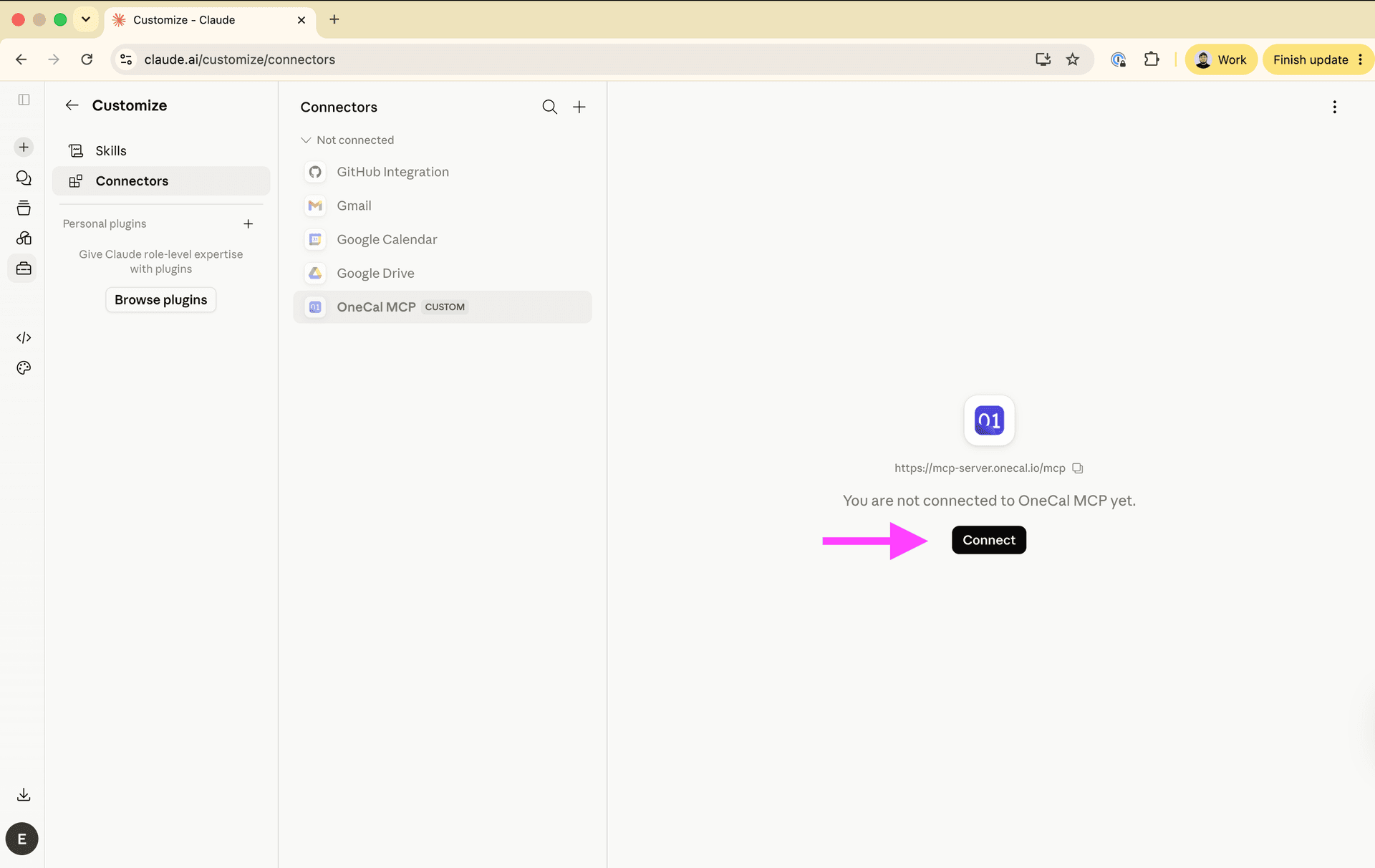
6. You will be redirected to OneCal. Sign in if prompted, review the access Claude is requesting, and click Authorize to grant access.
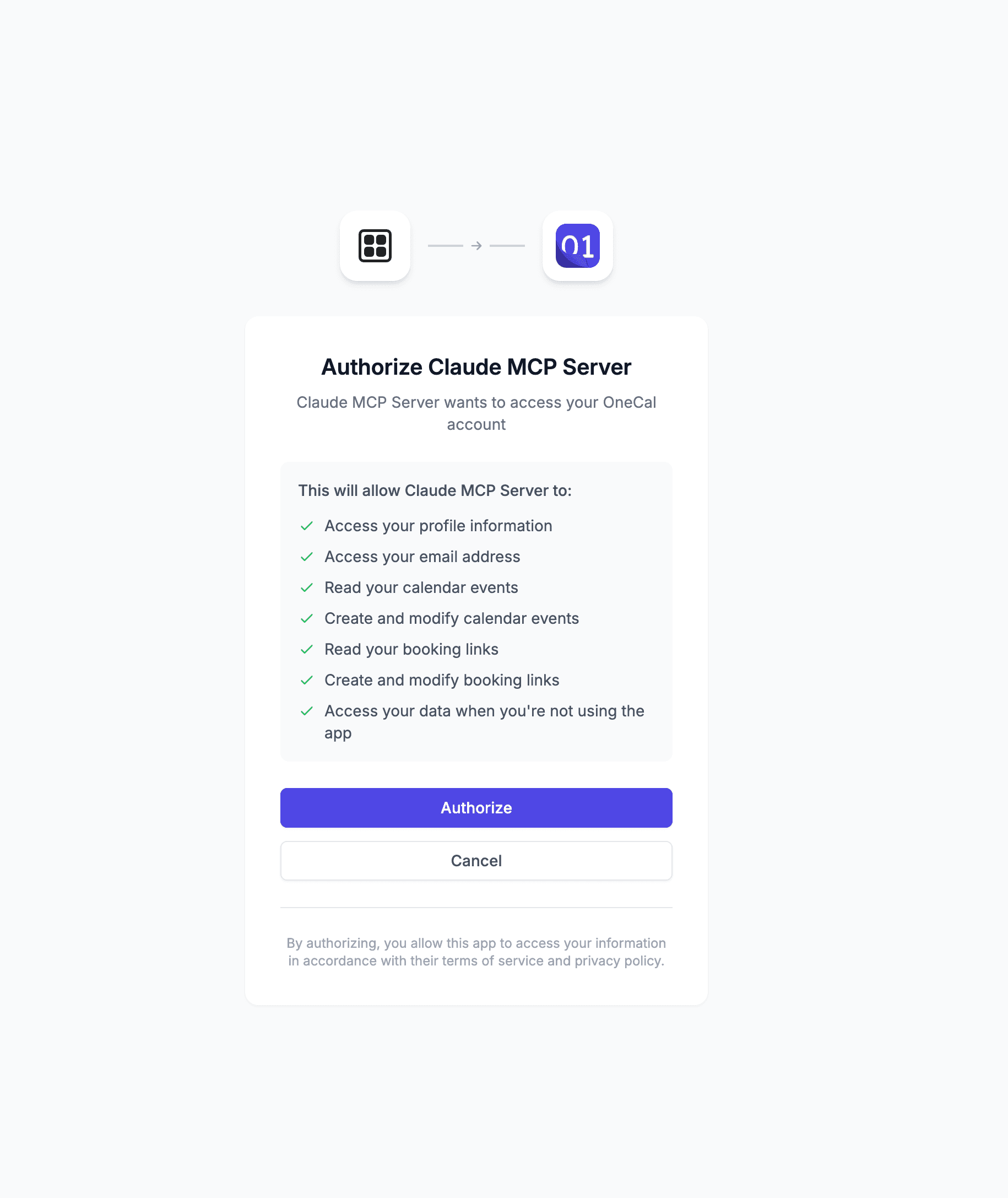
7. After authorizing, Claude redirects back and marks the connector as connected.
Step 3: Use OneCal in Claude
Once connected, you can use the OneCal connector inside your conversations. Open the connectors menu from the + button in the chat input to enable it, then ask Claude to:
- List your connected calendars.
- Check your availability for a given day or time range.
- Create, update, or delete calendar events.
Claude will only be able to perform actions allowed by the scopes you selected when creating the client.
Troubleshooting
- Authorization fails or redirects to an error page: Make sure the Default Redirect URI in OneCal is exactly
https://claude.ai/api/mcp/auth_callback. Even a trailing slash difference will cause the flow to fail. - Connector can read but cannot create or edit events: Confirm you granted the calendar write scope when creating the client. You can edit the client's scopes in Settings > MCP Config.
- Invalid client errors: Double-check that the Client ID and Client Secret were copied correctly, with no extra spaces.