Booking Links
Enable, Disable or Hide a Booking Link
Every booking link on the Booking Links page has two controls that decide who can book through it. A switch turns the link on or off, and a menu option hides it from your booking page. This page explains both and the difference between them.
Enable or disable a booking link
Each row on the Booking Links page has a Booking link enabled switch.
- Open the Booking Links page.
- Turn the Booking link enabled switch off on the booking link you want to stop.
- To accept bookings again, turn the switch back on.

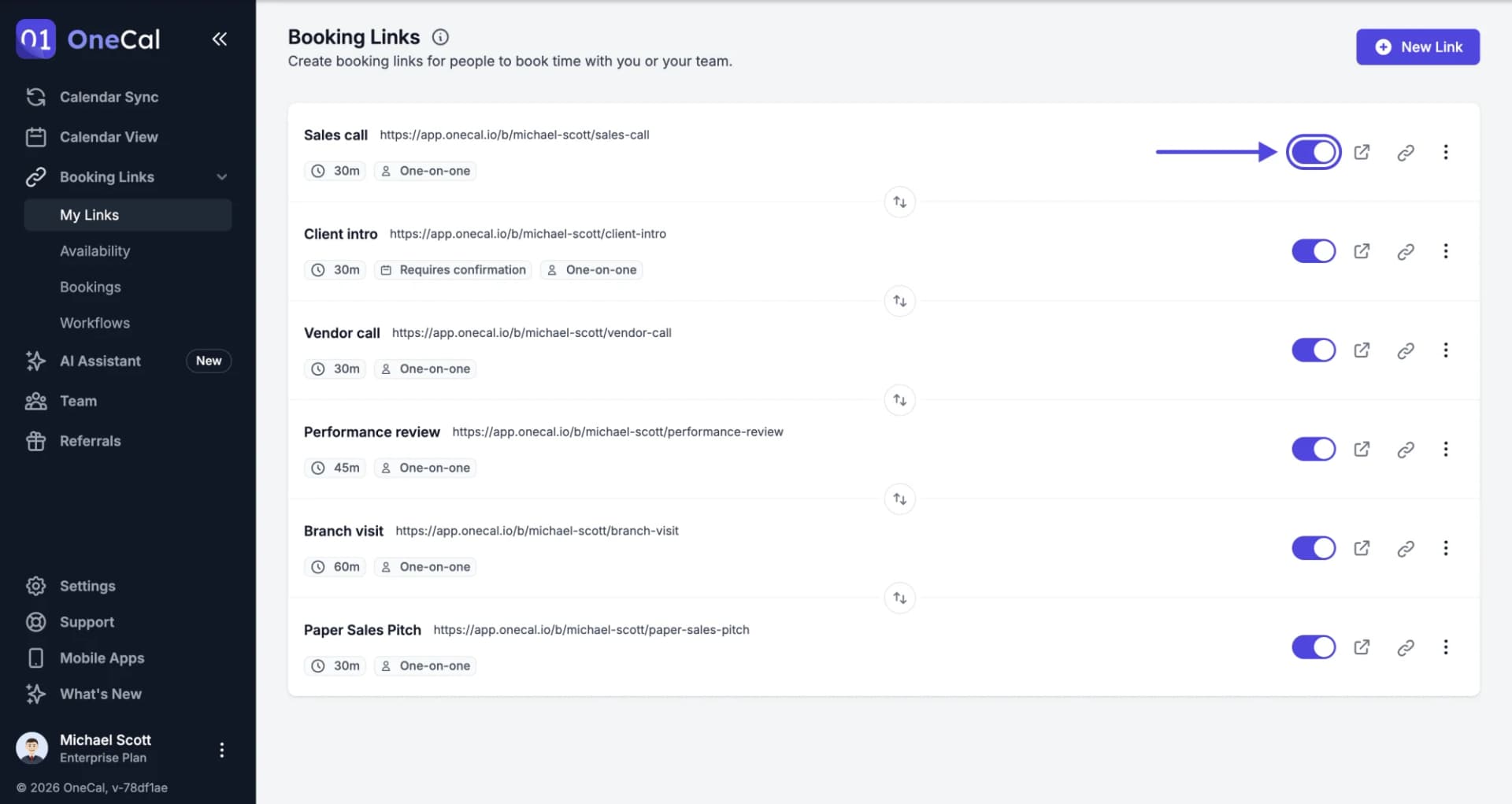
While a booking link is off, nobody can book through it, including people who use one of its private links.
Hide a booking link from your booking page
A hidden booking link keeps working, but it no longer appears on your booking page. Only people who have the direct URL can book through it.
- Open the Booking Links page.
- Click the three dots menu on the booking link and choose Hide from Booking Page. The row gets a Hidden tag.
- To list it on your booking page again, open the same menu and choose Show on booking page.
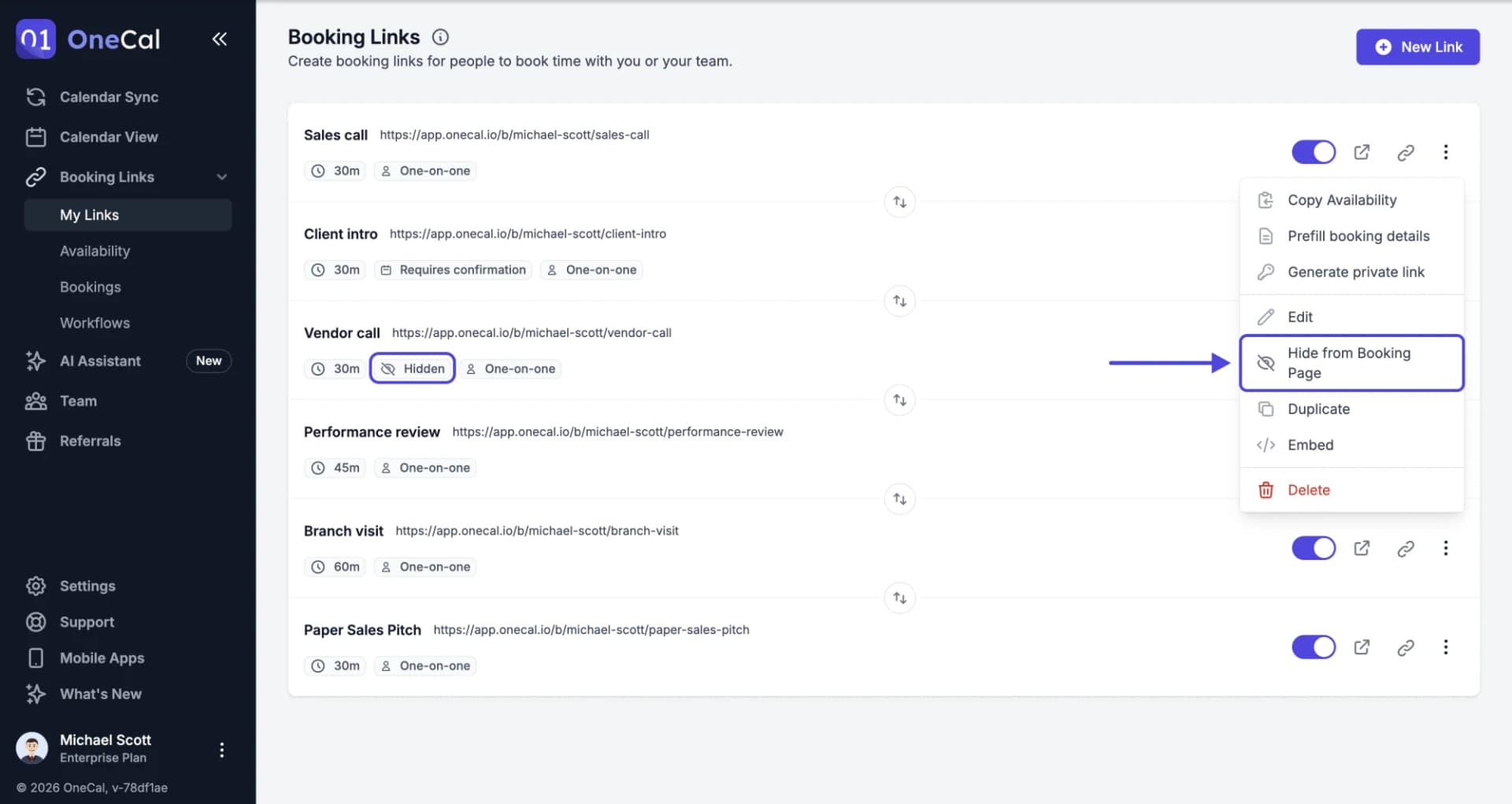
Disabled or hidden?
| Disabled | Hidden | |
|---|---|---|
| Bookings through the direct URL | Stopped | Still work |
| Bookings through its private links | Stopped | Still work |
| How the Booking Links page marks it | The Booking link enabled switch is off | The Hidden tag |
Disable a booking link to stop every booking for a while, for example during a holiday. Hide it when the link should stay bookable, but only for the people you share it with.
Good To Know
When your free trial or subscription expires, OneCal disables every booking link at once. See Plans and Free Trial. To share a booking link with one person for a limited time, use Private Booking Links instead of hiding or disabling it.