Booking Link Layouts
Your booking links can show the available times in three layouts: the Monthly View, the Weekly View and the Column View. Schedulers can switch between them with the buttons in the top right corner of the booking link. As the host, you choose which layout a booking link opens with.

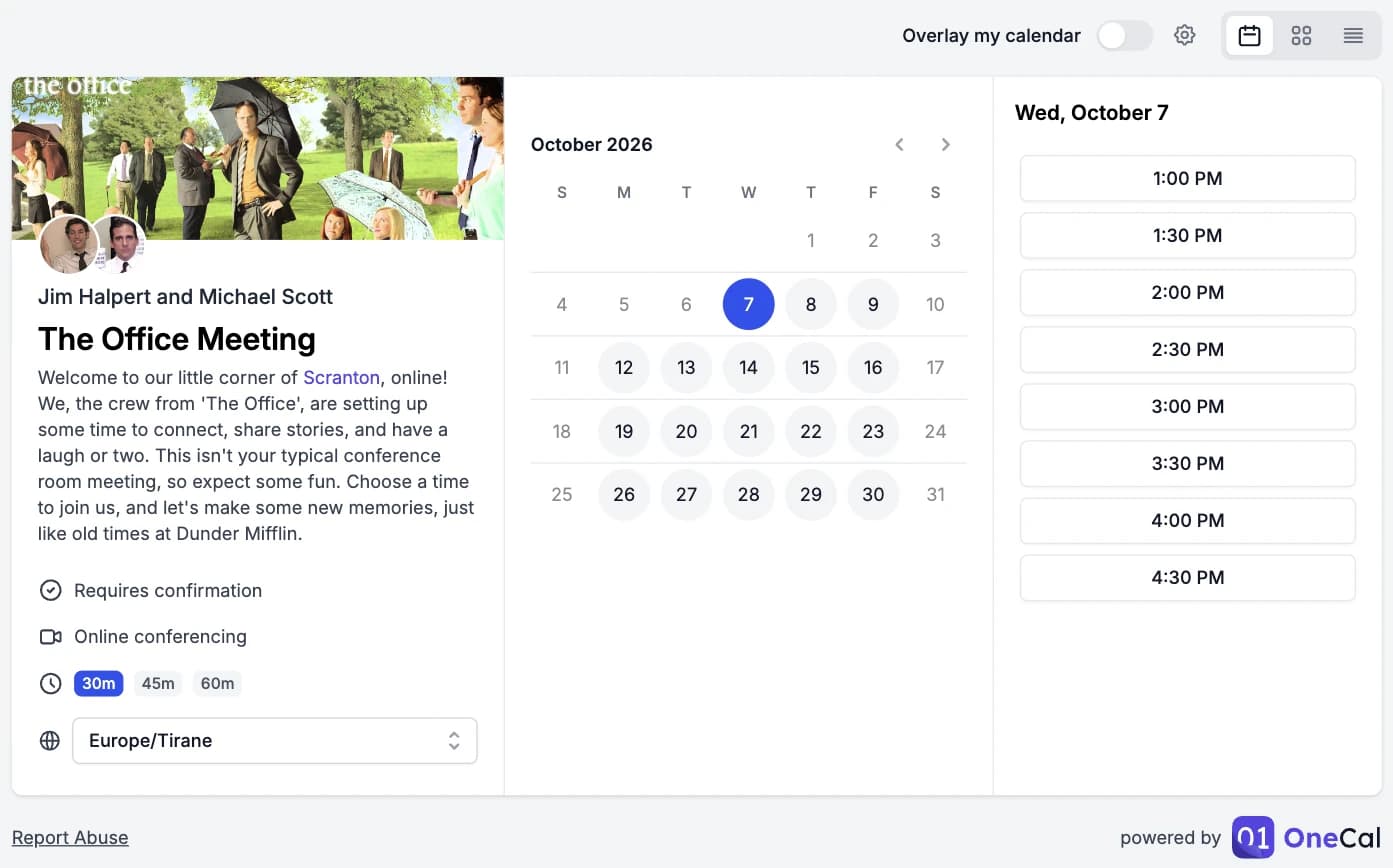
The three layouts
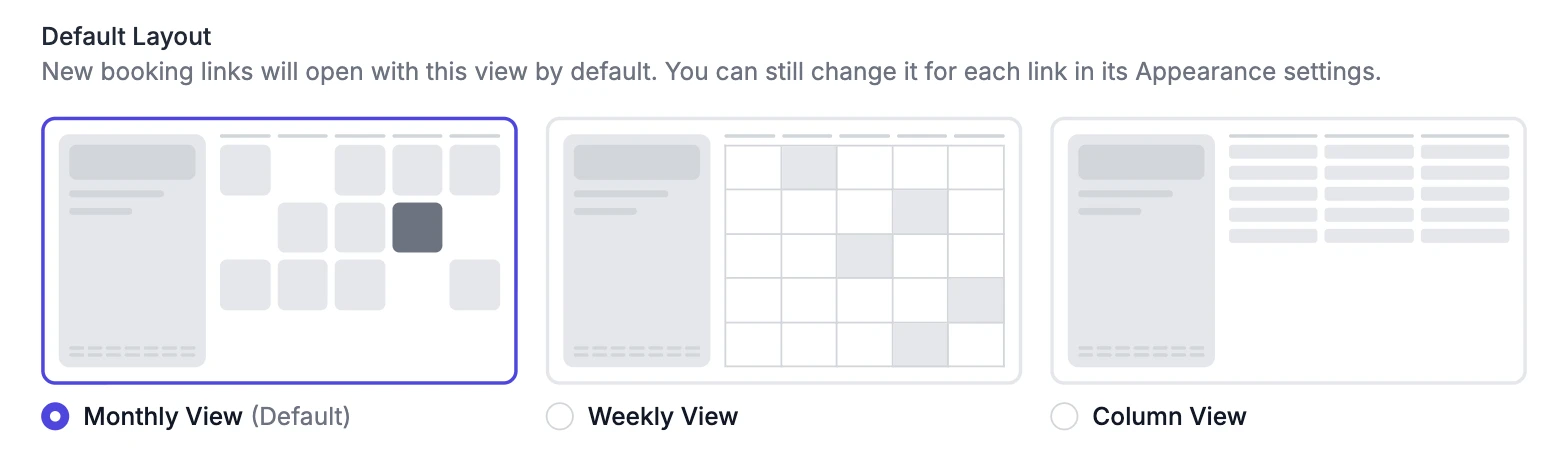
- Monthly View: Shows a calendar for the whole month. The scheduler picks a day, and the available times for that day appear on the right. This is the classic layout, and it is the default.
- Weekly View: Shows a full week, like a calendar app. Times that are not available are shaded, so the scheduler can see the open parts of the week at a glance. The scheduler clicks a free spot in the week to pick a time.
- Column View: Shows the available times of the next few days side by side, one column per day. Days without any available times are left out. This is the fastest way to compare several days.
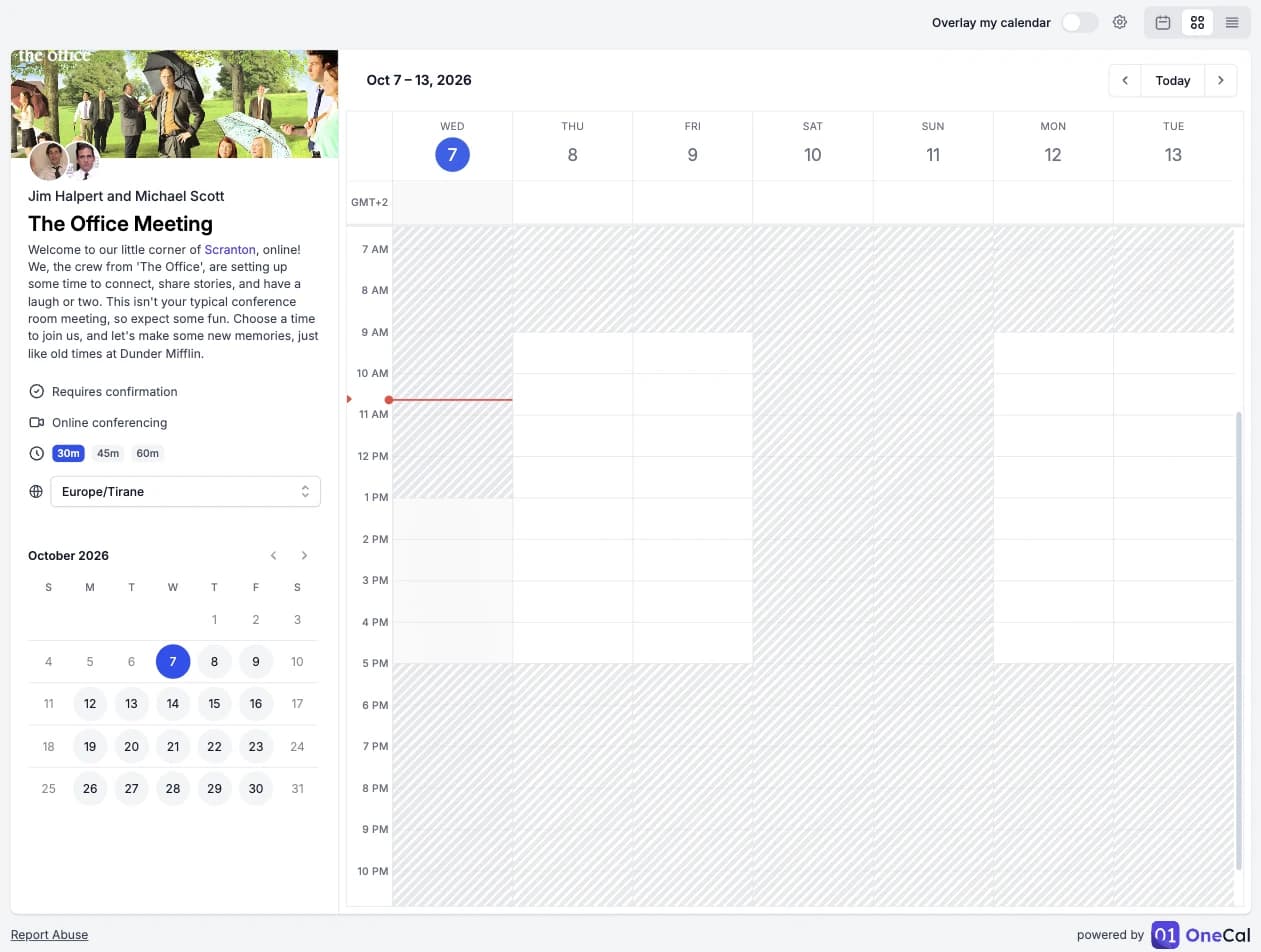
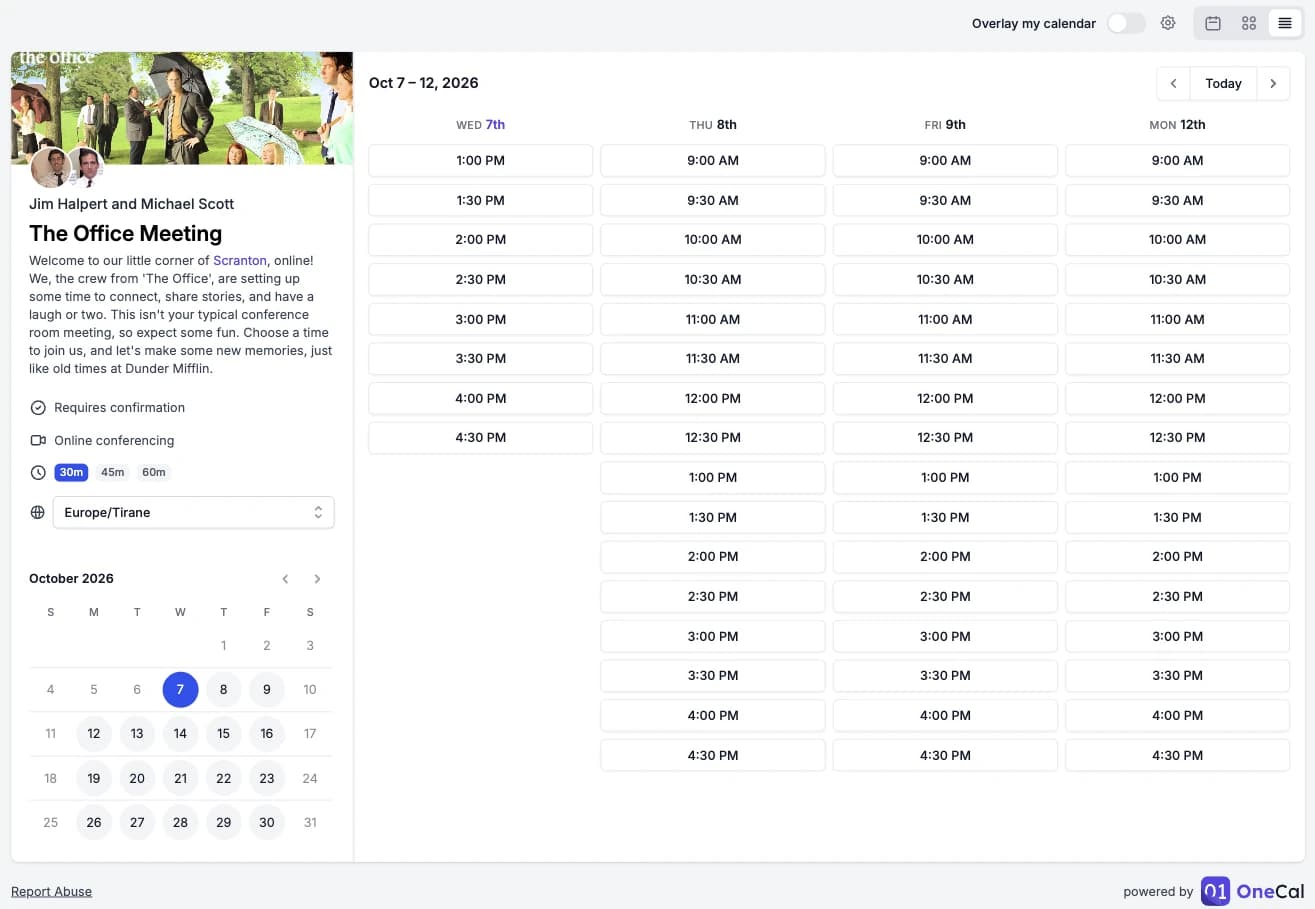
In the Weekly View and the Column View, use the arrows in the top right corner of the calendar to move to the previous or next days, and click Today to go back to the current week. You can also pick a date in the small calendar on the left to jump to it.
Switch the layout as a scheduler
- Open the booking link.
- Click one of the three buttons in the top right corner. From left to right, they are the Monthly view, the Weekly view and the Column view.
The booking link switches right away. The selected date, duration and time zone stay the same.
Set the default layout for a booking link
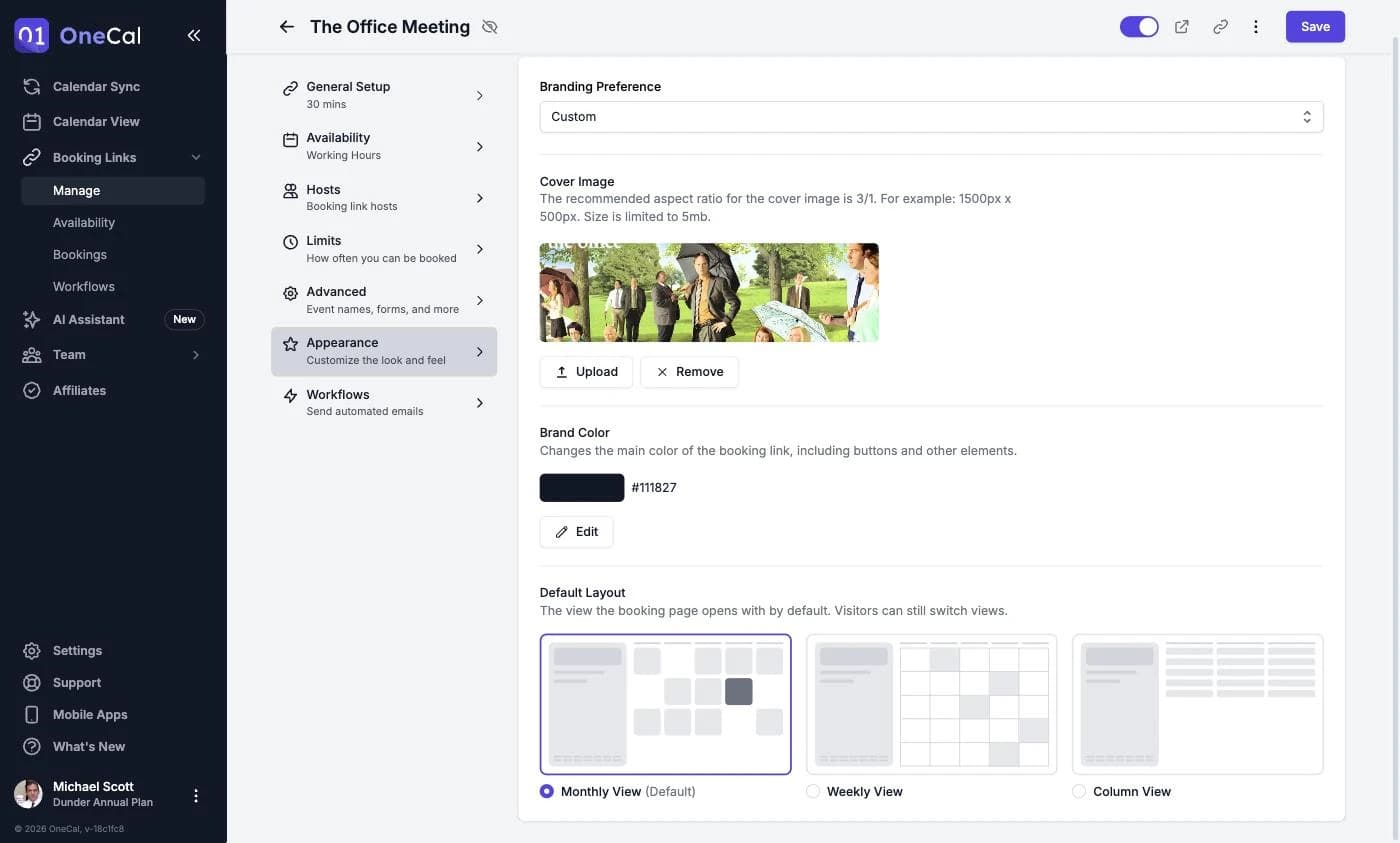
Each booking link has its own default layout. This is the layout schedulers see when they open the link. They can still switch to another layout.
- Open the Booking Links page and click the booking link you want to change.
- Open the Appearance tab.
- Under Default Layout, pick the Monthly View, the Weekly View or the Column View.
- Click Save.
Set the default layout for new booking links
You can also choose the layout that all your new booking links start with. This saves you from changing it on every new link.
- Go to Settings → Booking Page.
- Scroll down to Default Layout.
- Pick the Monthly View, the Weekly View or the Column View. The change is saved right away.
Good To Know
This setting only applies to booking links you create after you change it. Your existing booking links keep their own layout. To change an existing link, open it and update the layout in its Appearance tab.
Layouts on phones
On phones, there is not enough room for the Monthly View or the Weekly View, so booking links always use the Column View. The scheduler picks a day in the small calendar, and the available times for that day appear below it. The layout buttons are hidden on phones.
Related
- Overlay My Calendar: Let schedulers see their own free and busy times on your booking link.
- Custom Branding: Add a cover image and a brand color to your booking links.
- Set Up Your Booking Page: Configure your public booking page and its global settings.