Booking Links
Overlay My Calendar
When you book a time on someone's OneCal booking link, you can overlay your own calendar on top of the available times. OneCal then shows you which times you are free and which times you are already busy. You no longer need to open your calendar in another tab to check if a time works for you.

How it works
- Open the booking link.
- Turn on the Overlay my calendar toggle in the top right corner.
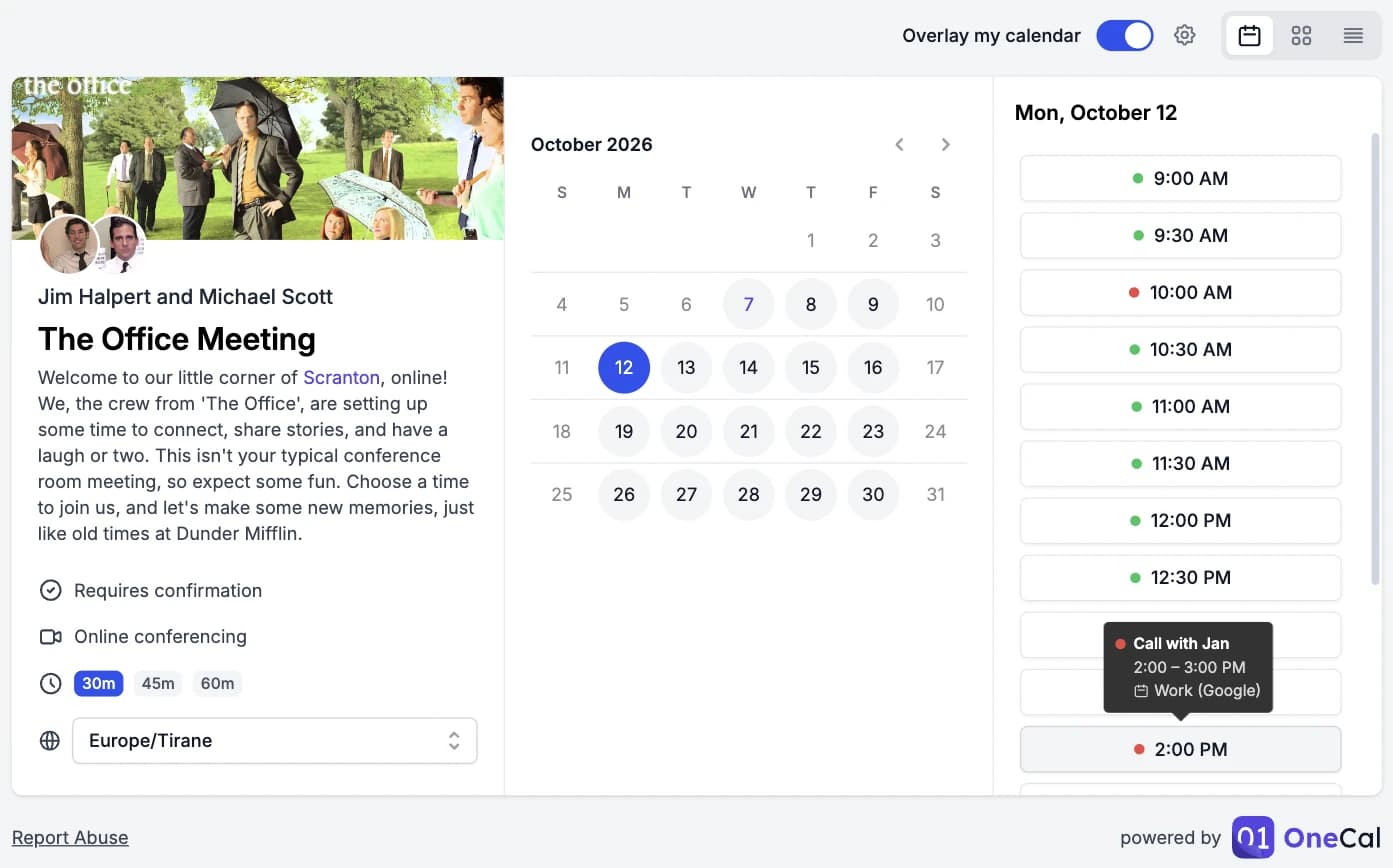
- OneCal reads the events from your connected calendars and marks each available time:
- A green dot means you are free at that time.
- A red dot means you already have an event at that time.
- Hover over a time with a red dot to see the event that makes you busy.
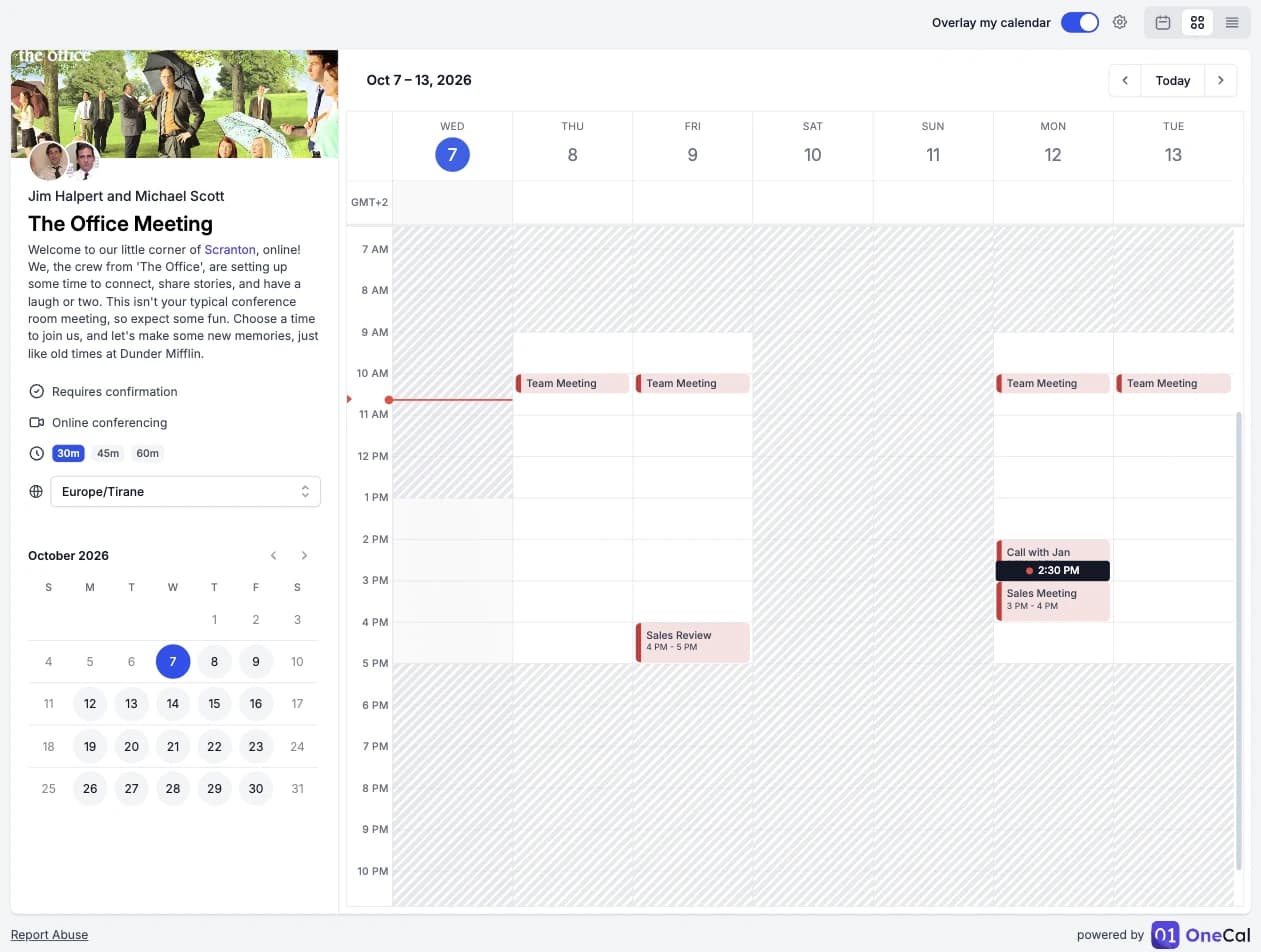
The overlay works in all three layouts. In the Weekly View, your events also appear on the calendar, so you can see your whole week next to the available times. Only events that overlap with the available times are shown.
Good To Know
Your events are only shown for reference. They never change the available times of the booking link. You can still book a time even if you are busy at that time.
If you are not signed in to OneCal
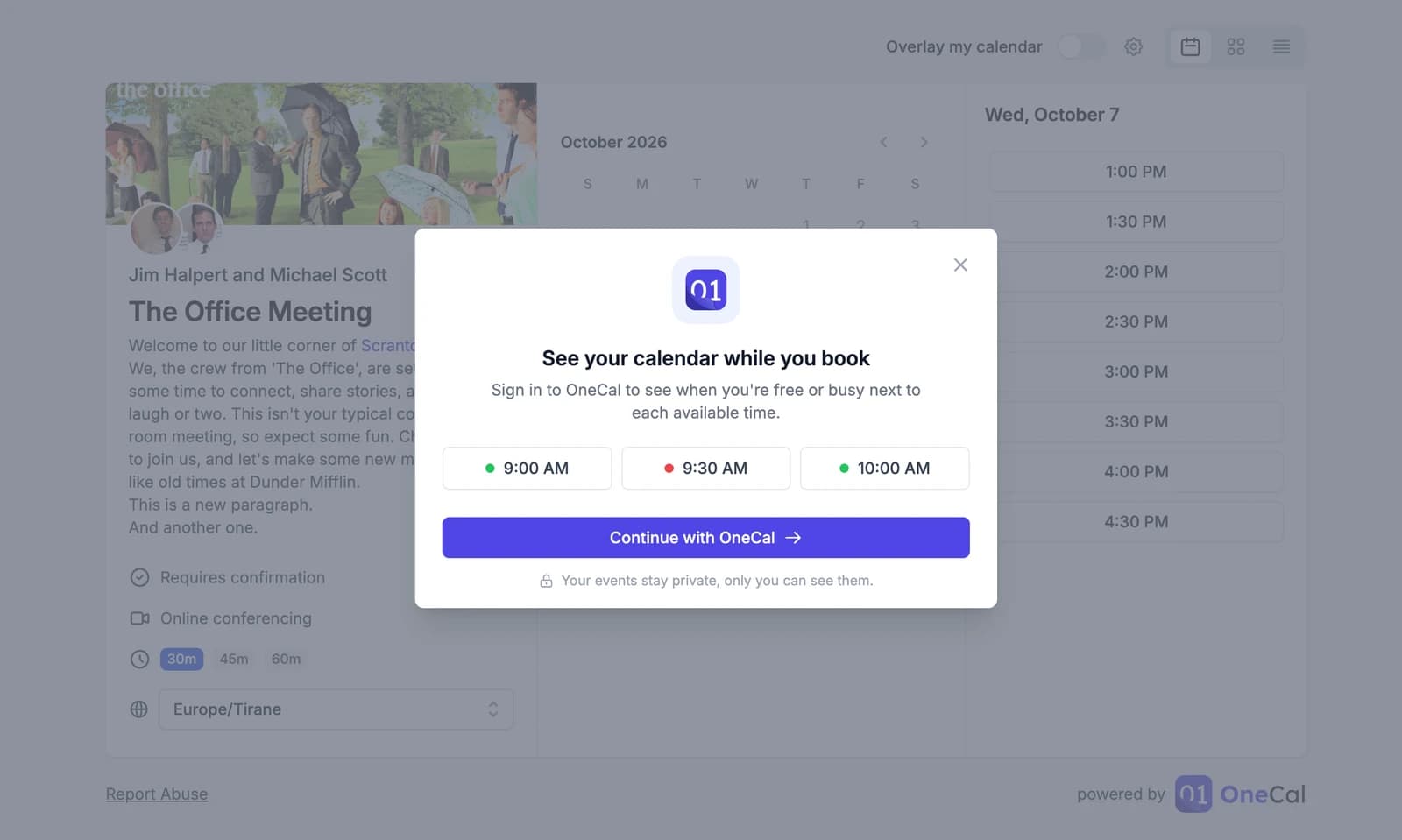
To overlay your calendar, OneCal needs to read your events, so you need a OneCal account with at least one connected calendar.
- Turn on the Overlay my calendar toggle.
- Click Continue with OneCal.
- Sign in to OneCal, or create a free account. If you are new to OneCal, connect your calendars when asked.
- OneCal takes you back to the booking link, with the overlay already turned on.
Choose which calendars to overlay
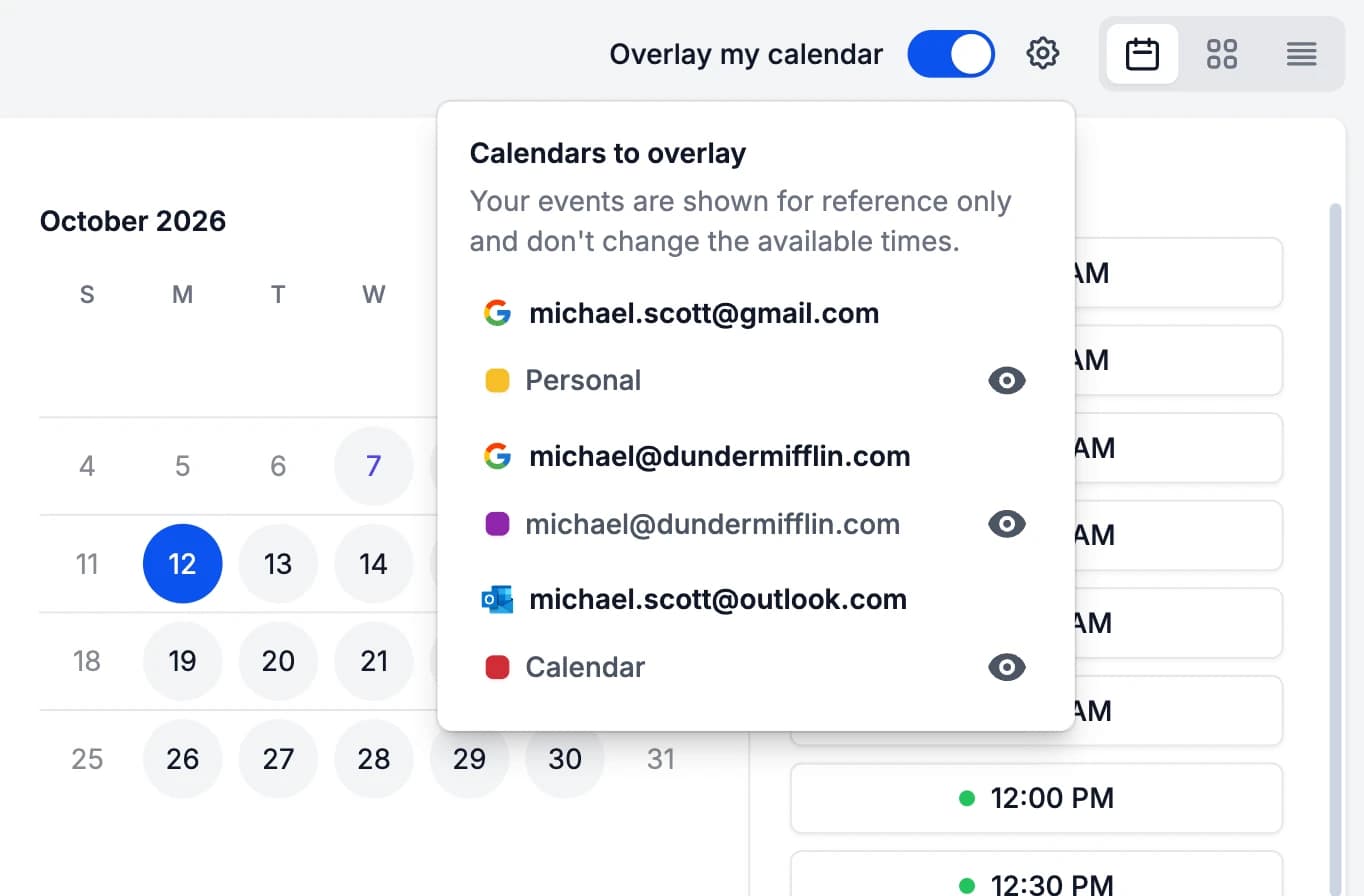
By default, OneCal overlays all your connected calendars, including calendars you connect later. To overlay only some of them:
- Click the gear icon next to the Overlay my calendar toggle.
- In the Calendars to overlay list, click the eye icon next to a calendar to hide it or show it.
OneCal remembers your choice in this browser, so the overlay stays the same the next time you open a booking link.
Which events count as busy
OneCal only marks a time as busy when you have a real event at that time. These events are left out:
- All-day events: They would mark every time of the day as busy, so they are ignored.
- Events marked as free: For example, an event that shows you as "Free" or "Available" in Google Calendar or Outlook.
- Declined events: Invitations you declined do not make you busy.
- OneCal clone events: When you sync calendars with OneCal, the synced copies are ignored, so the same event is not counted twice.
Status messages
You may see one of these next to the toggle:
- No calendar selected: You hid all your calendars. Click the gear icon and show at least one calendar.
- A yellow warning icon: The connection to one of your selected calendars has expired, so its events are not shown. Click the icon to reconnect the calendar. To learn more, read Fix an Expired Calendar Connection.
- A red error icon: OneCal could not load your events. Please try again later.
Privacy
- Only you can see your events. The host of the booking link never sees your events, your calendars or whether you turned on the overlay.
- The overlay only reads your events. It does not create, change or delete anything in your calendars.
- If a booking link is embedded on another website and you are not signed in to OneCal, the Overlay my calendar toggle is hidden, because you cannot sign in inside an embedded page.
Related
- Booking Link Layouts: Switch between the Monthly, Weekly and Column views.
- Troubleshoot Availability: As a host, find out why a time is available or not on your own booking link.