Support Access and Impersonation
OneCal has two separate settings that let someone else sign in to your OneCal account to help you. Both are off unless you enable them, and both are recorded in your team's Audit Logs.

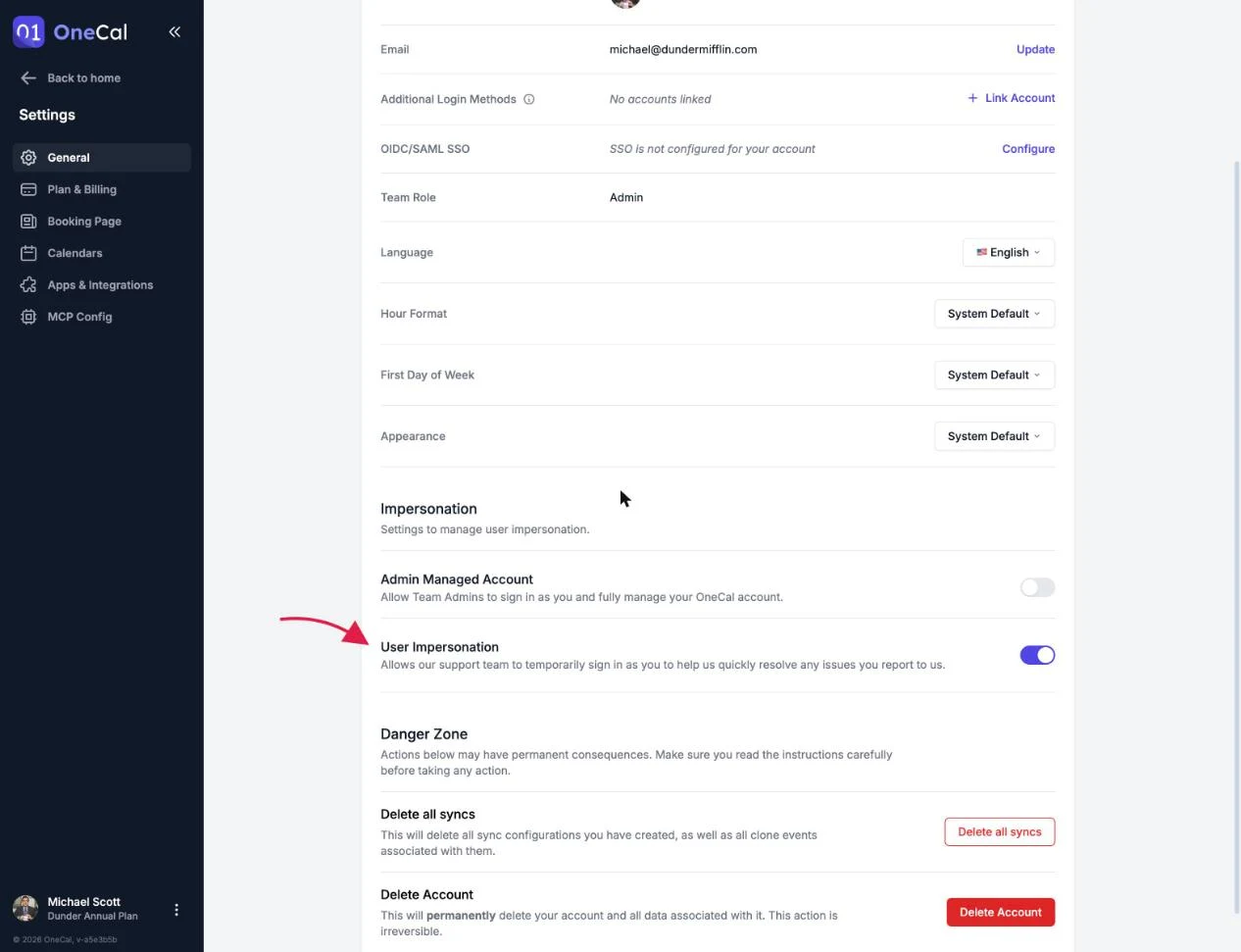
User Impersonation
The User Impersonation toggle in Settings allows our support team to temporarily sign in as you, to help quickly resolve issues you report to us.
Leave it off if you prefer, our support team simply won't be able to look at your OneCal account from the inside while investigating your reports.
Admin Managed Account
The Admin Managed Account toggle allows your own Team Admins to sign in as you and fully manage your OneCal account, for example to fix a calendar sync or finish your setup for you. It only appears when your team has more than one member.
While it is enabled, your admins have full access to your OneCal account. Team Owners cannot enable it for their own OneCal account.
Admins manage accounts through the Team Dashboard, and every session is audit-logged, with each action showing which admin performed it.
Good To Know
In short: User Impersonation is for OneCal's support staff, Admin Managed Account is for your own team's admins. They are independent toggles.