Single Sign-On (OIDC/SAML SSO)
OneCal supports Single Sign-On through your identity provider, using OpenID Connect or SAML. This lets your team sign in to OneCal with their existing work accounts, through providers like Okta, Microsoft Entra ID (Azure AD) or Google Workspace.
Enable SSO for your organization
SSO is enabled on request. Reach out to us at contact@onecal.io, and our team will work with you to connect your identity provider and enable SSO for your organization.
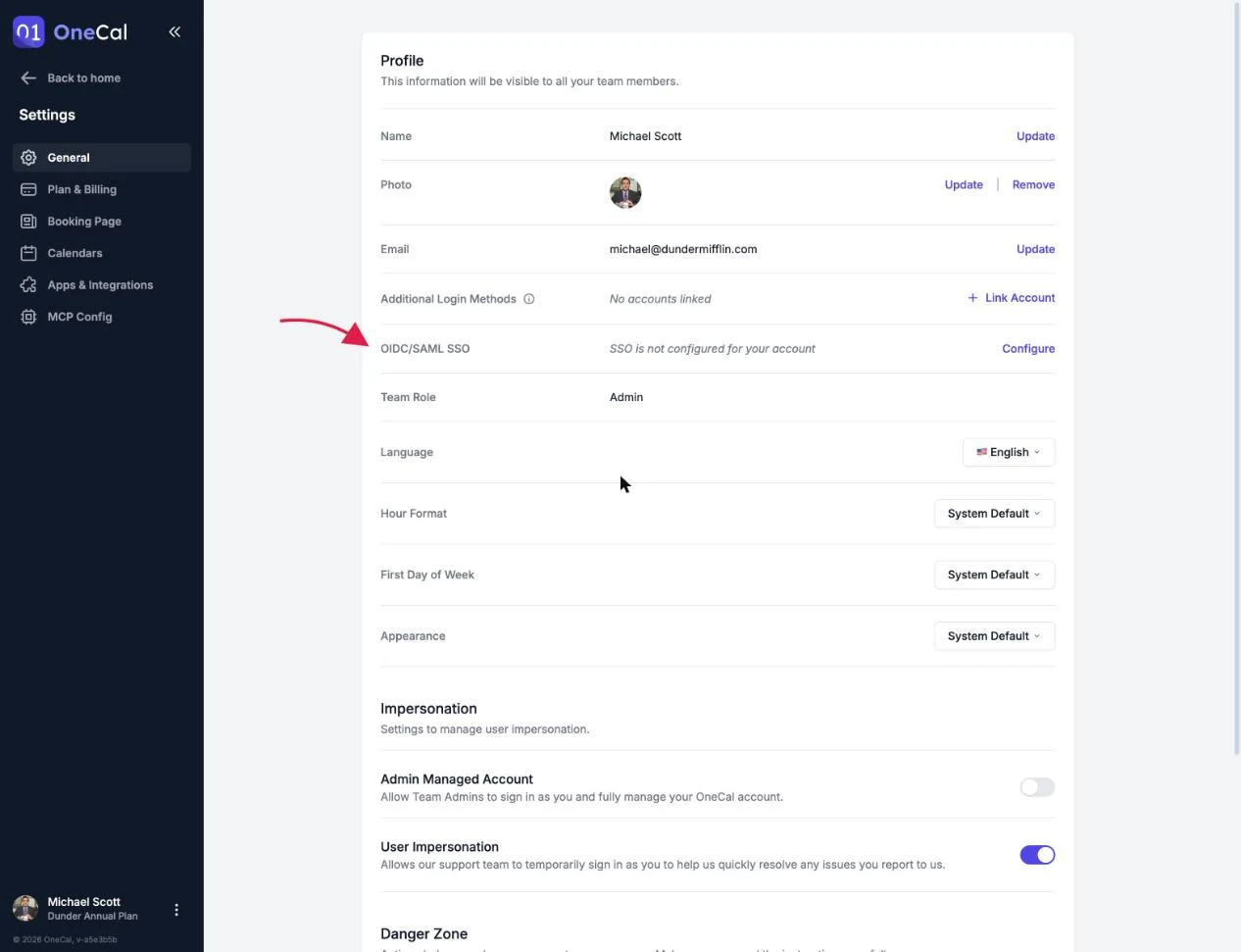
Owners and Admins can check whether SSO is configured for their organization at any time under Settings, in the OIDC/SAML SSO row.

Sign in with SSO
Once SSO is enabled for your organization:
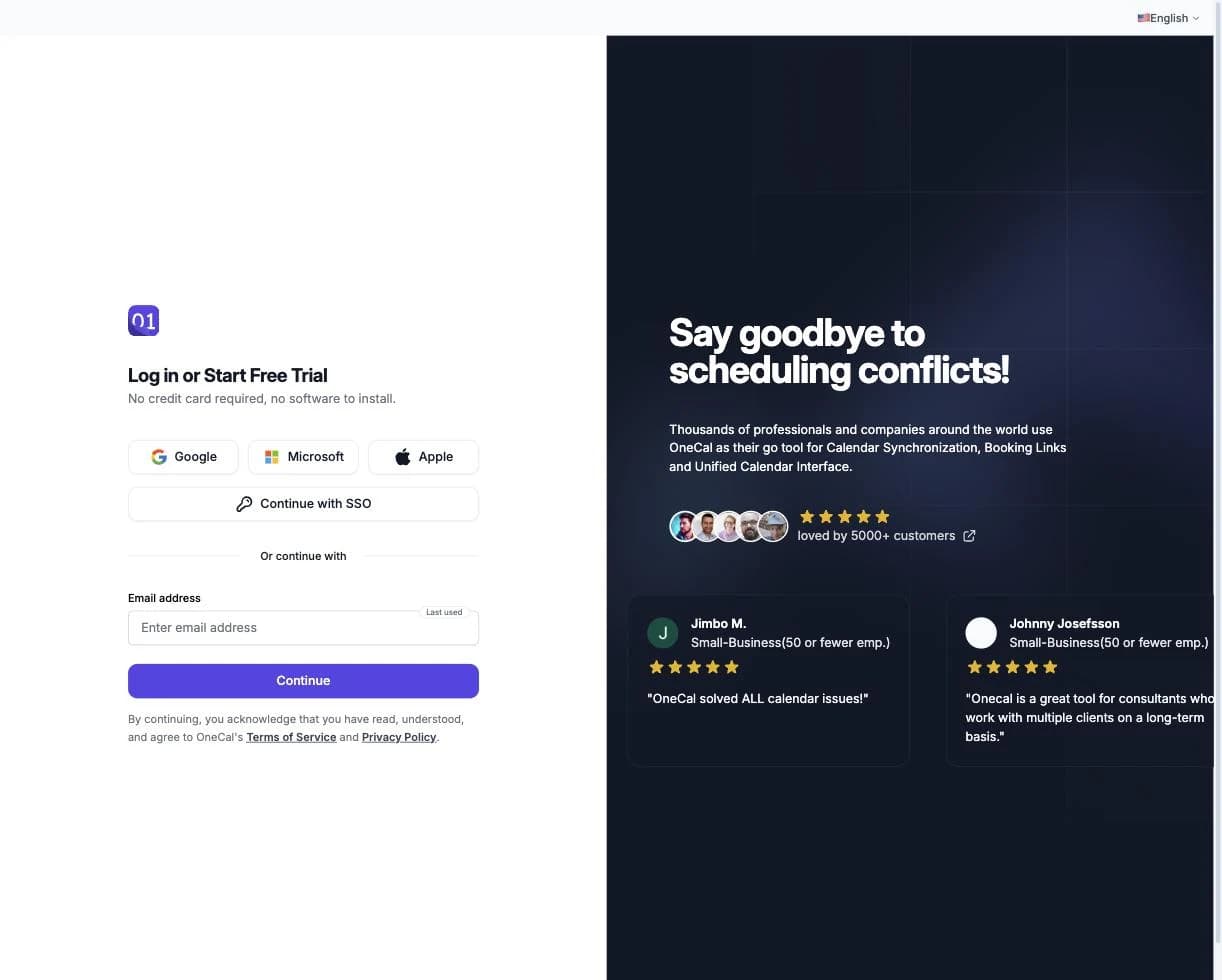
- Go to the OneCal login page.
- Click Use single sign-on (SSO) under the login form.
- Enter your work email and click Continue with SSO.
- You are redirected to your organization's identity provider to sign in. After signing in there, you land back in OneCal.
Good To Know
If your email domain is enabled for SSO, entering your email in the regular login form also routes you to your identity provider automatically. You cannot accidentally bypass SSO.
If you see the message "SSO is not enabled for this account", your organization has not set up SSO yet. Contact us at contact@onecal.io if you'd like to enable it.
Things to know about SSO accounts
- SSO login accounts cannot be unlinked from OneCal. If you need to change your SSO configuration, contact your organization's IT administrator.
- Every SSO sign-in is recorded in your team's Audit Logs.
- With SSO in place, you can also enable Directory Sync to provision and deprovision team members automatically.