Invoices and VAT
OneCal payments are processed by Paddle, and Paddle issues the invoice for every payment. You can add your business details, including your company name, address and VAT ID, directly on the invoice.
Get your invoice
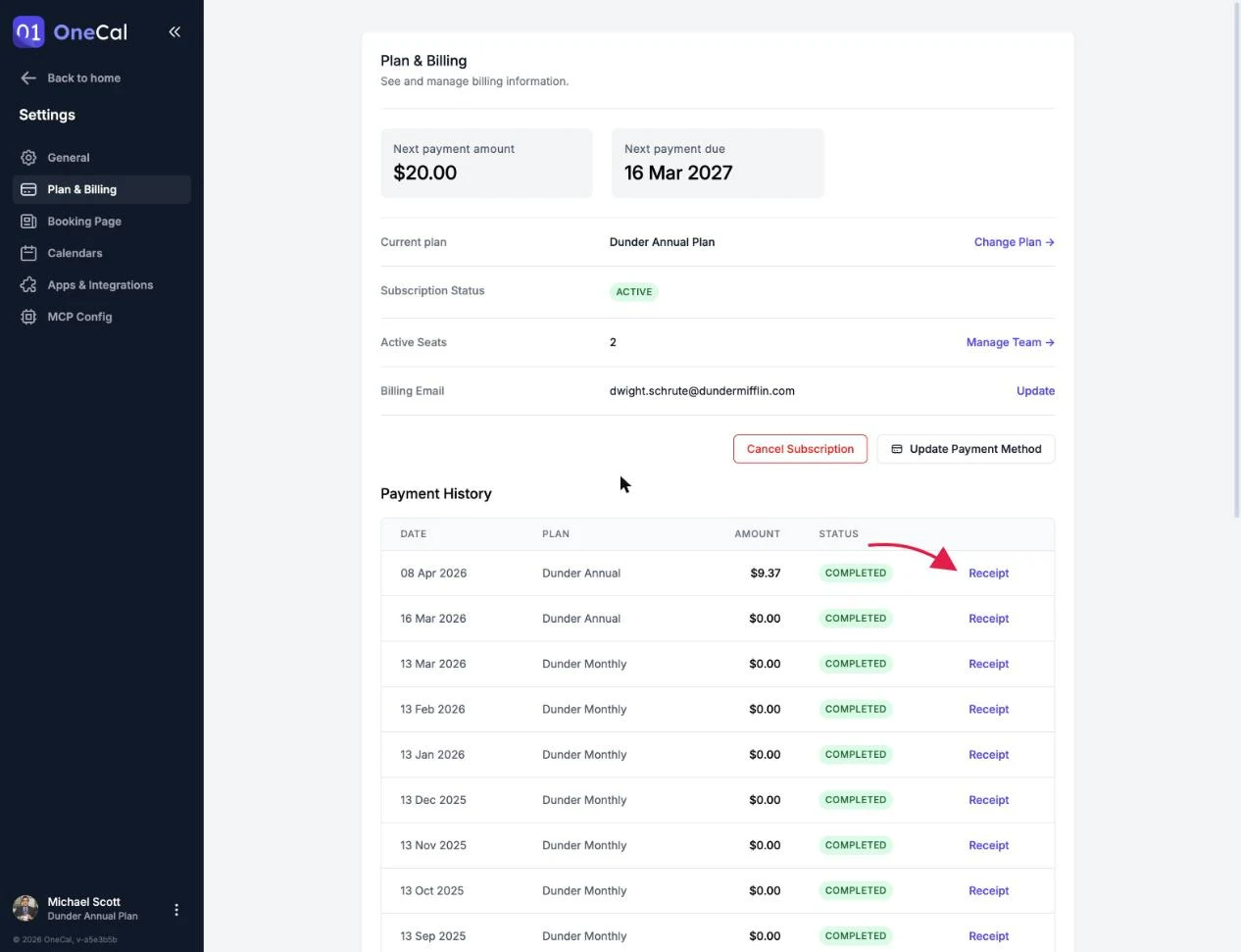
- Go to Settings → Plan & Billing.
- Scroll to the Payment History section.
- Click Receipt on the payment you need an invoice for. The Paddle receipt page opens in a new tab.

Add your business details and VAT ID
You can add your company name, address and VAT ID to your invoices, either in the checkout when you purchase a subscription or on the Paddle receipt page after you already have one. See Add Your Business Details and VAT ID.
Taxes
Prices shown in OneCal do not include taxes. Depending on your country, Paddle applies the applicable VAT or sales tax at checkout. If you enter a valid VAT ID for a business purchase, VAT may not be charged, based on your country's reverse charge rules.