Add Your Business Details and VAT ID
OneCal payments are processed by Paddle, and Paddle issues the invoice for every payment. You can add your business details, including your company name, address and VAT ID, so they appear on your invoices. How you add the business details depends on whether you already have a subscription.
Add your business details and VAT ID when purchasing a subscription
If you have not purchased a subscription yet, you can add your business details and VAT ID in the checkout.
- In the Your details step of the checkout, enter your email address, country and ZIP/postcode, then click Continue.

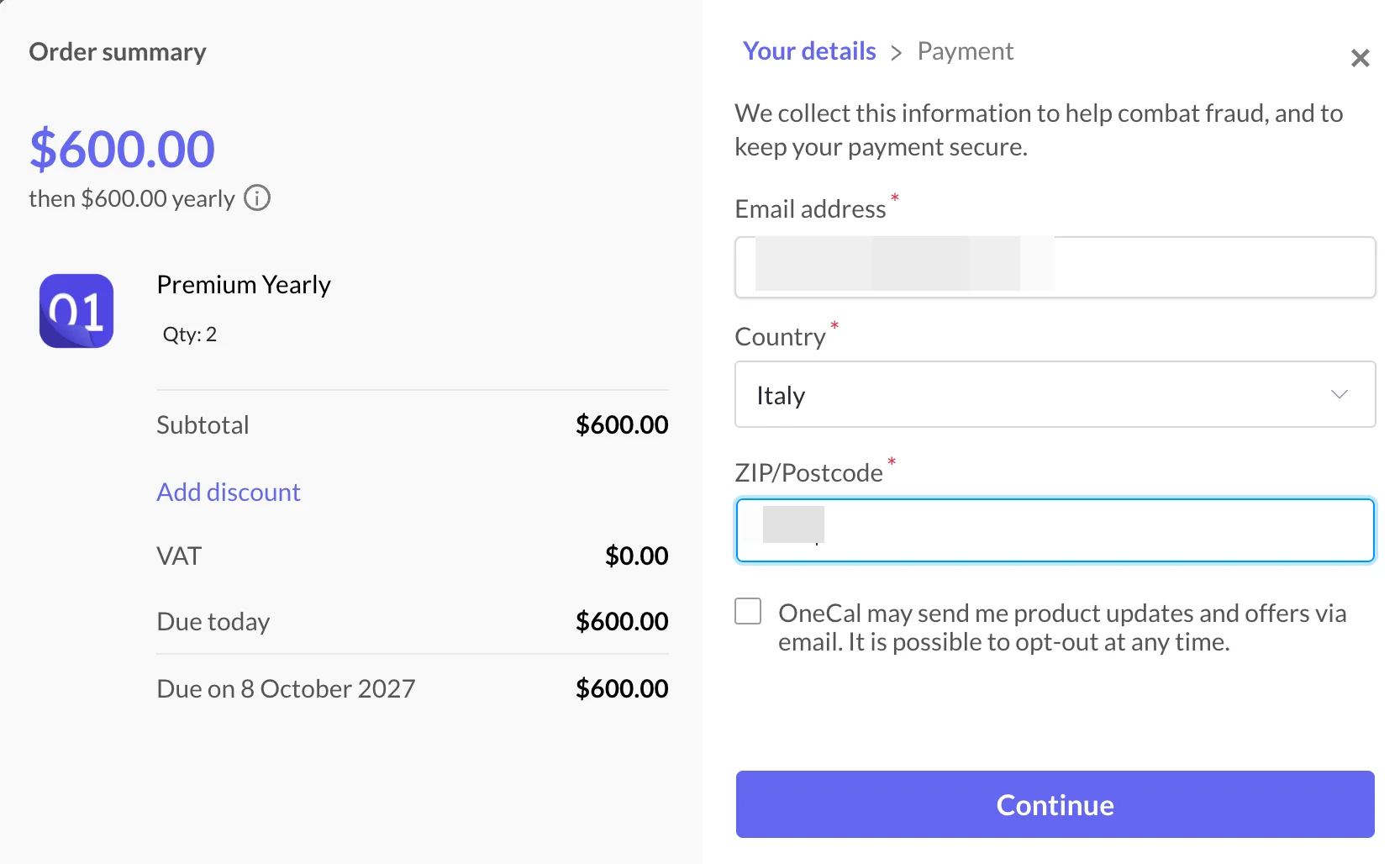
The Your details step of the checkout with the Email address, Country and ZIP/Postcode fields and the Continue button. - In the Payment step of the checkout, click Add VAT number in the order summary.
- Enter your VAT number and business details, then complete the payment.
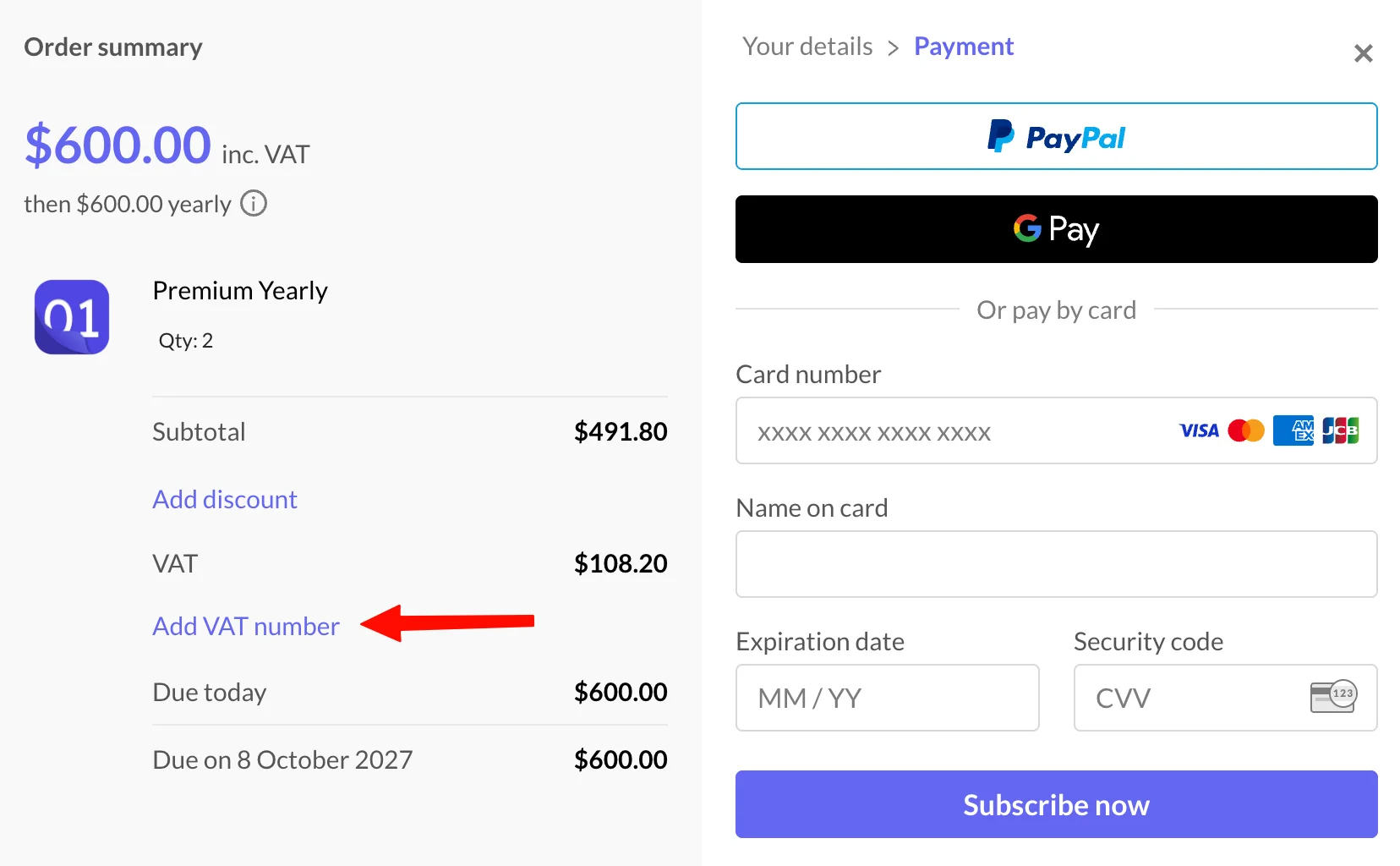
The Payment step of the checkout with the Add VAT number link highlighted in the order summary.
The business details you enter in the checkout appear on the invoice for that payment.
Add your business details and VAT ID to an existing subscription
If you already have a subscription, you can add your business details and VAT ID to the invoice of a past payment.
- Go to Settings → Plan & Billing, scroll to the Payment History section, and click Receipt on the payment you need an invoice for. The Paddle receipt page opens in a new tab.
- On the Paddle receipt page, click Add address & VAT Number.
- In the Edit receipt information dialog, check This is a business purchase.
- Enter your VAT number, company name and address, and save.
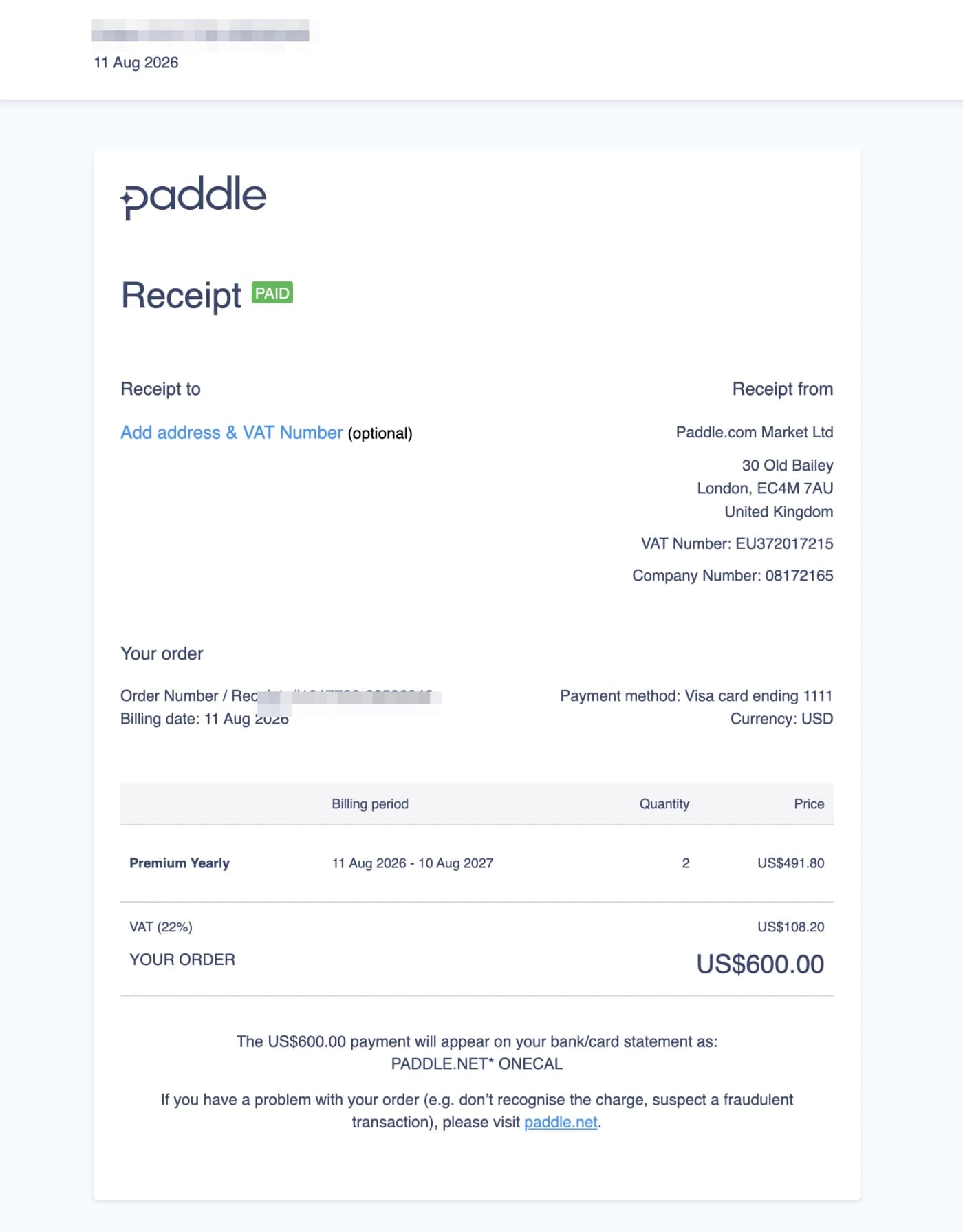
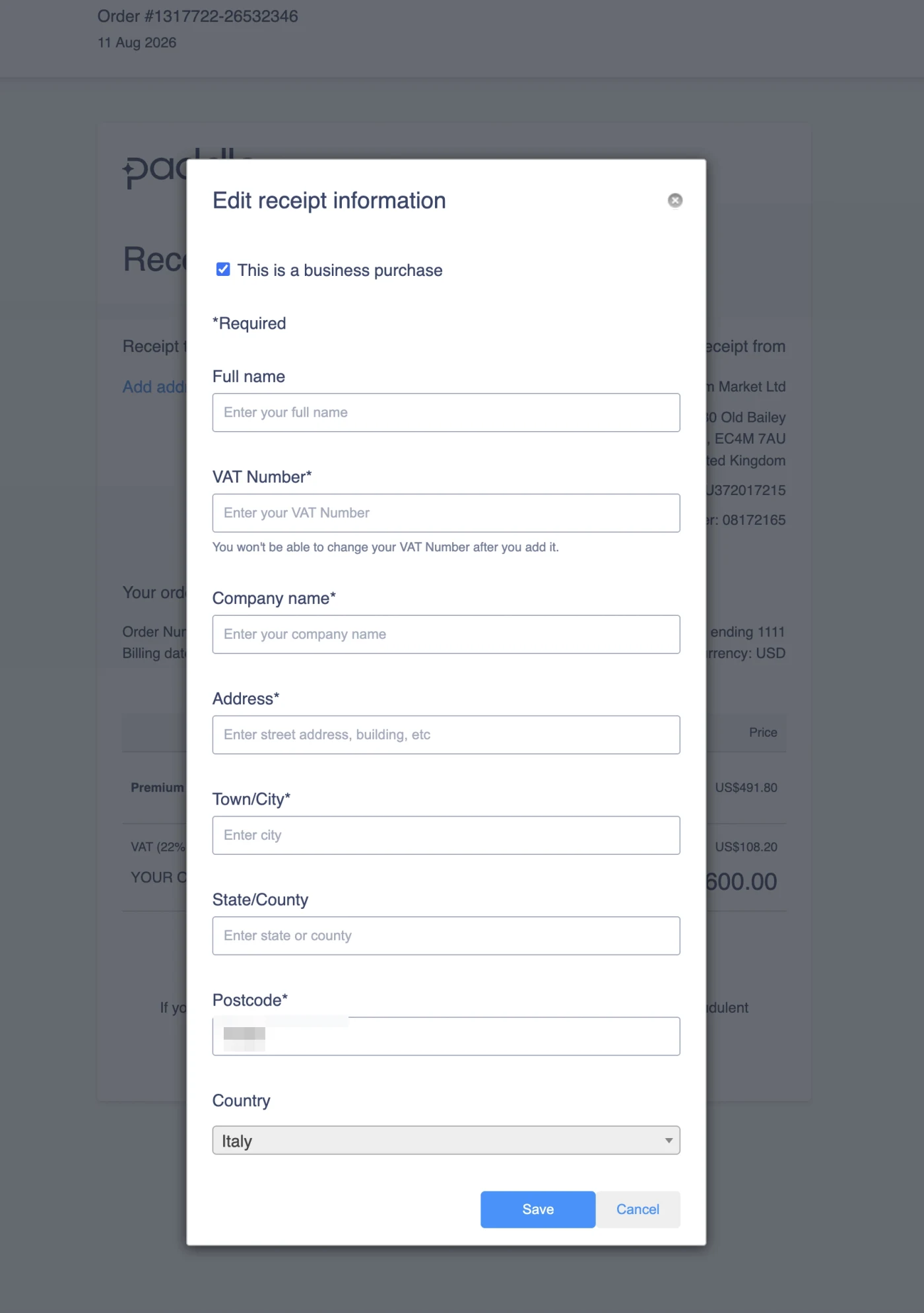
The invoice is regenerated with your business details on it, and you can download it as a PDF.
Good To Know
The business details you add on the Paddle receipt page apply to that invoice. If you need help with an invoice, or your country's tax requirements need something specific, please contact us and we will sort it out with Paddle for you.