Upgrade or Downgrade Your Plan
You can change your plan at any time from Settings → Plan & Billing. Click Change plan →, or Upgrade plan → during the free trial, select the plan that fits you best, and confirm the change. The same link is in the account menu in the sidebar.

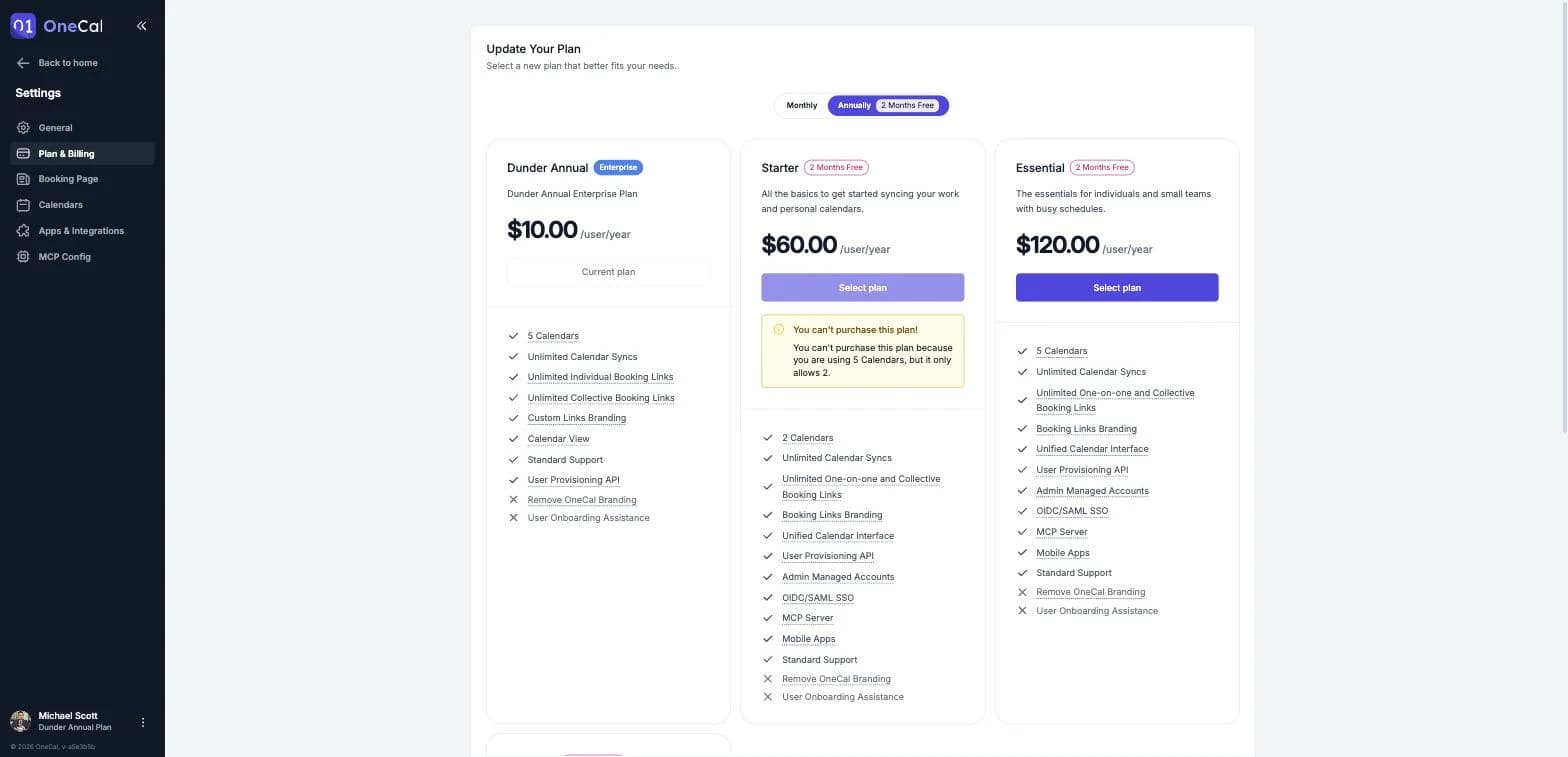
What happens when you change your plan
When you confirm a plan change:
- Your new plan starts immediately.
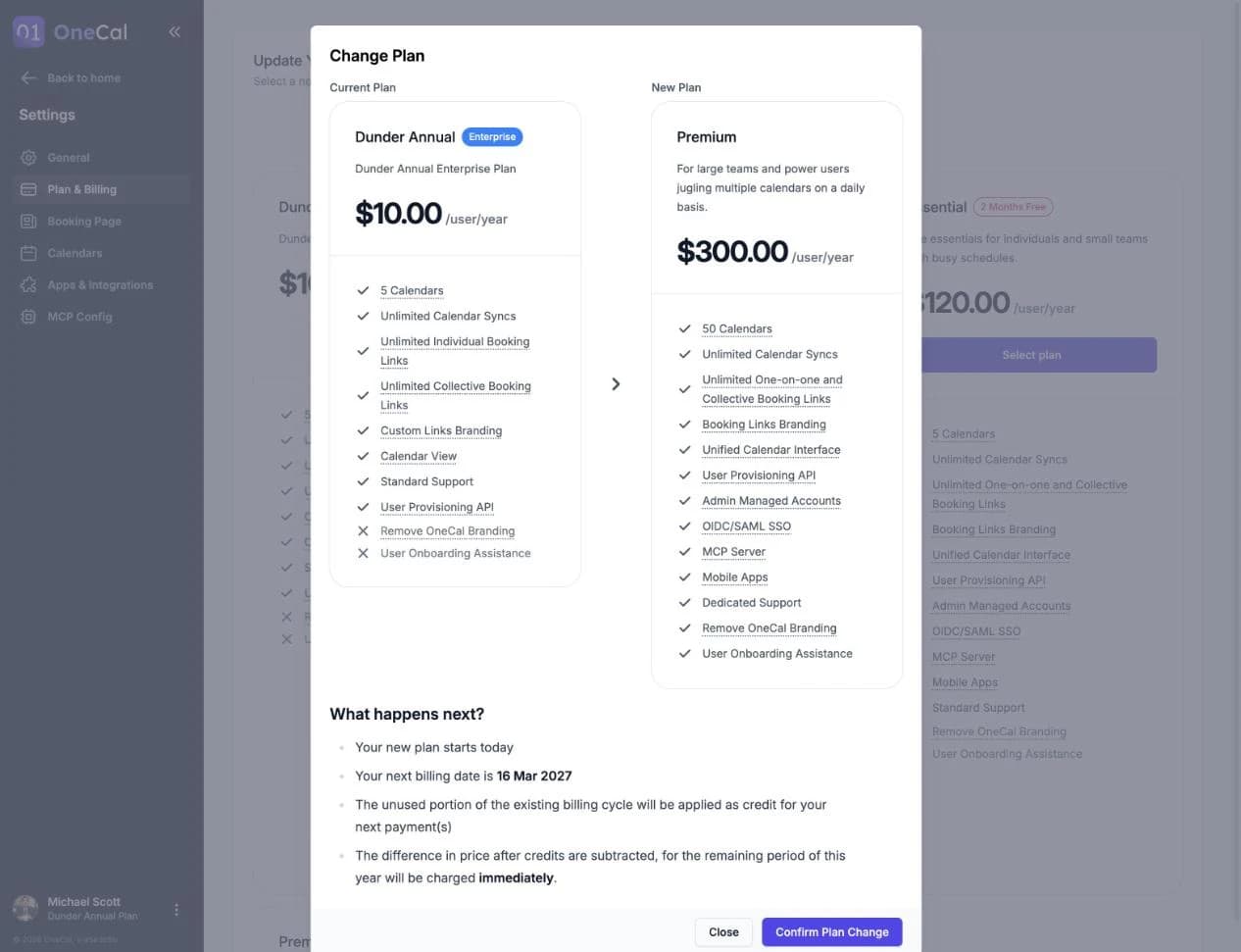
- The unused portion of your current billing cycle is applied as credit towards your next payments.
- If you upgrade to a more expensive plan on the same billing period, the price difference for the remaining period, after credits are subtracted, is charged immediately.
- If you switch between monthly and yearly billing, billing for the new plan starts immediately.
Downgrading
Before downgrading, make sure your current usage fits within the limits of the new plan. You cannot downgrade to a plan if you or a member of your team is currently using more calendars, calendar syncs, booking links or team seats than the new plan allows.
Remove the extra items, or ask your team members to do so, and the plan becomes available.
When plan changes are not possible
The plan cannot be changed while:
- Your subscription is past due. Resolve the payment issue first.
- Your subscription is paused. Please contact us to switch to another plan.
Good To Know
Subscriptions purchased through the App Store or Google Play cannot be changed on the web. To change a mobile plan, open the OneCal app on your phone. See App Store and Google Play Subscriptions for details.