View Settings
View settings let you choose what the Unified Calendar View shows, so you can hide weekends to focus on your work week and show the week numbers of the year.
Open the view settings
Click the settings gear at the top of the calendar, next to the search button, and the menu that opens shows the Show weekends and Show week numbers toggles together with Hide Clone Events.

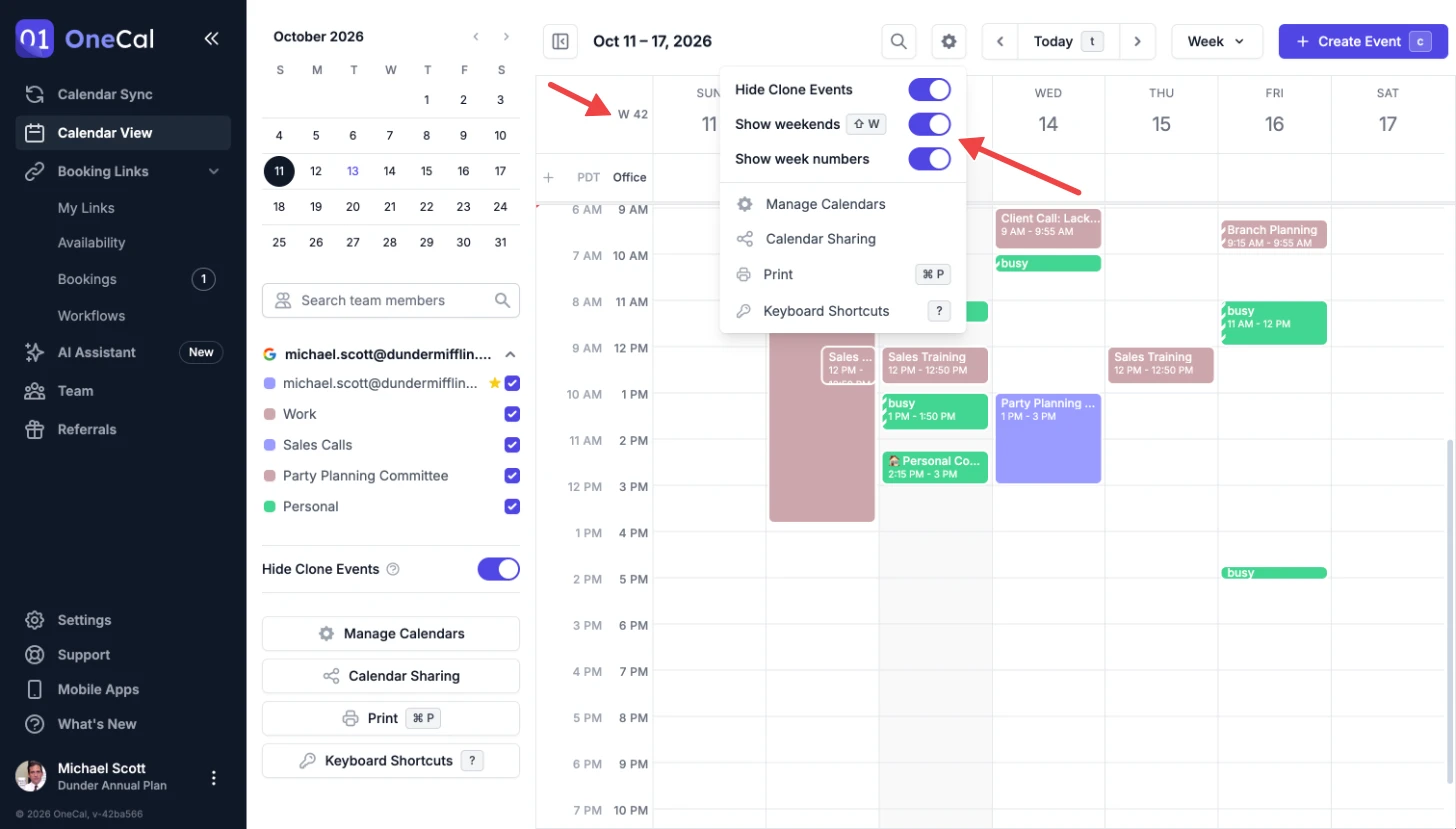
Show or hide weekends
Weekends are shown by default, and when you turn Show weekends off, Saturdays and Sundays are hidden from the Week and Month views, so the Week view only shows Monday to Friday.
You can also press Shift W to show or hide weekends with your keyboard.
Show week numbers
Week numbers are hidden by default, and when you turn Show week numbers on, you see the week number of the year. In the Week and Day views it appears in the top left corner of the calendar, for example W 42, and in the Month view it appears at the start of each week.
Good To Know
Your view settings are saved in your browser, so if you use OneCal on another browser or device, you can set them there separately. To change the first day of the week, see Language, Time and Appearance Preferences.