Time Zones in the Calendar View
The Unified Calendar View shows your events in the time zone of your choice, and you can show up to 4 time zones side by side, which helps when you work with people in other cities.
In the Day and Week views, the time zone labels sit above the hours on the left side of the calendar, and each time zone has its own column of hours.

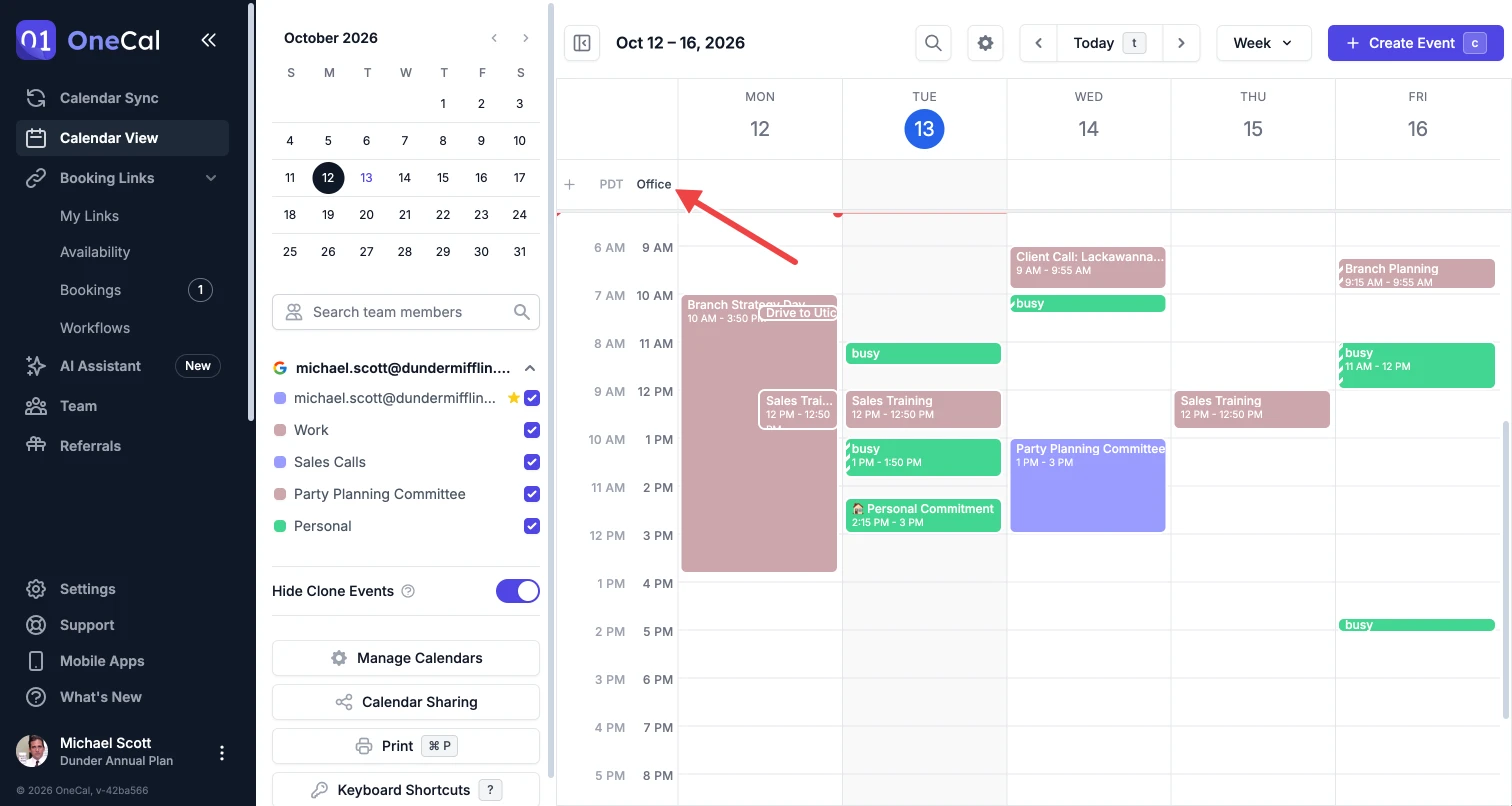
Primary and secondary time zones
- Primary time zone: The time zone closest to the calendar, shown in darker text, which the calendar grid, your events, the event forms and the search results all use.
- Secondary time zones: The time zones to the left of the primary one, shown in lighter text, which only show the matching hours so you can quickly see what time it is somewhere else.
By default, the calendar uses the time zone of your device so that it follows you when you travel, and once you change, add or rename a time zone, OneCal keeps your setup until you change it again.
Change the time zone
Click a time zone label to open its menu, click Change time zone, and then search for a city or a time zone and select it.
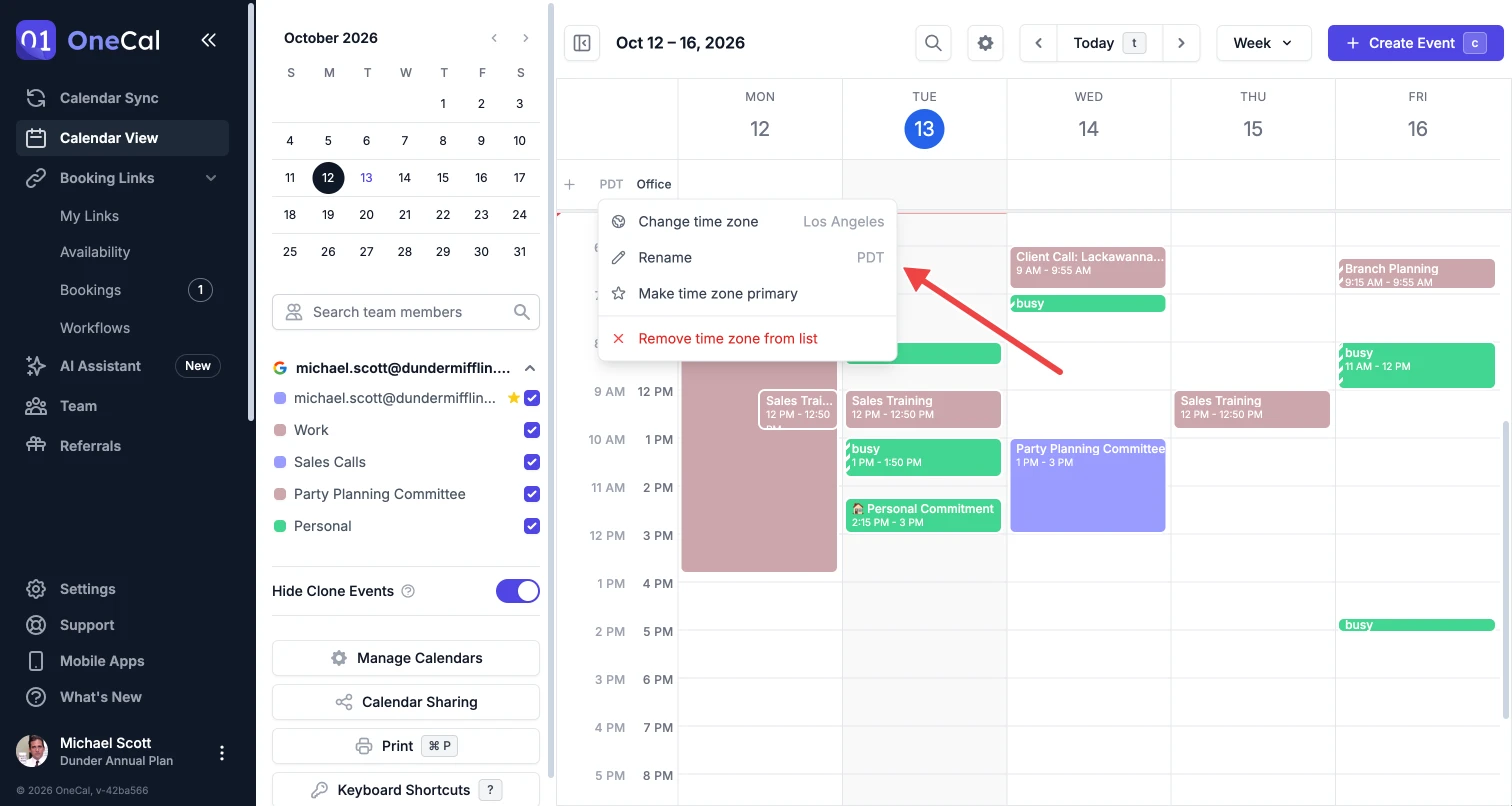
You can also press z to change the primary time zone with your keyboard.
Add a secondary time zone
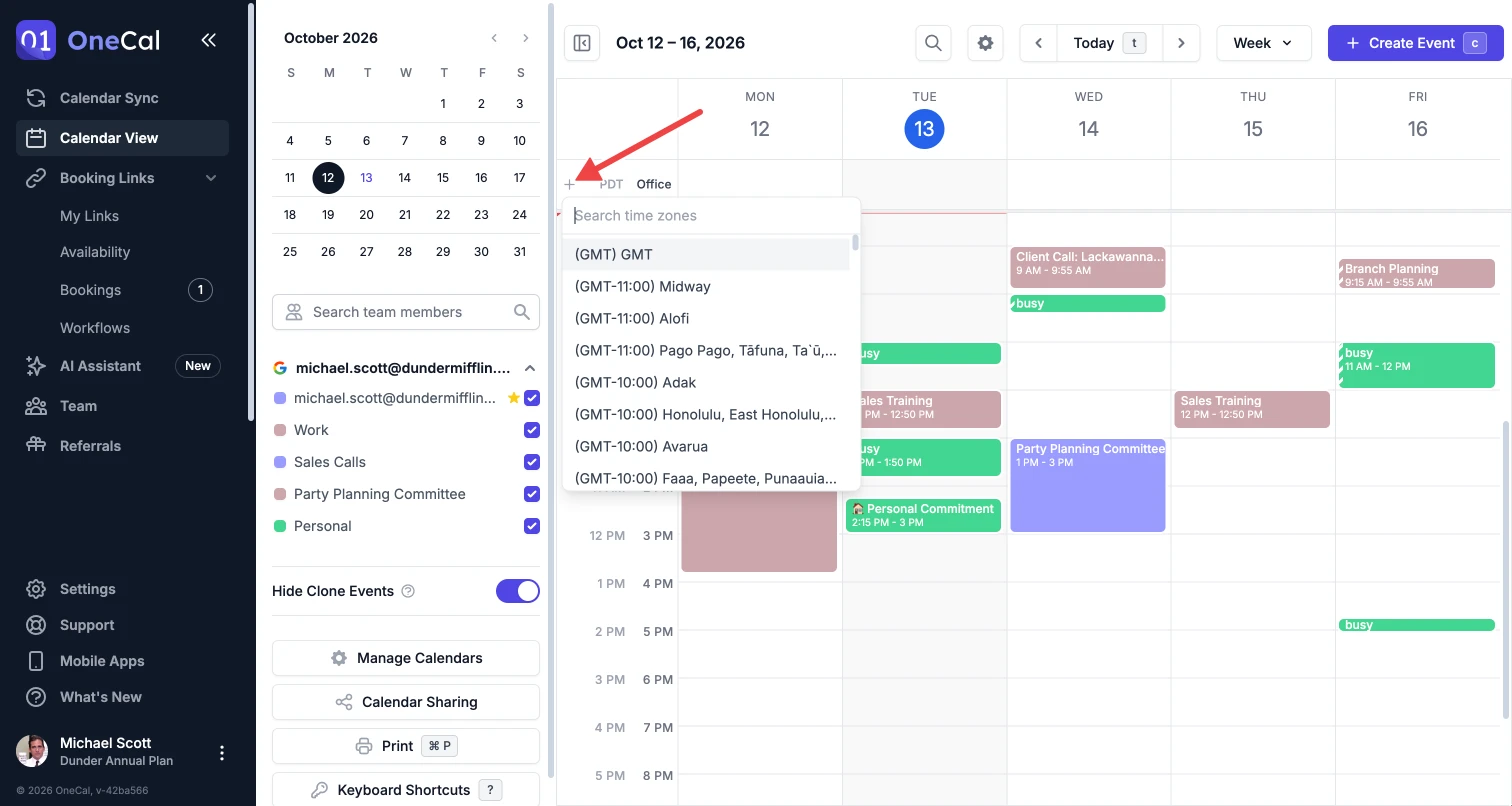
Click the + button to the left of the time zone labels, then search for a time zone and select it to add it as a secondary time zone. You can show up to 4 time zones at once.
Rename a time zone
Each time zone shows its short abbreviation by default, such as PDT or CET. To show a name that means more to you, such as "Office" or "Home", click the time zone label, click Rename, type a label of up to 12 characters, and click Save.
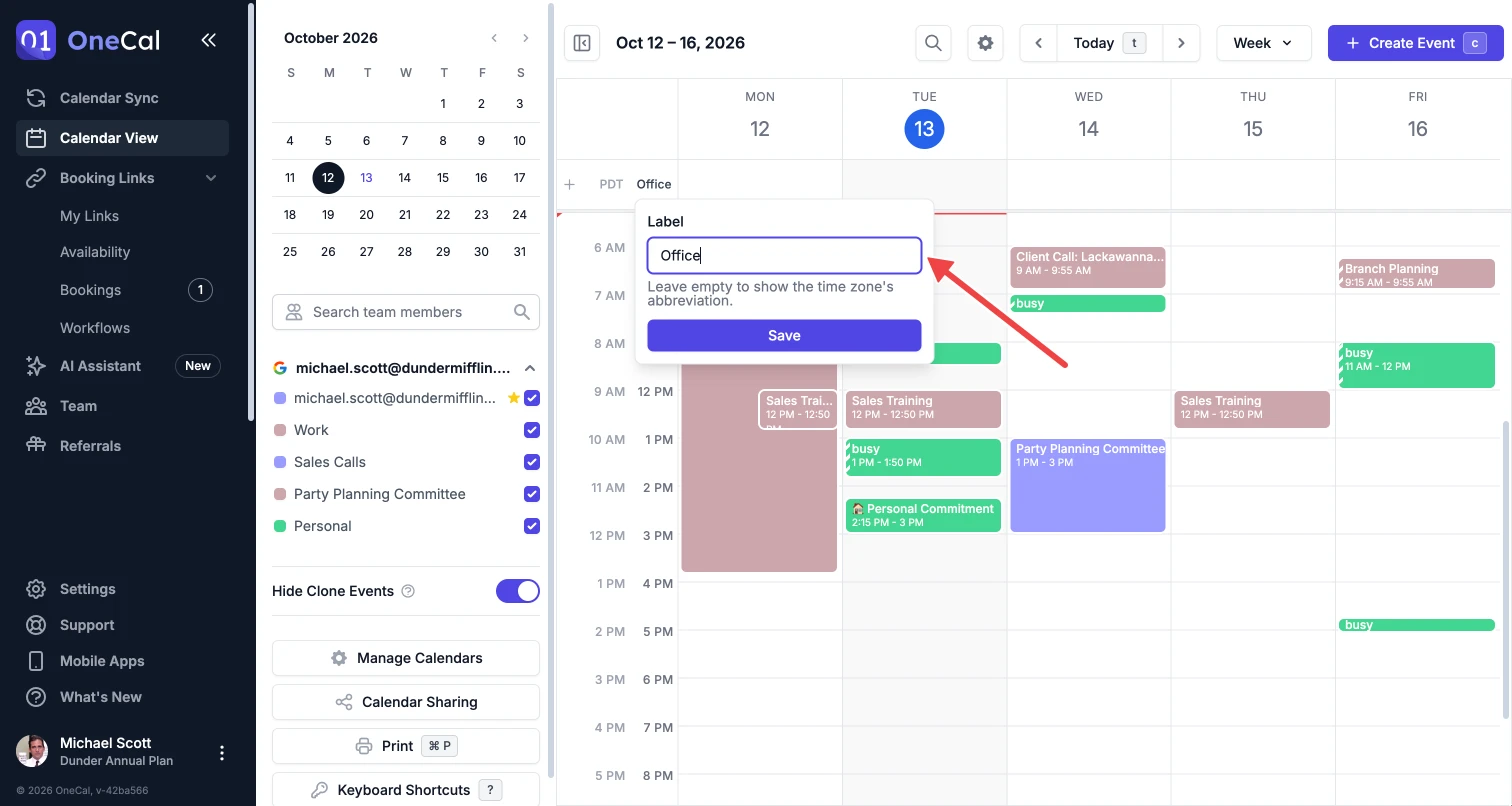
To go back to the abbreviation, clear the label and save it.
Make a time zone primary
Click a secondary time zone label and click Make time zone primary, and the calendar switches to that time zone while the previous primary time zone becomes a secondary one.
Remove a time zone
Click a time zone label and click Remove time zone from list, which is available when you show more than one time zone.
Good To Know
Your time zone setup is saved in your browser, so if you use OneCal on another browser or device, you can set up your time zones there separately.