Print your Calendars
The Unified Calendar View lets you print your calendars as clean day, week, month or agenda pages. Because the Unified Calendar View merges all your connected calendars, a single printout can combine events from multiple calendars across Google Calendar, Outlook Calendar and iCloud Calendar. You choose a date range, tune how the pages should look, and get a live preview of exactly what will come out of the printer.
Opening the Print dialog
Navigate to "Unified Calendar View" from the left navigation menu and click on "Print" under the list of your calendars, right below "Calendar Sharing". You can also press Cmd + P (Mac) or Ctrl + P (Windows/Linux) anywhere on the Unified Calendar View screen.

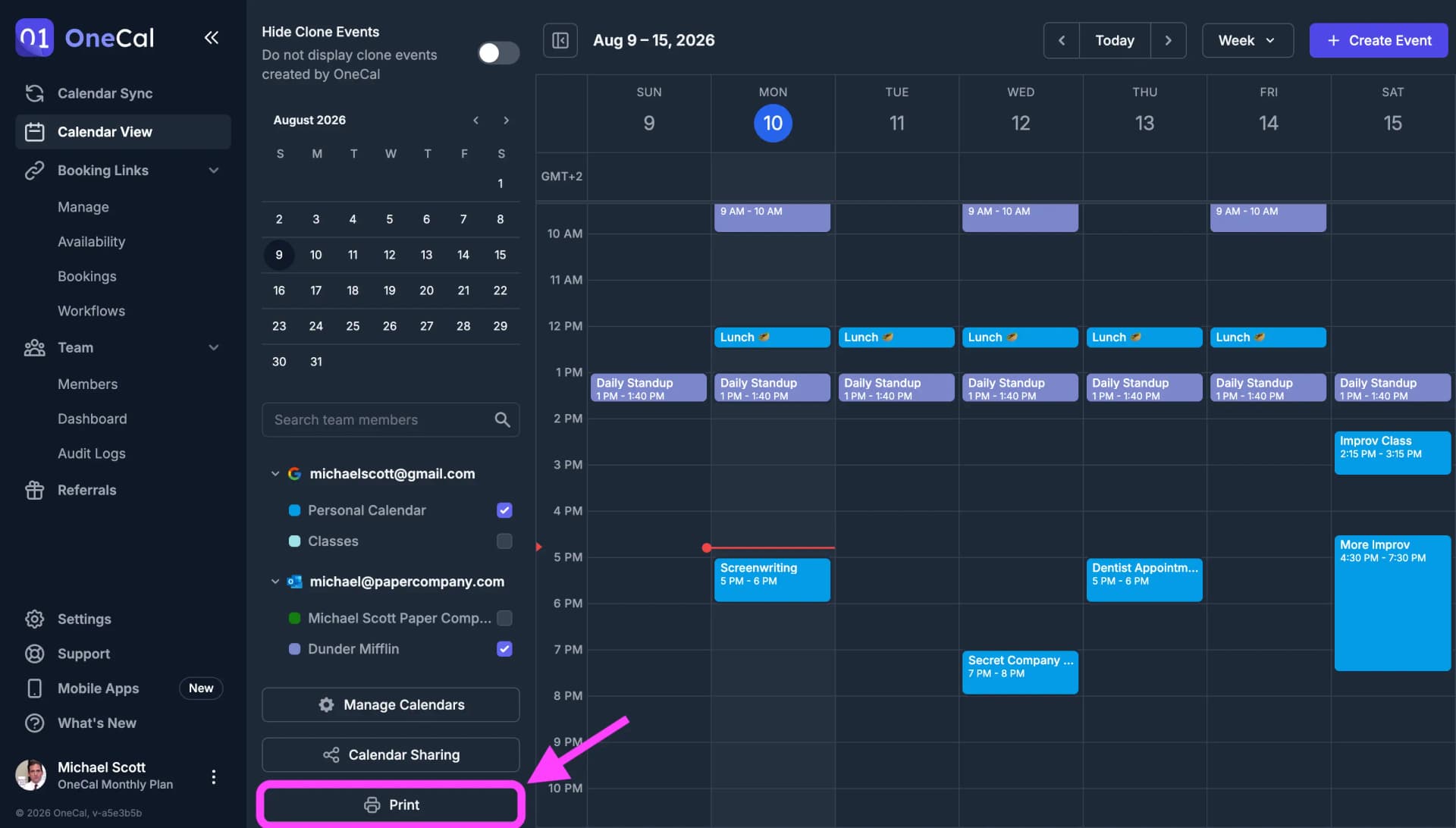
Only the calendars selected in the sidebar are printed. Untick any calendars you do not want on paper before printing.
Print options
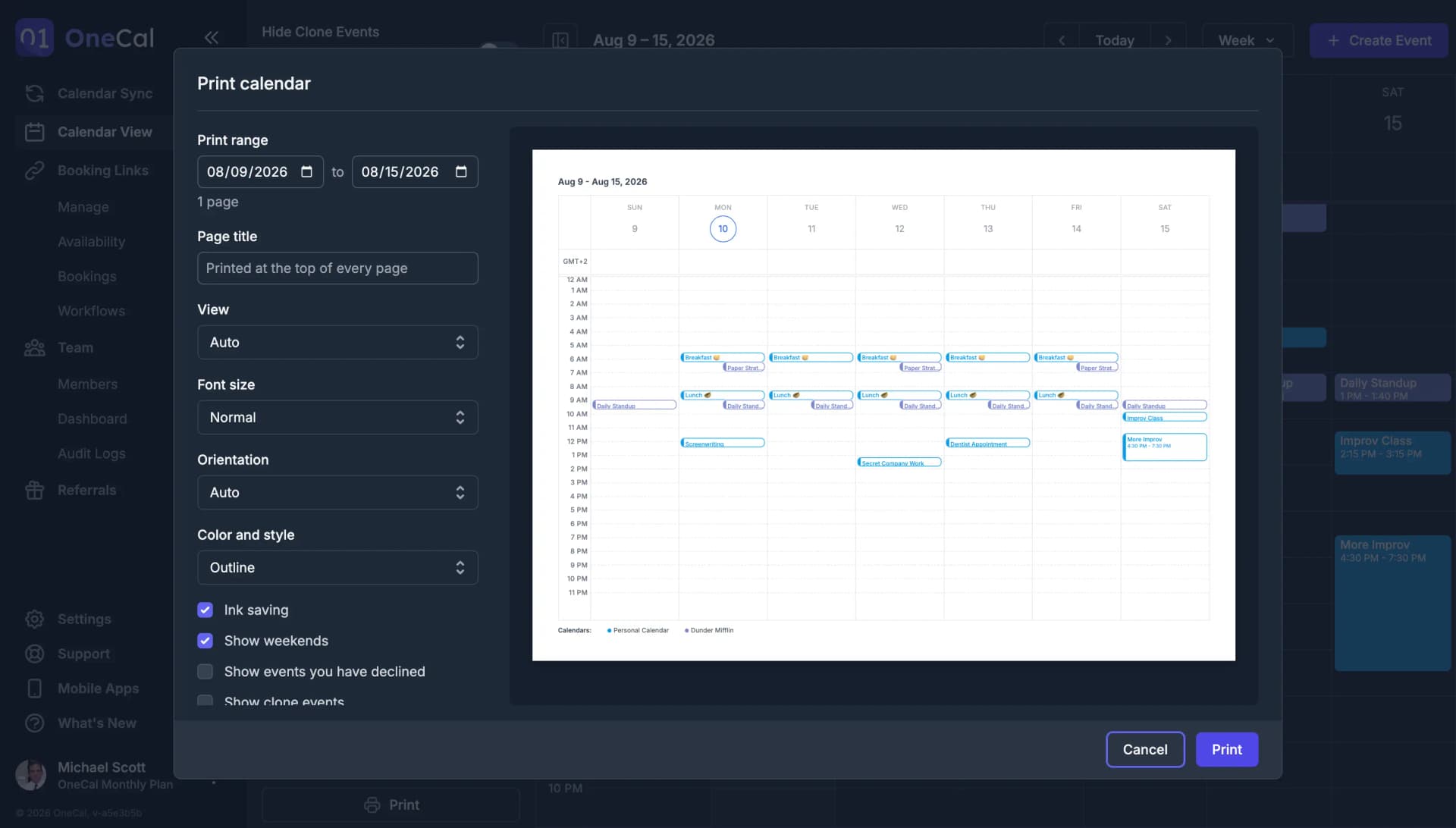
- Print range: The start and end dates to print. Both dates are included. Ranges longer than one page are split into multiple pages, and the number of pages is shown below the dates.
- Page title: An optional title printed at the top of every page, next to the date. Useful when you hand the printout to someone else.
- View: How each page is laid out.
- Day: One page per day with a full time grid.
- Week: One page per week with a full time grid.
- Month: One page per month. The date range snaps to whole months, and crowded days show a "+N more" note for events that do not fit.
- Agenda: A compact chronological list of your events grouped by day. Days without events are skipped. This is the most ink-friendly format.
- Auto: Picks for you. A single-day range prints as a day page, and anything longer prints as week pages.
- Font size: Seven steps from Smallest to Biggest. Use smaller sizes to fit more event text, and bigger sizes for readability.
- Orientation: Portrait or Landscape. Auto picks landscape for week and month pages, and portrait for day and agenda pages.
- Color and style:
- Outline: Events print as white boxes with a colored border and colored text. This style saves ink while keeping your calendar colors.
- Full color: Events print with their solid calendar colors, as seen on screen.
- Black and white: Events print as white boxes with black borders and black text.
- Ink saving: Enabled by default. It removes decorative fills that only cost ink on paper, such as the shading over today's column and the solid circle behind today's date.
- Show weekends: Untick to leave Saturday and Sunday out of week pages. Day and agenda printing skips weekend days instead. Month pages always include every day of the month.
- Show events you have declined: Off by default. Tick it to include events you have declined.
- Show clone events: Off by default. Tick it to include clone events created by OneCal Calendar Sync.
When you print two or more calendars, each page also gets a small legend at the bottom that maps each calendar color to its name.
Your options are remembered for the next time you print. The date range and the page title always reset when you open the dialog.
Printing
The preview on the right shows the exact pages that will be printed, one below the other. When you are happy with the result, click Print and your browser's print dialog opens with the pages ready to go. If you choose "Save as PDF" there, the suggested filename already contains your page title or the printed date range.
Good To Know
If colors are missing on paper in Full color mode, enable "Background graphics" in your browser's print dialog. Firefox ignores the pre-selected page orientation, so you may need to pick landscape or portrait manually there.