Keyboard Shortcuts
The Unified Calendar View supports keyboard shortcuts. You can navigate your calendars, switch views, and create events without using the mouse.
To see all available shortcuts, press ? while viewing your calendar. You can also open the list by clicking Keyboard Shortcuts in the calendar sidebar.

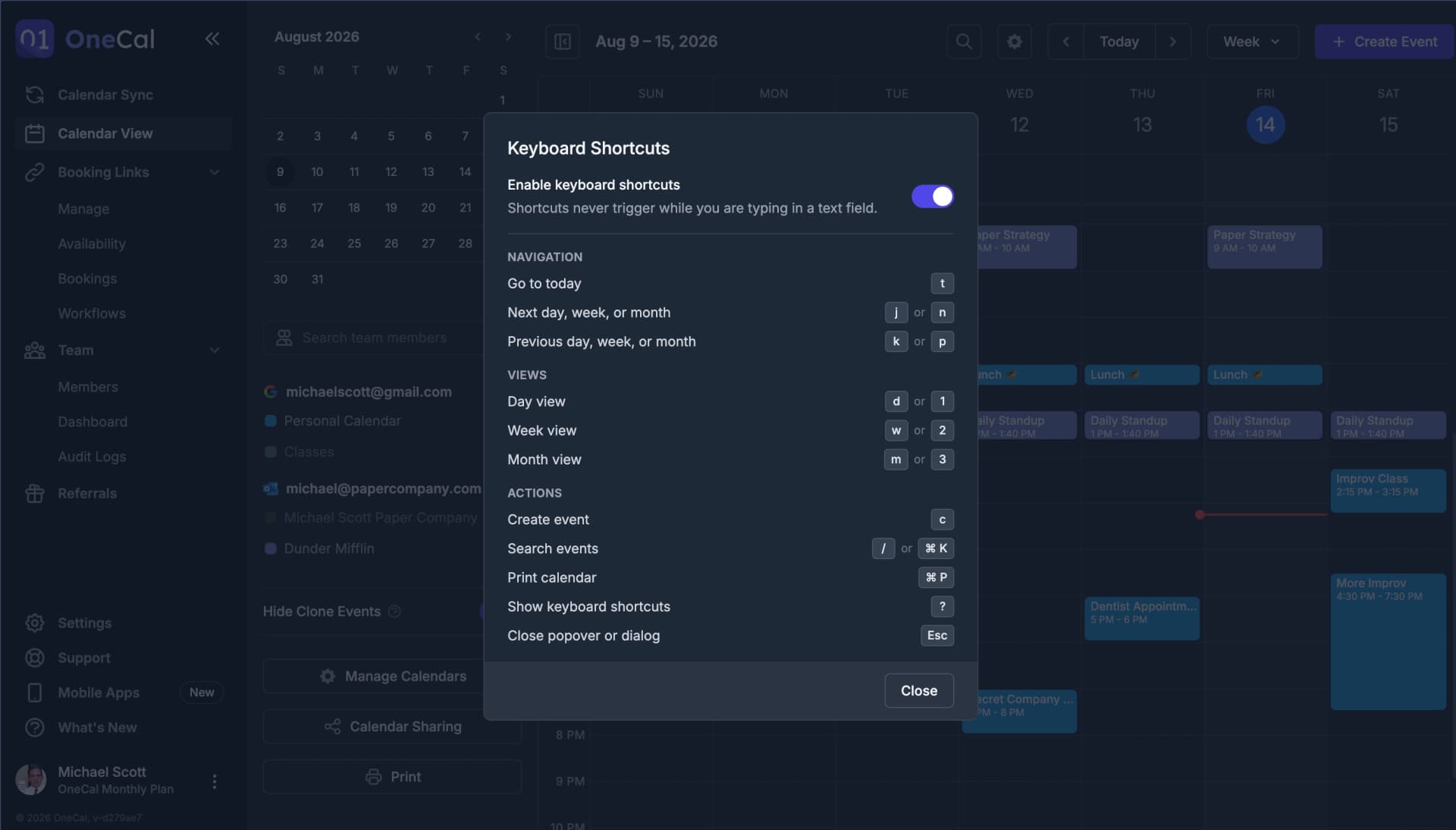
Navigation
| Shortcut | Action |
|---|---|
t | Go to today |
j or n | Go to the next day, week, or month |
k or p | Go to the previous day, week, or month |
Views
| Shortcut | Action |
|---|---|
d or 1 | Switch to day view |
w or 2 | Switch to week view |
m or 3 | Switch to month view |
Shift W | Show or hide weekends |
Actions
| Shortcut | Action |
|---|---|
c | Create a new event |
/ or ⌘ K (Ctrl K on Windows) | Search events |
⌘ P (Ctrl P on Windows) | Print your calendar |
z | Change the time zone |
? | Show the keyboard shortcuts list |
Esc | Close a popover or dialog |
Shortcut Hints
While shortcuts are enabled, OneCal shows the matching key next to buttons and menu items, such as the c on the Create Event button and the t on the Today button, and you can hover over a time zone label to see its shortcut.
Turn Shortcuts On or Off
Keyboard shortcuts are enabled by default. To turn them off, press ? to open the shortcuts list and use the Enable keyboard shortcuts toggle. OneCal saves your choice in the browser, and when shortcuts are turned off, the shortcut hints are hidden too.
Good To Know
Shortcuts never trigger while you are typing in a text field, such as the event title or the search box. You can type freely without opening anything by accident.