Profile Settings
Your profile lives in Settings, under the General tab. This information is visible to all your team members.

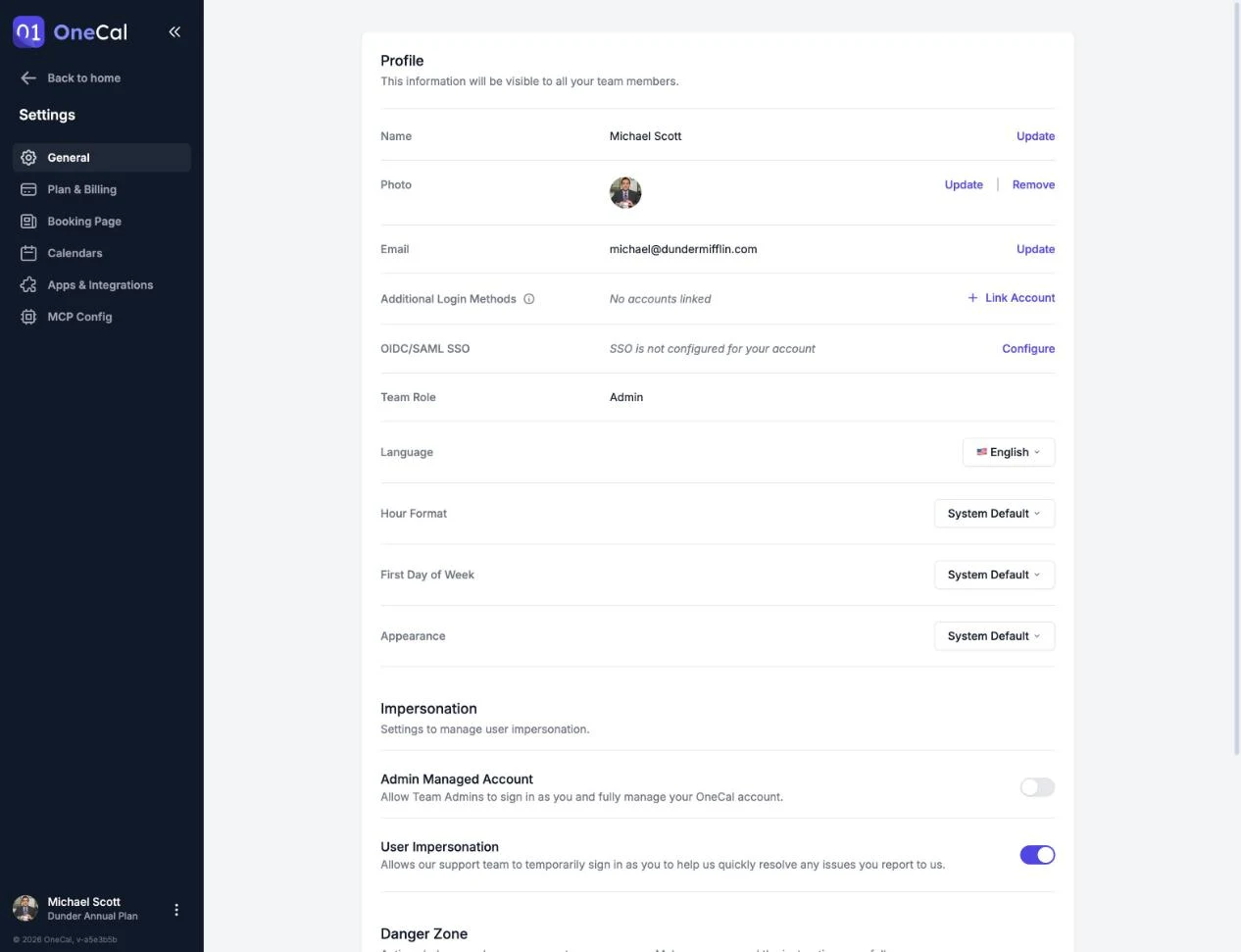
Name and photo
- Click Update next to your name to change it.
- Click Update next to your photo to upload a new picture, up to 5 MB, or click Randomize to generate a random avatar. You can also remove the photo.
Change your email address
- Click Update next to your email.
- Enter your new email address. OneCal sends a verification code to the new address.
- Enter the 8 character code to confirm the change. The code expires after 4 hours.
Your old address receives a notification email, so you always know when your OneCal account email changes.
Good To Know
The email address cannot be changed while a Google, Microsoft, Apple or SSO login account is used to log in. Update or unlink the linked login account instead. See Login Methods.
Team role
Your role in the team, Owner, Admin, Member or Billing Only, is shown on your profile. Billing Only team members are free and do not take up a paid seat. They manage billing and team membership, but cannot create calendar syncs or booking links. Roles are managed by the team Owner. See Assign Roles.