Public Calendar Feeds (Calendar Sharing)
Public Calendar Feeds allow you to share your parts of your Unified Calendar View with other people. You can choose which calendars you want to share and you have full control over the event details to share. Calendar feeds can be viewed either on web, or you can subscribe to them using the provided ICS URL.
Creating a new Feed
To get started with Public Calendar Feeds, navigate to "Unified Calendar View" from the left navigation menu and click on "Calendar Sharing" under the list of your calendars.

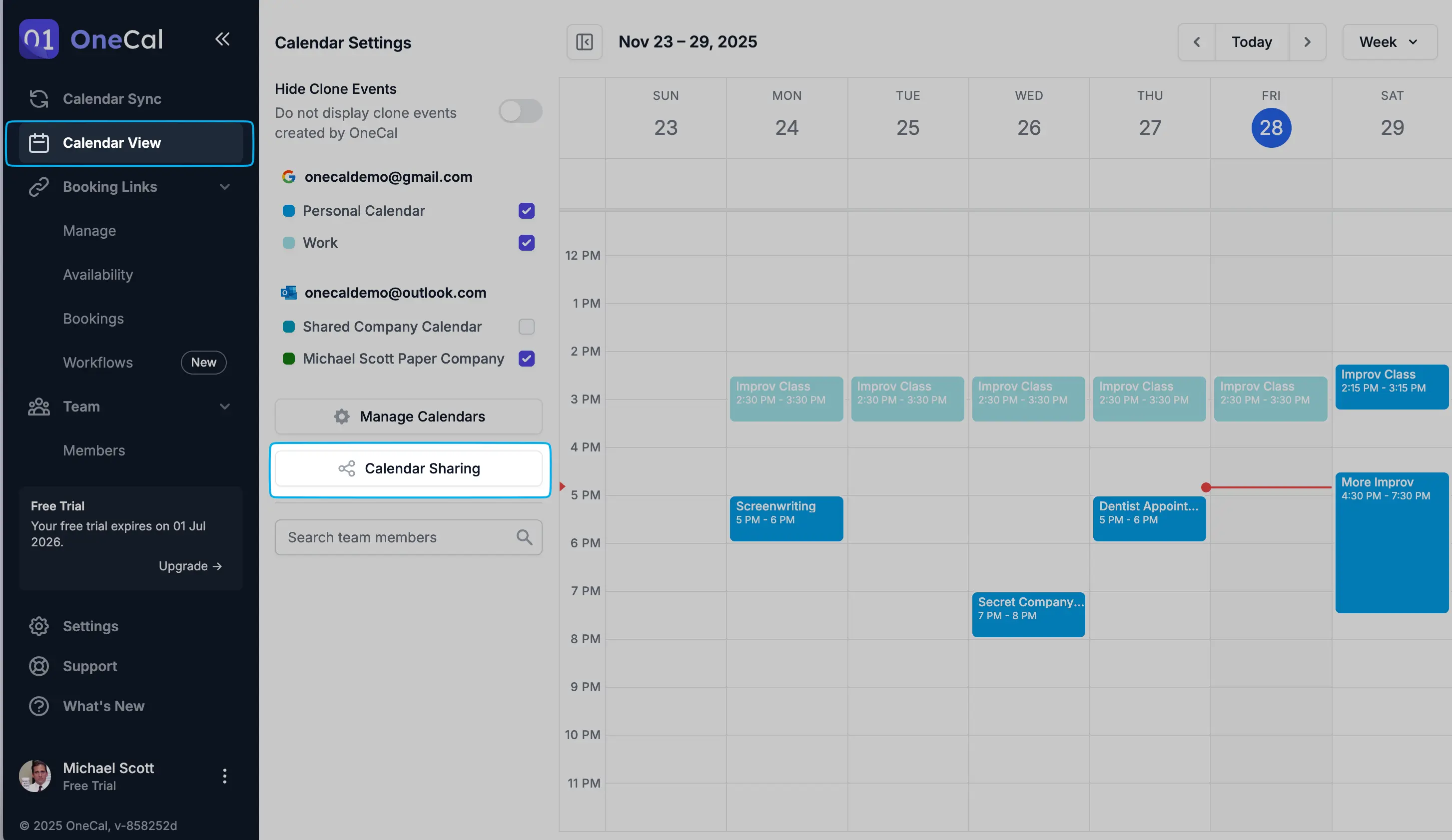
To create a new Feed, click on the "New Feed" button. The following options are available to you:
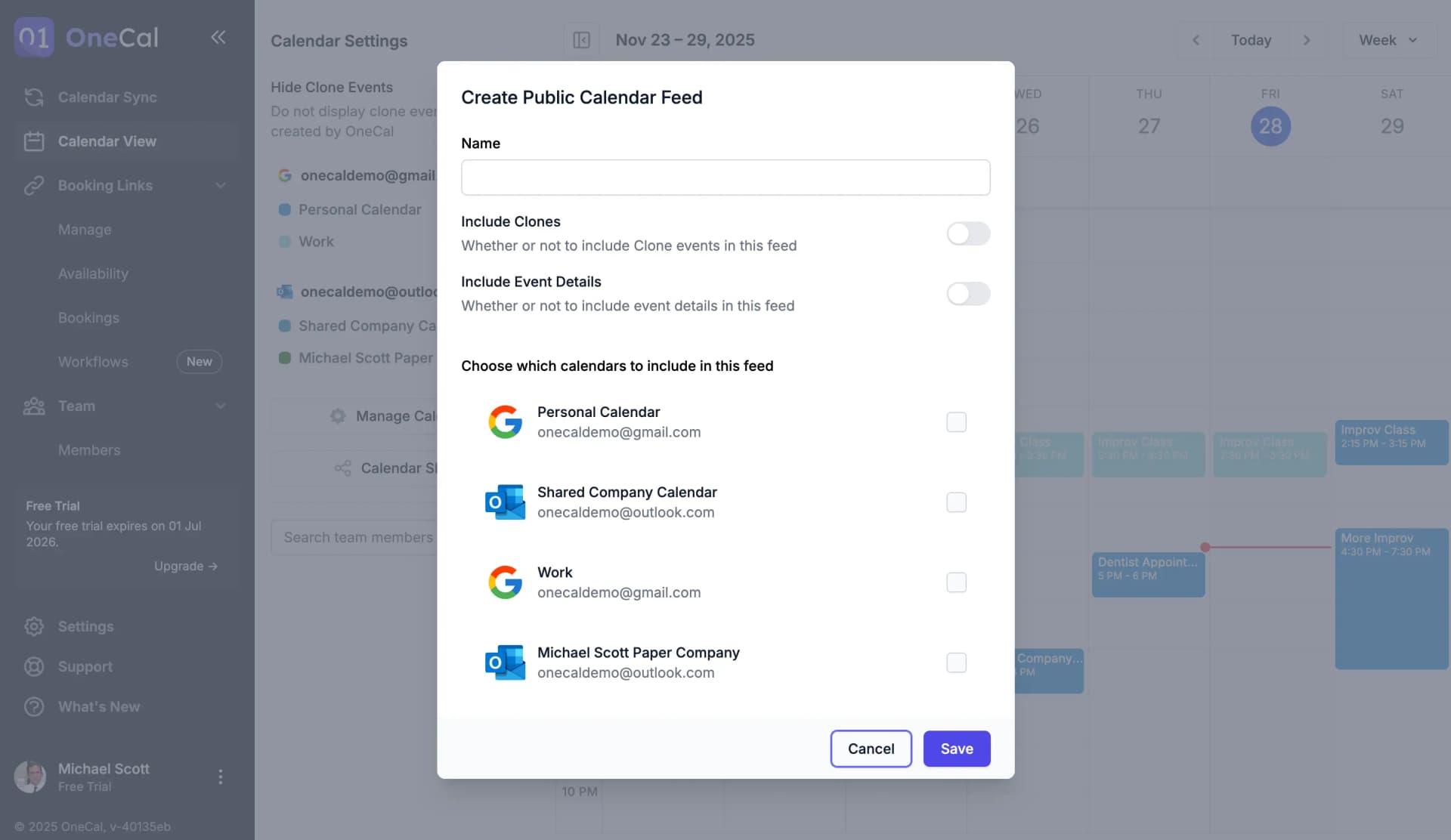
- Name: A name which best describes this Calendar Feed for you.
- Include Clones: Whether or not clone events (the events created by a calendar sync) should be included in this feed.
- Include Event Details: Whether or not consumers of this feed will be able to see the event details of the calendars you include. If toggled On, consumers will be able to see event names, descriptions and meeting links for the events in the calendars you select. If toggled off consumers will only be able to see a "busy" slot in place of all your calendar events for the selected calendars.
- Feed Calendars: Select which calendars you want to include in this feed. Only events from the selected calendars will be displayed to consumers of this feed.
Good To Know
You can create multiple different Public Calendar Feeds for different purposes or people. For example, you can create a Public Calendar Feed only for your PA with all event details available, and another one for your team with no event details.
Consuming the Feed
Once the Feed has been created, the following URLs will be available to you:
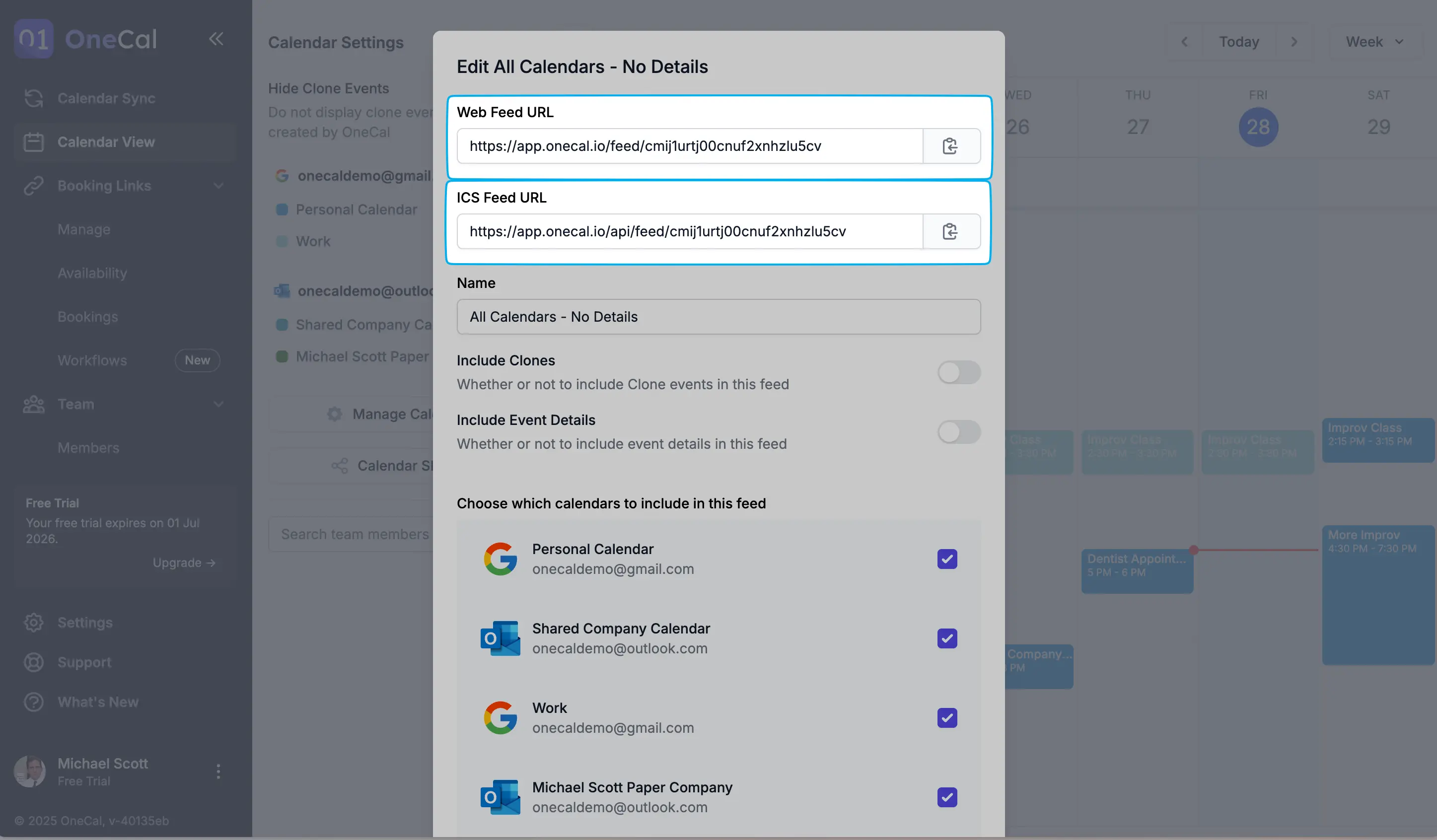
- Web Feed URL: URL of this feed accessible in any web browser. Share this with people who would like to view this feed on the web.
- ICS Feed URL: URL of this feed to which you can subscribe from any calendar provider. Share this with people who would like to subscribe to this feed from a calendar application such as Outlook, Google or Apple calendar.
Only share these URLs with people you want to have access to these calendar feeds.
Opening the Web Feed URL on a web browser, you will be presented with a calendar view that looks similar to the following screenshot:
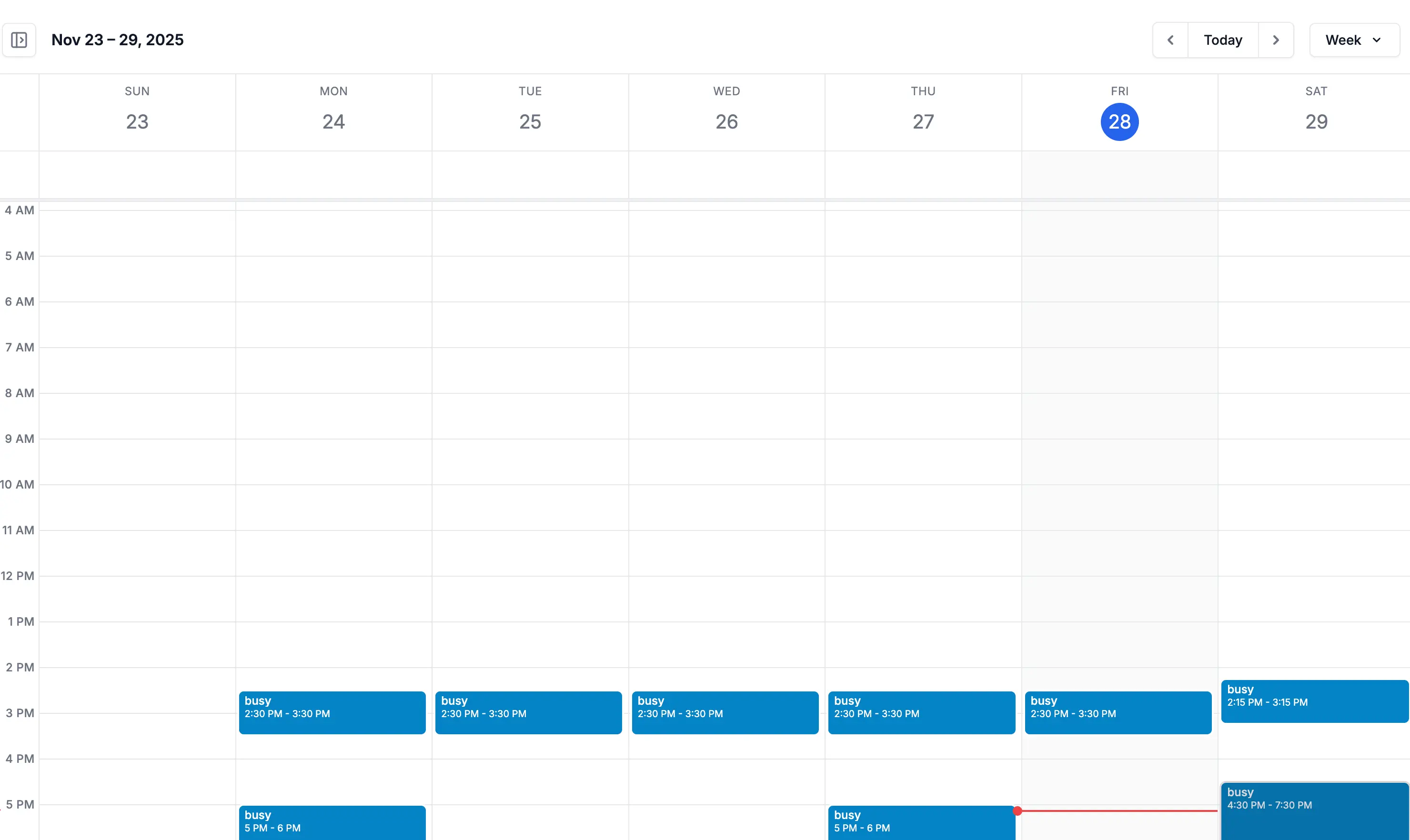
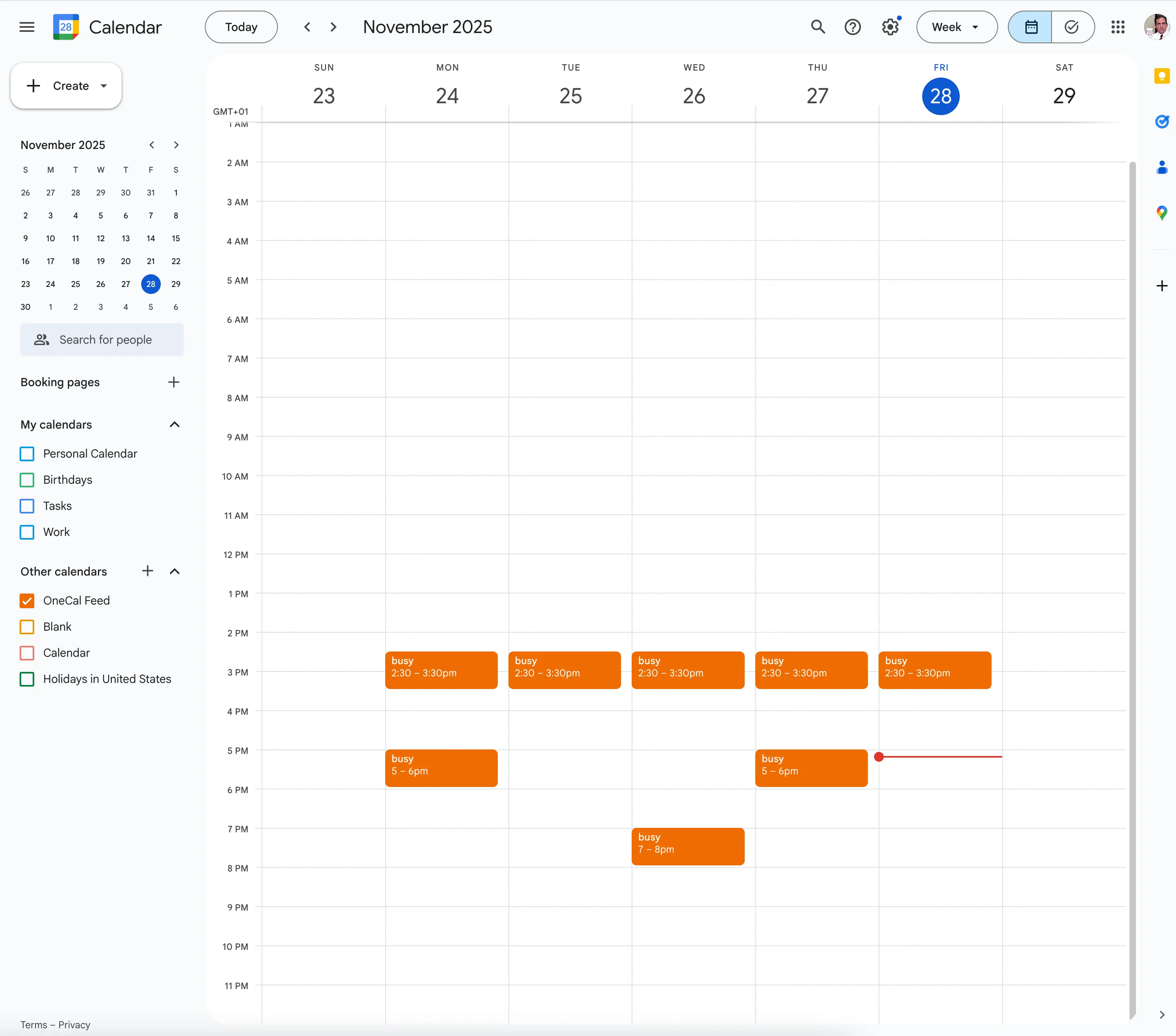
You can use the ICS Feed URL to subscribe to this feed inside your Google, Outlook or Apple Calendar. Below is an example of what the feed looks like when subscribed to from a Google Calendar.
Note
All Public Calendar Feeds are Read-Only. Anyone who you share the Feed URL with, will not be able to make any changes to your calendars. They will only be able to see the calendar feed you have created.
Delete a Public Calendar Feed
To delete an existing calendar feed, from the Unified Calendar View page, click on "Calendar Sharing". You will be presented with a list of all your existing feeds. Click on the 3-dot menu to the right of the feed you want to delete then click on "Delete".
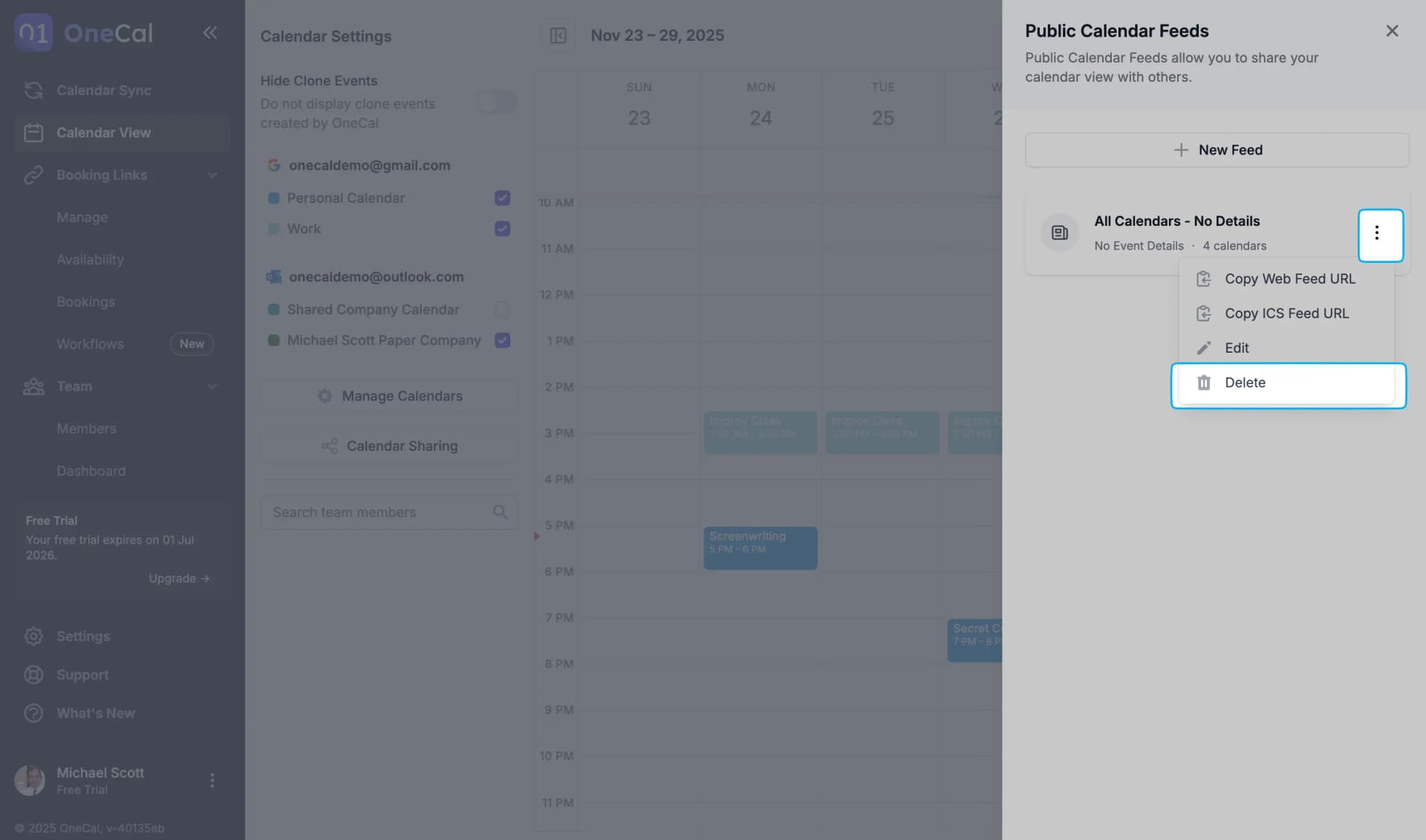
On the confirmation dialog which will appear, select "Delete Feed" to confirm the deletion.
Note
Once a feed is deleted, it will no longer be accessible by people who previously held the Web or ICS Feed URL. Once a feed is deleted, it cannot be restored. A new feed can be created with the same settings but the URLs will be different.