Buchungslinks
Buchungen als CSV exportieren
Sie können Ihre Buchungen aus jedem der Buchungs-Tabs in eine CSV-Datei exportieren: Bevorstehend, Unbestätigt, Vergangen oder Abgesagt. Das ist praktisch für Berichte, das Importieren von Leads in Ihr CRM oder die Archivierung.
Exportieren
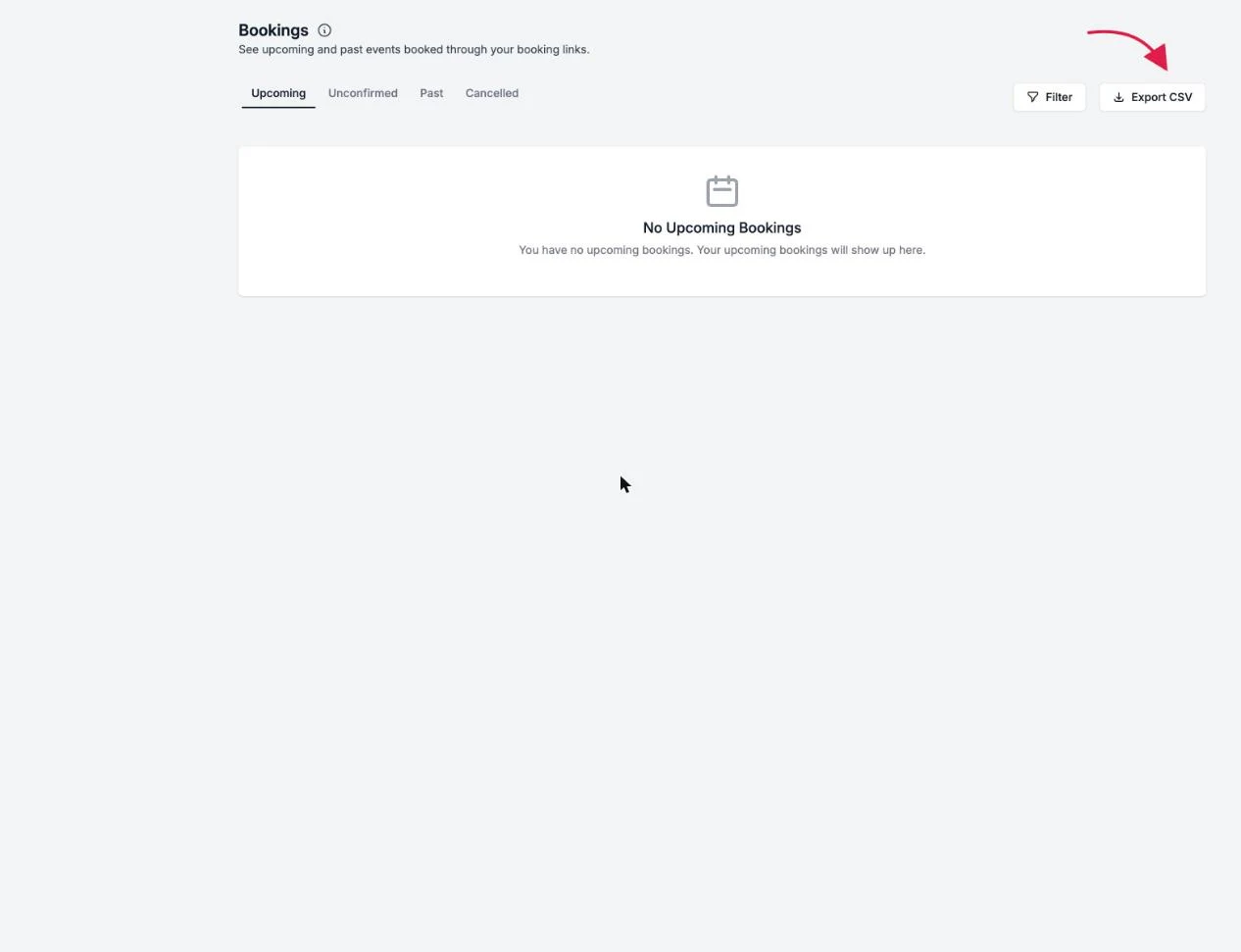
- Gehen Sie zu Buchungen und öffnen Sie den Tab, den Sie exportieren möchten.
- Filtern Sie optional nach Buchungslink, der Export berücksichtigt Ihre aktuellen Filter.
- Klicken Sie auf CSV exportieren. Die Datei wird sofort heruntergeladen.

Was der Export enthält
Jede Zeile ist eine Buchung, mit dem Ereignisnamen und der Beschreibung, dem Namen und der E-Mail der buchenden Person, dem Buchungslink, den Start- und Endzeiten in Ihrer Zeitzone, dem Buchungsstatus sowie allen Gründen für Stornierungen, Ablehnungen oder Terminverschiebungen.
Der Export enthält außerdem eine Spalte pro benutzerdefinierter Frage in Ihren Buchungslinks, sodass alle Antworten Ihrer buchenden Personen, Ihre Leads-Daten, enthalten sind.
Gut zu wissen
Der Export enthält die Buchungen des Tabs, auf dem Sie sich befinden. Um alles zu erhalten, exportieren Sie jeden Tab einzeln.