Date Exceptions
Date exceptions let you override your regular weekly availability for specific dates. Use them for holidays, travel days, or a day where you're only free in the afternoon.
You can manage them on each availability schedule, under Availability → your schedule → Date Exceptions.

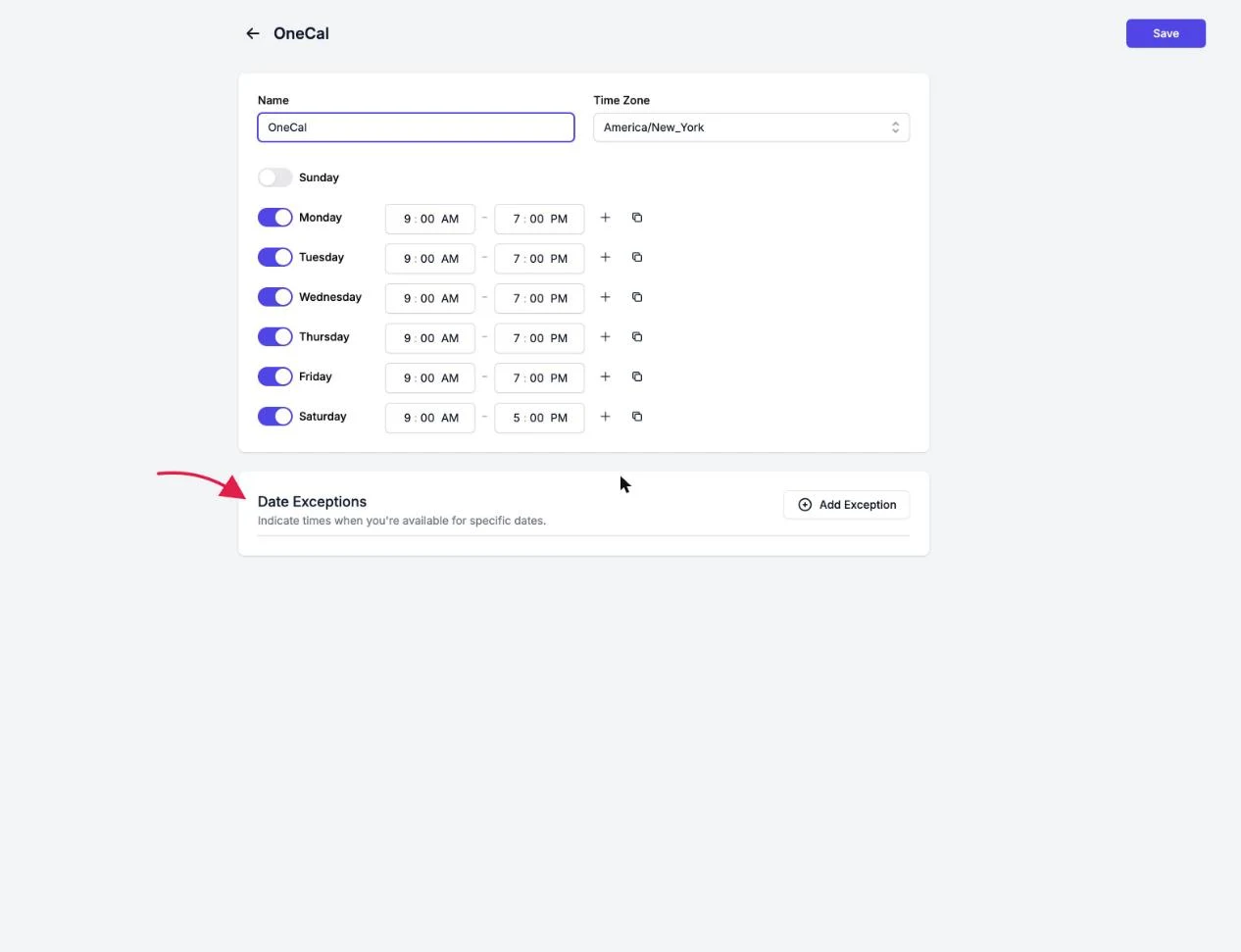
Add a date exception
- Click Add Exception.
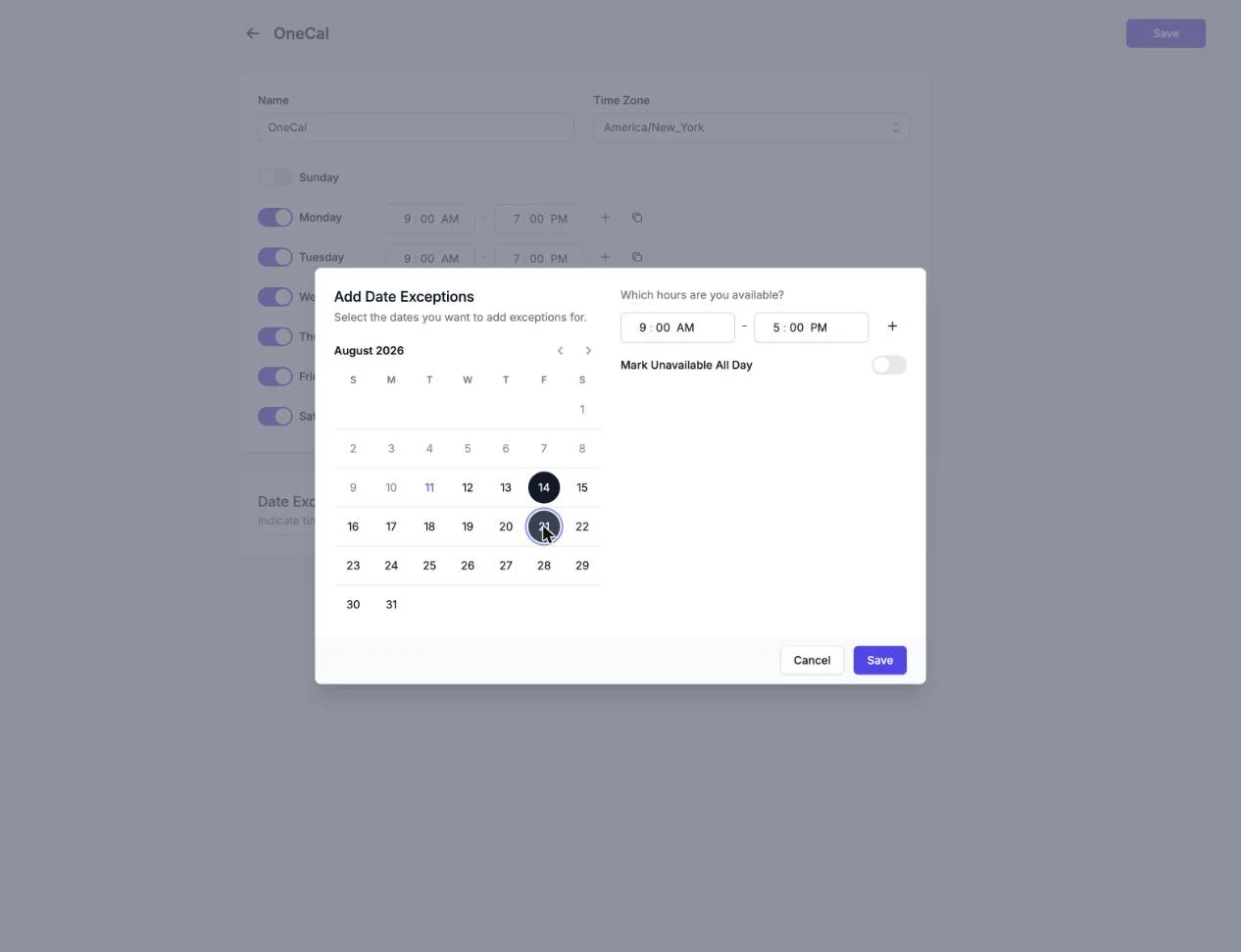
- Select one or more dates in the calendar. Dates that already have exceptions are highlighted.
- Set the hours you are available on those dates, or enable Mark Unavailable All Day to block the whole day.
- Save. The same hours are applied to all the dates you selected.
Edit or remove exceptions
Each upcoming exception is listed with its date and hours. Use the pencil icon to change the hours for that date, or the trash icon to remove the exception and return the date to your regular weekly hours.
Good To Know
Date exceptions belong to the availability schedule, so they apply to every booking link that uses that schedule. Past dates are cleaned up automatically, only today and future dates are listed.