Sync Specific Hours and Days
Only events that overlap the selected hours, on the selected days, are synchronized.

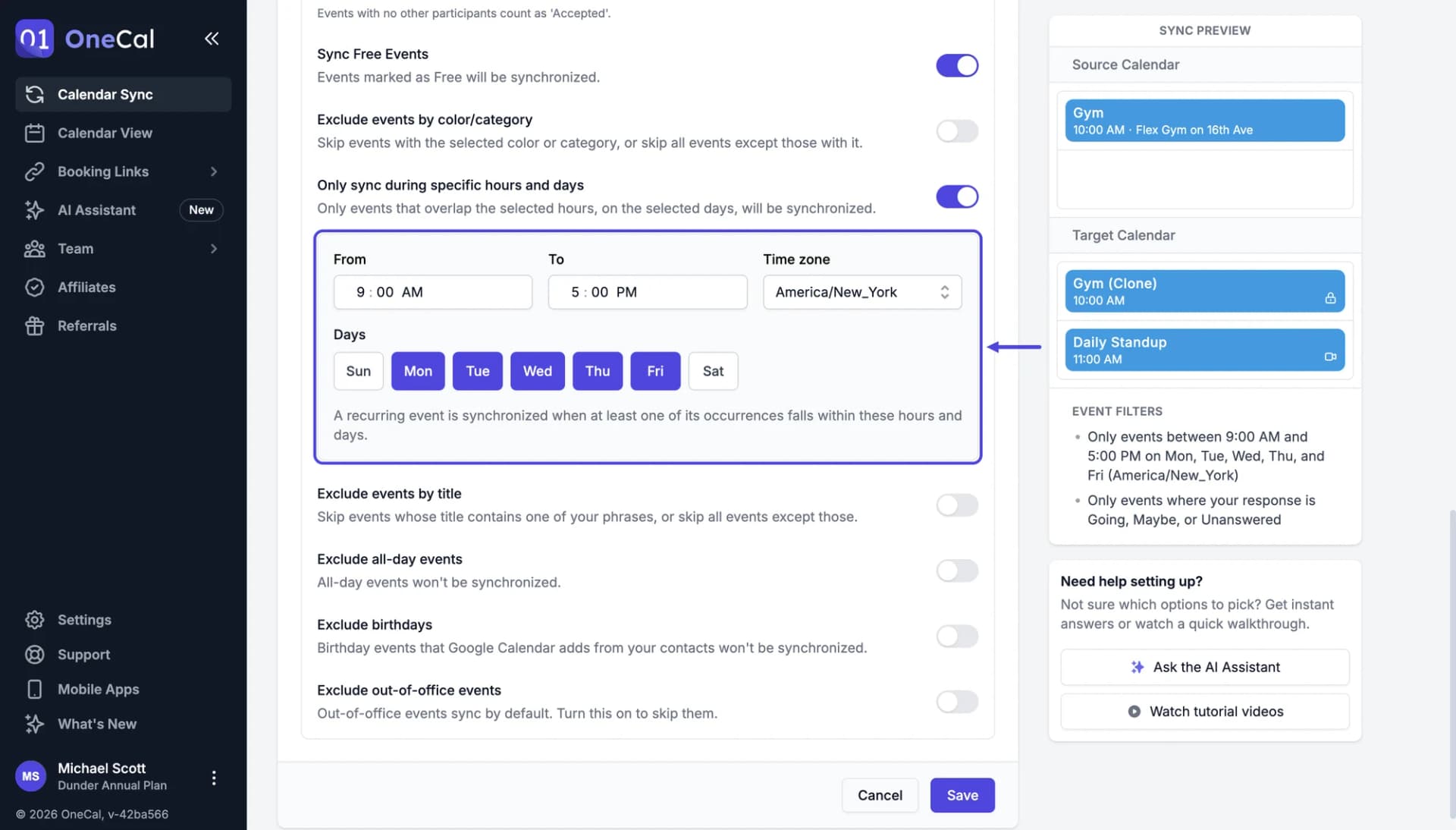
You find this setting in the Event filters section of the sync configuration. Turn on Only sync during specific hours and days, then choose:
- From and To: The hours to sync, for example 9:00 AM to 5:00 PM. The end time must be after the start time.
- Time zone: The time zone the hours are in. It starts with your time zone, and you can change it, for example when you sync a calendar you use in another country.
- Days: The days of the week to sync. Monday to Friday are selected when you turn the setting on. Select at least one day.
For example, with 9:00 AM to 5:00 PM on Monday to Friday, a meeting on Tuesday at 10:00 AM is synchronized, and a dinner on Tuesday at 7:00 PM or a hike on Saturday morning is not.
Which events are included
An event is synchronized when any part of it overlaps the hours on a selected day. A meeting from 4:00 PM to 6:00 PM is synchronized with the hours above, because it starts before 5:00 PM.
All-day events are synchronized when they fall on a selected day. To skip them, also turn on Exclude all-day events.
Recurring events
A recurring event is synchronized when at least one of its occurrences falls within the hours and days. For example, a weekly event on Monday and Saturday is synchronized with Monday to Friday selected, and all its occurrences appear in the target calendar, Saturdays included.
An occurrence you moved or edited on its own is checked separately. If you move one occurrence to a Sunday, that occurrence is removed from the target calendar.
Good To Know
The hours apply to the events of every calendar in the sync, and to events in both directions of a multi-way sync.